

Timeline
The timeline shows projects, epics and their work items as bars on one time axis. You see what runs when, what waits for what, and how the plan has moved since it was first made.
Where to find it
- Projects › Timeline shows every active project you can open, each with its epics and items.
- In a project, open the Timeline tab and choose Roadmap. Schedule next to it is the detailed schedule with the critical path.
Reading the timeline
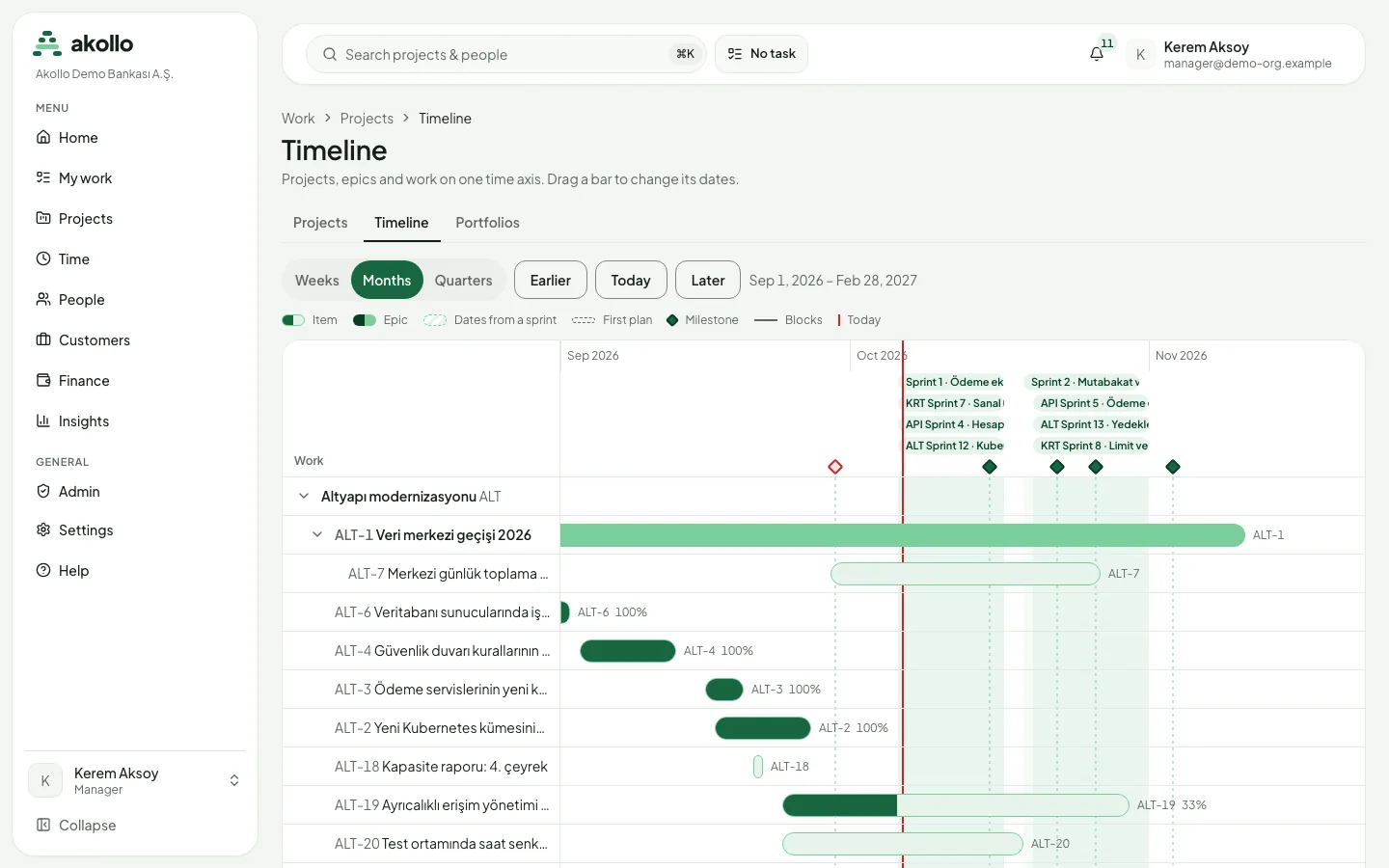
- Each row is a project, an epic or an item. Use the arrow beside a row to show or hide what sits under it.
- A bar runs from the item’s start date to its due date. An item with only one of the two dates gets a one-day bar.
- An item without dates in a sprint takes the sprint’s dates. Its bar is hatched, so you can tell it is an estimate.
- An item with no dates at all shows a No dates label.
- The filled part of a bar is how much is done: the share of finished child items for an epic, otherwise the checklist, otherwise the item’s status.
- An arrow joins an item to the item it blocks.
- Sprints appear as bands along the top. Milestones are diamonds; a missed milestone is shown in red.
- The red line is today.
- A dashed line under a bar is the item’s first plan: the dates it had when it was first given dates. It appears when the dates have changed since.
Zoom and moving through time
Choose Weeks, Months or Quarters. Earlier and Later move the window; Today brings it back. The page address keeps your choice, so you can share it.
Changing dates
Move an item
Drag a bar to move it. Drag either end to change only the start or the due date.
Or use the keyboard
Select a bar, then use the left and right arrows to move it by a day. Hold Shift to move only its end. Up and down go to the next row. Enter opens the item.
Check the result
The new dates are saved at once. If the change is not allowed, the bar goes back to where it was and a short message says why.
You can change dates only on items you are allowed to edit. Items in archived or locked projects, and items someone else changed a moment ago, are not moved. People using a support session can view the timeline but cannot change it.
Schedule and critical path
The Schedule view of a project shows the calculated schedule as a table: item, start, finish, duration, float, whether the item is on the critical path, and its number of conflicts. On a wide screen bars are drawn beside it. You can zoom by Days or Weeks and choose Critical path only. The schedule counts working days, Monday to Friday, and is recalculated automatically every few minutes.
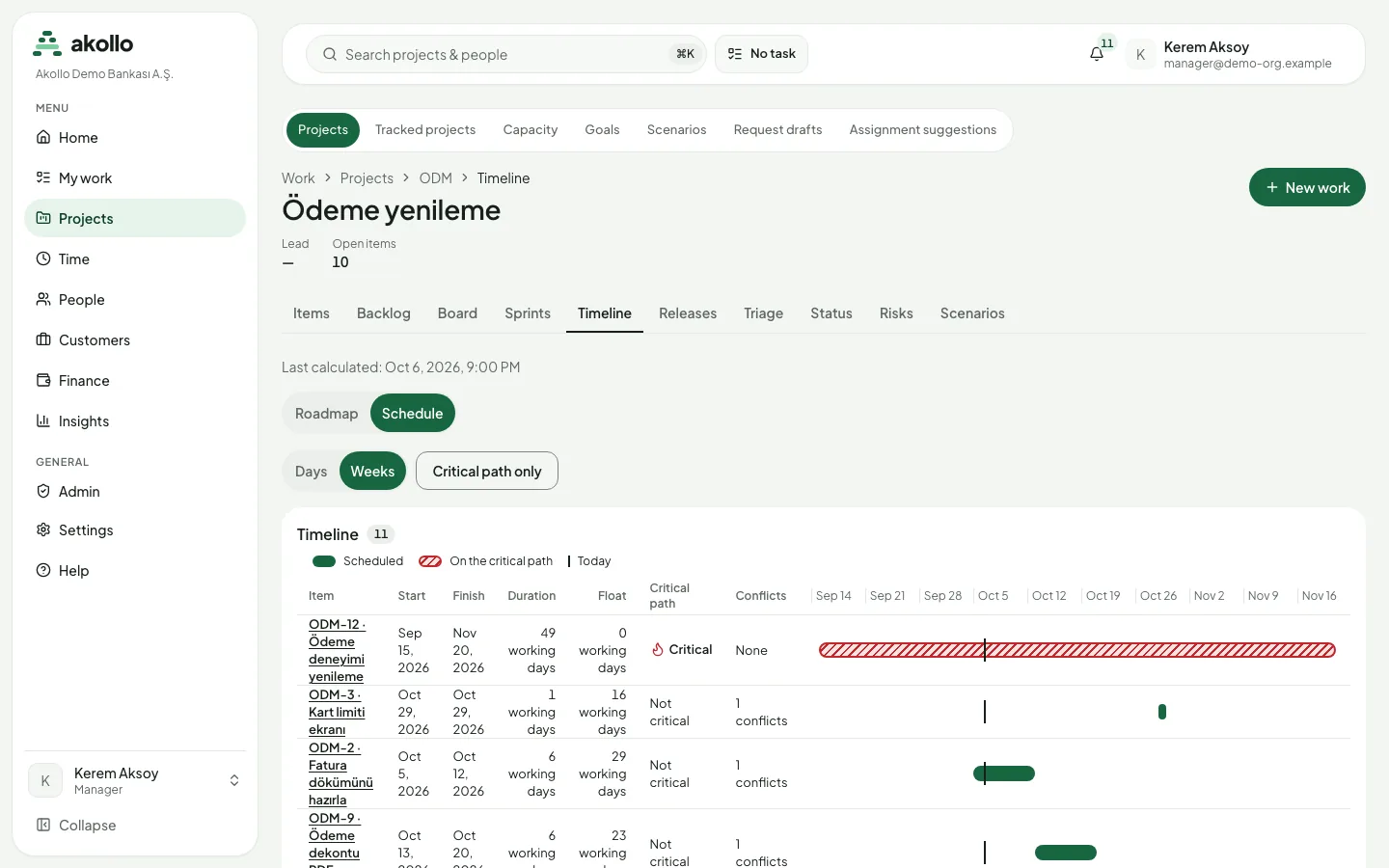
Float is how many working days an item can slip before it delays the project finish. Items with no float form the critical path: if one of them slips, the project finish moves with it. That is why the critical path is the first place to look when a deadline is at risk.
Dependencies link two items. Each has a lead or lag in working days, and can link items in different projects:
| Dependency | Meaning |
|---|---|
| Finish-to-start | The second item starts after the first finishes |
| Start-to-start | The second item starts after the first starts |
| Finish-to-finish | The second item finishes after the first finishes |
| Start-to-finish | The second item finishes after the first starts |
A dependency that would create a loop is refused. The conflicts list names items that start before their predecessor, finish after their milestone or release, fall outside their sprint, or break their date constraint.
People who can edit the schedule change an item’s scheduling mode, duration, date constraint, predecessors and successors from the timeline. Every change is previewed first:
For the full schedule rules, see Planning and delivery.
Limits
One view shows up to two years and up to 2,000 items. If there are more, open a single project or choose a shorter range.
FAQ
The item has no dates of its own but sits in a sprint, so it takes the sprint’s dates. The hatching shows that the dates are an estimate.
It is the item’s first plan: the dates it had when it was first given dates. It appears only when the dates have changed since.
The change was not allowed, for example because you cannot edit the item, the project is archived or locked, or someone else changed the item a moment ago. A short message says why.
The items without float. If one of them slips, the project finish moves too. Use Critical path only in the Schedule view to see just those items.
One view shows up to two years and 2,000 items. Open a single project or choose a shorter range.
Planning and delivery
Backlogs, boards, sprints, releases, milestones, scenarios, goals, status updates and risks help a team order its work and follow delivery.
Time and tasks
How Akollo credits measured time to tasks: choose a task, review your day and timesheet, resolve exceptions, propose corrections and approve work.