

Home
Home is the first page you see after you sign in. It brings together your own time and work, and, if you approve time or work, the queue waiting for you. Every card is built from figures you are already allowed to see; a card whose page you cannot open simply does not appear. Home is the first item of the Menu group in the sidebar.
Who uses it
| Role | What they do on Home |
|---|---|
| Employee | Checks the time counted today, the tasks in progress and the next task on their list, then jumps to My day or the Timesheet. |
| Manager or approver | Sees how much time and how many work requests wait for a decision, and opens each one with Review. |
| Project lead | Sees the projects they can open, with the number of open tasks, and creates a new one with New. |
| Administrator | Uses Home like any member. Organisation figures are on Admin → Organisation admin (see Admin). |
Main screens
The dashboard has a header, a row of counters and a set of cards below them.
| Part | What it shows |
|---|---|
| Header | Today’s date, and the buttons New time entry and Timesheet. |
| Time counted today | The time counted for you today, with a small trend and a comparison with the same weekday last week. |
| Tasks in progress | Your tasks in progress, and how many you completed this week. |
| My tasks awaiting approval | Your submitted tasks that wait for a reviewer. People who approve time see Pending time approvals here instead: the time waiting for their decision. |
| Requests awaiting my approval | Work requests that wait for your decision. |
| My week | Counted time for each day of the week as bars, the week total, Show table for the same figures as a table, and Open timesheet. |
| Up next | For an employee: the next task on your list with its project and status, and Open my day. For an approver: Time approvals and Work approvals, each with a Review link per item and View all. |
| Projects | The projects you can open, with their open tasks. |
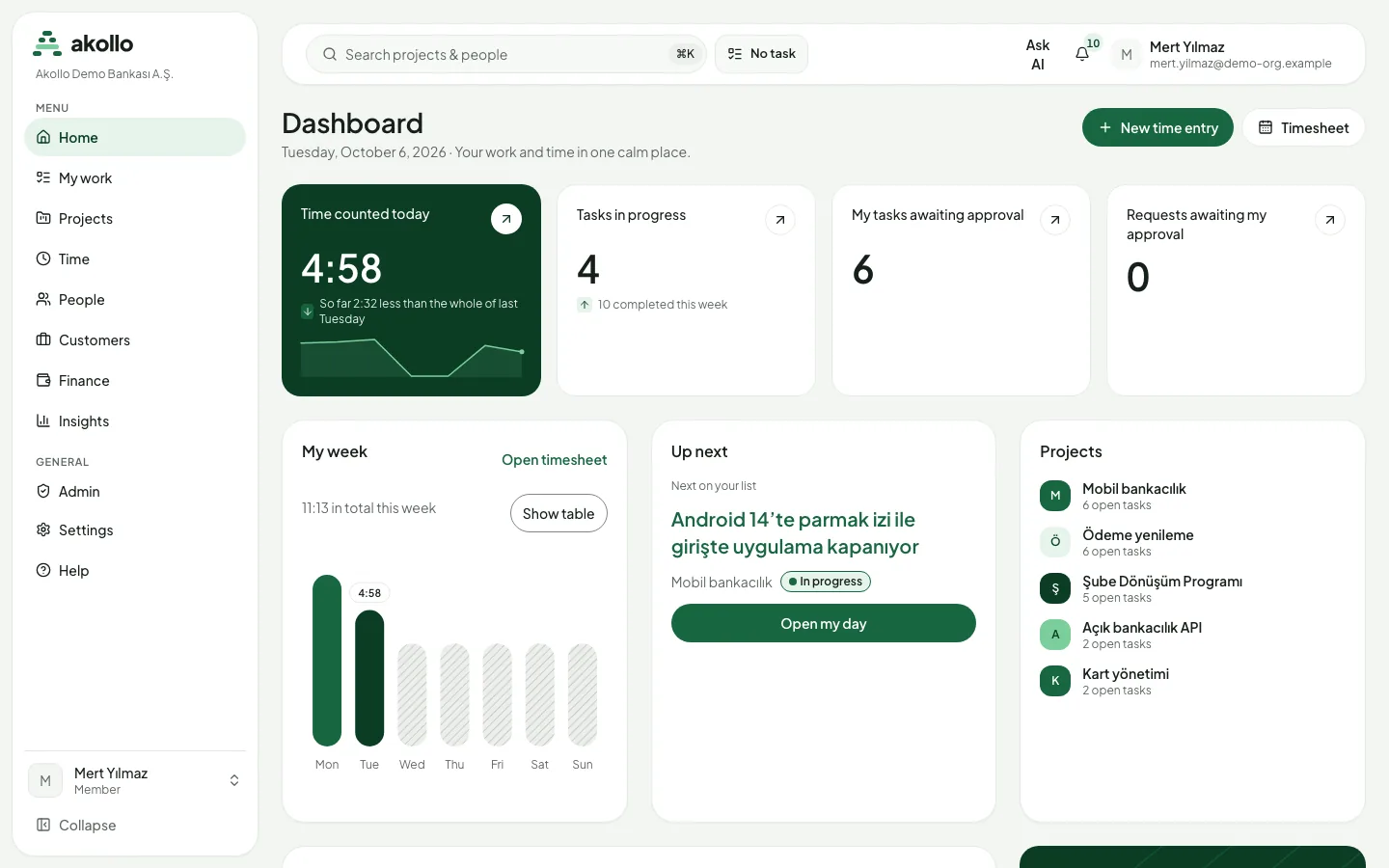
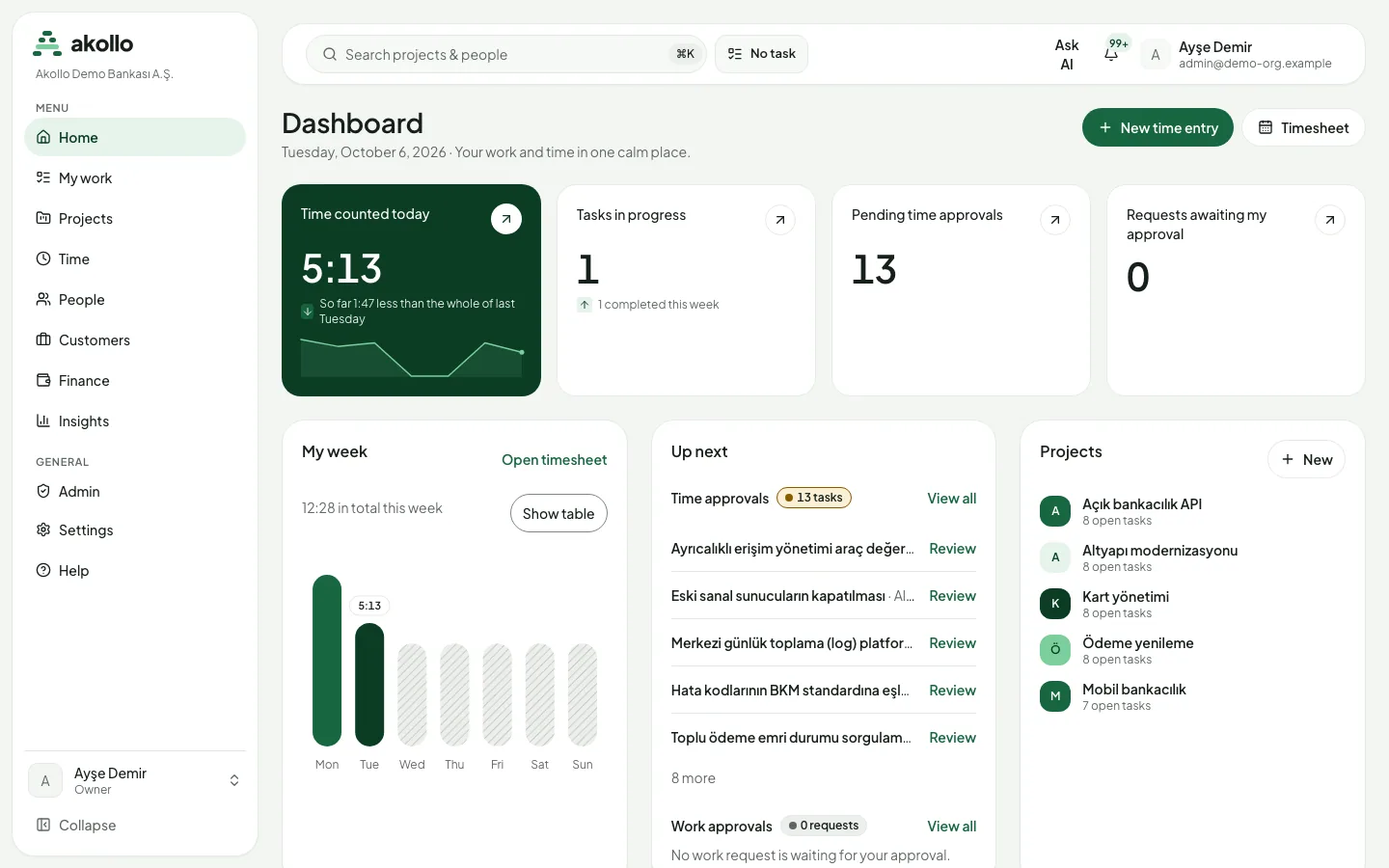
The bar at the top of every page belongs to Home as much as to any other page: the search for projects and people (⌘K / Ctrl K), the task currently set on your device (No task when none is set), Ask AI and the notification bell with the number of unread notifications.
Note
“Time counted today” is measured time credited to your tasks. It is not the same as payable time. See Time and tasks for the difference.
Key tasks
Start your day
Check the task on your device
Look at the task chip in the top bar. If it says No task, select it and choose the task you are working on; you land on My tasks.
Look at Up next
Up next shows the next task on your list. Select Open my day to see today’s totals and your devices.
Glance at your week
My week shows the time counted for each day. Select Open timesheet to see the whole week in detail.
Add time that was not recorded
Start a new entry
Select New time entry in the header.
Fill in the entry and send it
Complete the form and send it. A manual entry is counted as payable time only after it is approved; until then it appears as an entry awaiting approval on My day.
Work through your approvals
See what is waiting
The Pending time approvals counter and Requests awaiting my approval show how much waits for you.
Open an item
Under Up next, select Review next to a time approval, or View all to open the whole queue.
Decide
Approve or reject with a reason on the approval page. See Time and tasks and Tasks and projects.
Read the figures as a table
Charts such as My week have a Show table button. It shows the same numbers as a table, which is easier with a screen reader or when you want exact values.
Permissions
- Everyone sees their own figures: their time, their tasks and their devices.
- Approval cards appear only for people who can approve time or work. They count the items in your scope (for example your team or unit), never the whole organisation unless your role covers it.
- A card or link appears only when you may open the page it leads to. If a figure cannot be read for you, the card is left out instead of showing an error.
- A suspended account and a support session see a short notice instead of the figures. A support session can never change anything.
What the AI can do here
Select Ask AI in the top bar, or press ⌘J / Ctrl+J, to open the assistant next to the dashboard. From Home it is useful for questions about your own day:
- “What should I do today?” lists your open tasks, overdue and due-today ones first.
- “Did I miss time anywhere?” finds recent days with less logged time than your working hours and suggests tasks; adding the time is still a time entry you confirm.
- “Write my status update” drafts a short summary of your week that you copy where you need it.
The assistant only reads what you can already see and never changes anything without your confirmation. See AI assistant and AI and you.
FAQ
Cards depend on your permissions. Someone who approves time sees Pending time approvals and the approval lists under Up next; an employee sees their own submitted tasks and the next task on their list instead.
It counts only measured time credited to a task, and each moment once, even if two devices recorded it. Entries you added by hand count as payable time only after approval. Open My day to see counted, worked and payable time side by side.
No. The desktop app still records, but the time stays unassigned until you choose a task. Choose one on My tasks; it applies from the device’s next measurement.
A card is shown only when you may open its page and its figures can be read for you. If your role or scope changed, or a module was turned off, the card is left out. Ask your administrator if you think something is missing.
No. The cards follow your role and permissions, not a personal layout.