

Payroll
Akollo does not calculate pay and does not produce payslips. It prepares the approved figures that payroll needs, such as payable time, approved timesheets, approved leave and employment dates, and you hand them over to your payroll provider or HR system, which calculates pay. Full payroll calculation and payslips are a separate scope that needs explicit agreement and country-specific validation.
There is no Payroll item in the sidebar. The figures come from Time (Timesheet, My exceptions, Approvals), People (leave and employment records), Time reports and Exports, and the reporting datasets that a payroll tool can read over the API.
In short
In Akollo, people complete and approve the hours and leave. Your payroll provider turns them into pay.
Who uses it
| Role | What they do for payroll |
|---|---|
| Employee | Checks their timesheet, resolves exceptions that block submission and submits the period. Requests leave in time. |
| Manager | Approves or rejects submitted timesheets, time entries, overtime and leave in their scope. |
| HR or payroll staff | Checks that every period and leave request is decided, exports the approved figures and hands them to the payroll provider. |
| Administrator | Grants the export permission and, for an automatic feed, creates an API key that can read the reporting datasets. |
What Akollo prepares
| Figure | Where you see it | What it means |
|---|---|---|
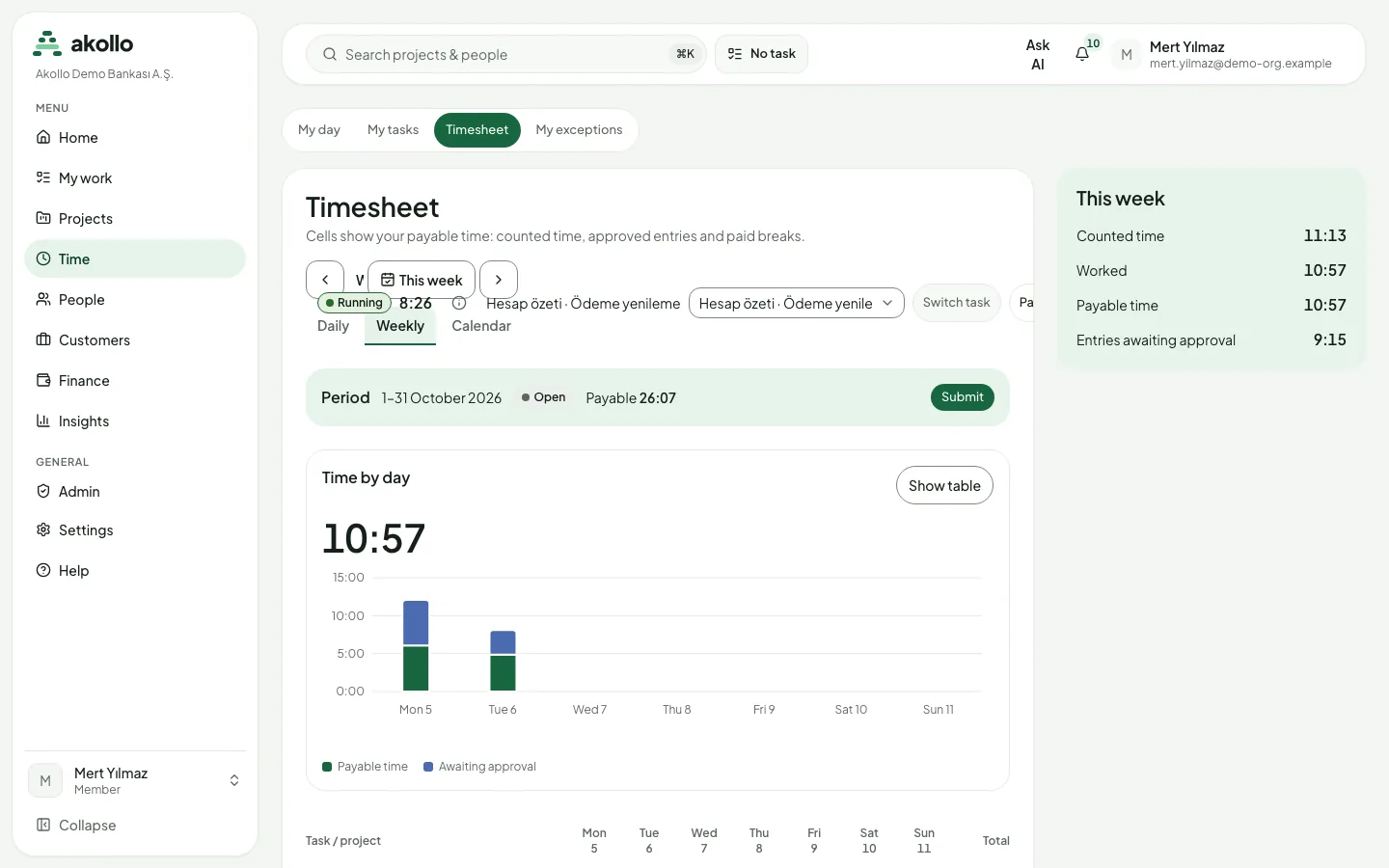
| Payable time | My day, Timesheet | Credited time plus approved time entries and paid breaks. Entries still waiting for approval are not included. |
| Timesheet period | Timesheet (period bar), Approvals → Timesheets | The employee submits the period; a manager approves or rejects it with a note. |
| Time entries and overtime | Approvals tabs | Each entry or overtime item is approved or rejected with a reason. Only approved entries count as payable. |
| Corrections | Time corrections | A correction counts only after a second person approves it. The measured record is never edited. |
| Leave | My time off, the person's Time off tab | Approved days per leave type, counted in half-day steps without weekends and public holidays, with the balance and a ledger of every grant, adjustment and expiry. |
| Employment dates | The person's Job & employment tab | Hire, seniority and termination dates, with earlier versions and their validity dates. |
| Approved hours dataset | The public API, with a key from Integrations → API keys | Approved hours per person and day, for a payroll or BI tool to read. |
What Akollo does not do
- It does not calculate gross or net pay, taxes or social security contributions, and does not produce payslips.
- It does not send files to a payroll provider by itself. You download an export, or the provider's tool reads the datasets.
- Pages for compensation, payroll inputs, payroll exceptions and a payroll export file are not available yet.
- Employee cost rates in Finance are for project cost and profitability, not for pay. See Finance.
Main screens
| Screen | Use it to |
|---|---|
| Timesheet | See payable time per day, the open period and its state, and Submit the period. |
| My exceptions | Fix missing time, overlapping entries or an unsubmitted period. An exception marked Blocks submission must be dealt with first. |
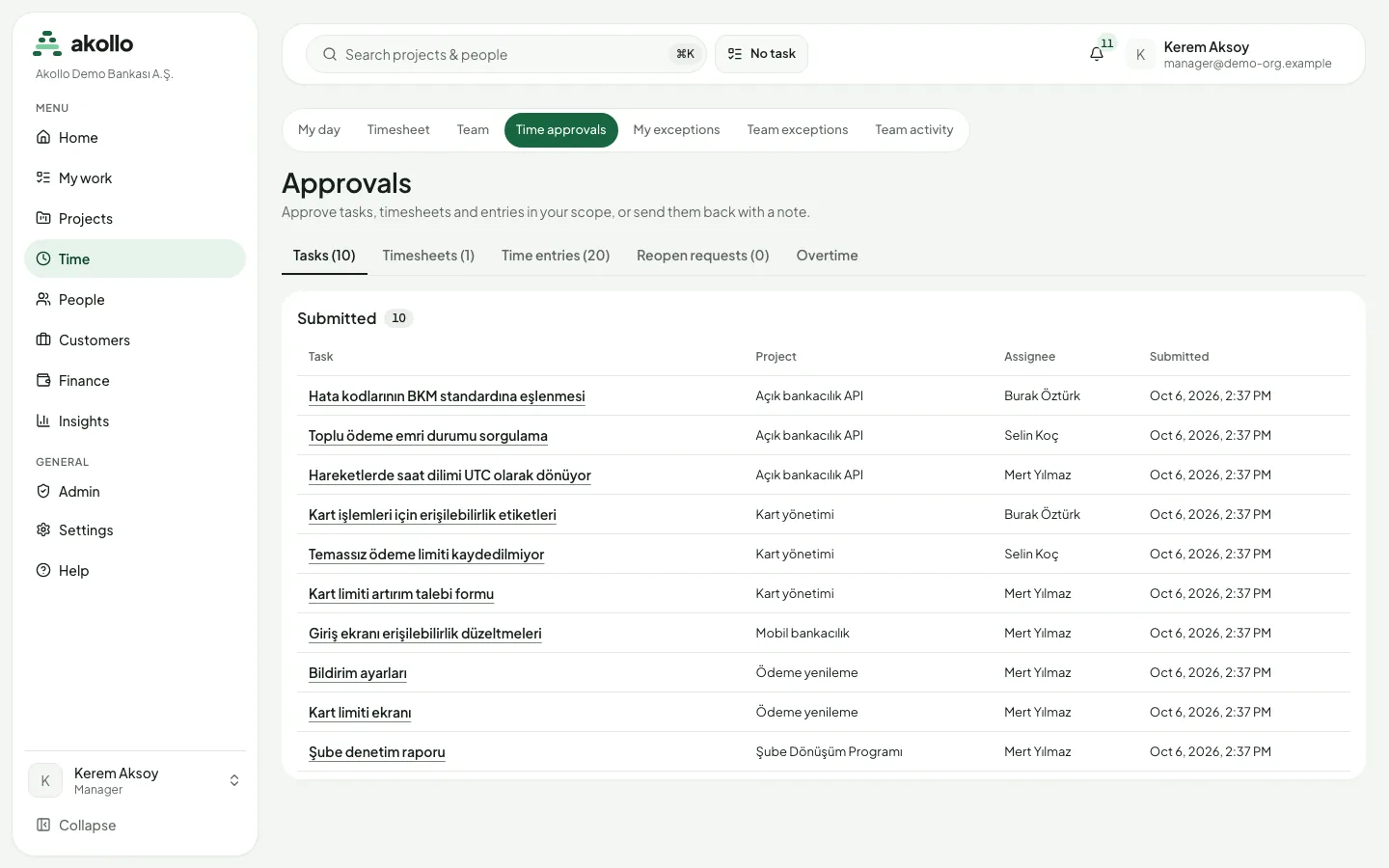
| Approvals | Decide timesheets, time entries, reopen requests and overtime in your scope. |
| Leave approvals | Decide leave requests and cancellations. |
| Time reports and Exports | Build a report for the pay period and download it as CSV or Excel. |
| Integrations → API keys | Create a read-only key so a payroll or BI tool can read approved hours from the reporting datasets. |
Key tasks
Submit your period (employee)
Check your days
Open Time → Timesheet and compare Payable time for each day with the time you worked. Entries awaiting approval are not payable yet.
Clear blocking exceptions
Open My exceptions. For each exception marked Blocks submission, choose Resolve with an entry, Request a correction or Explain.
Submit
Back on Timesheet, choose Submit in the period bar. If the period is rejected, read your manager's note, fix the period and submit it again.
Approve the period (manager)
Open the queue
Choose Time → Approvals and open the Timesheets tab.
Decide time entries and overtime
Check the time entries and overtime waiting there too. Approve or reject each item with a reason. Only approved entries become payable.
Decide leave
Open Leave approvals and decide waiting requests and cancellations, so the leave for the period is final.
Prepare the hand-off file (HR or payroll)
Build the report
Open Time reports, set From and Until to the pay period, group by employee and select Apply.
Check freshness
Look at the Data freshness panel. If some days are not summarised yet, choose Prepare summaries now.
Export
Choose Create export and pick CSV or Excel (XLSX). Download the file from Exports when it is ready, before it expires, and pass it to your payroll provider together with the approved leave.
Feed payroll automatically (administrator)
Create an API key
Go to Integrations → API keys and create a key for the payroll or BI tool. Under Scopes, set reports.dataset to Read and leave every other scope at None. Copy the key when it is shown; it is shown once.
Grant the dataset
Ask your reporting administrator to give the key's service account the approved hours dataset.
Read the rows
The tool reads approved hours per person and day, page by page. It never changes anything in Akollo. See BI datasets.
Permissions
- Employees see and submit only their own time and leave.
- Managers decide timesheets, entries, overtime and leave only for people in their scope, never their own.
- Exports need the export permission. Your scope is checked again at every download, not only when the export is created.
- Pay data (compensation, payroll and employee cost rates) needs its own permission. Owners and administrators do not get it automatically.
- Corrections and dismissing a blocking exception always need a second person.
What the AI can do here
- Nothing in the numbers. Payable time, leave days, balances and any pay figure are calculated by fixed rules. The AI never sets, changes or approves them, and pay is never used by the AI.
- Help you find gaps before you submit. Ask the assistant "Did I miss time anywhere?". It lists recent days where you logged at least 15 minutes less than your working hours (leave days never count) and suggests open tasks. Adding the time is a time entry you confirm. See AI assistant.
FAQ
No. Akollo prepares approved time and leave. Your payroll provider calculates pay. Full payroll calculation is a separate scope that needs explicit agreement and country-specific validation.
No. Payable time is credited time plus approved time entries and paid breaks. Entries still waiting for approval are left out until they are approved.
You see the manager's note. Fix the period and submit it again.
Not silently. A correction needs a reason and a second person's approval, and the measured record stays as it was. Reports show the corrected and original figures side by side.
Time report exports are CSV or Excel (XLSX). A payroll or BI tool can also read approved hours per person and day over the API.
Cost rates in Finance are hourly costs for project cost and profitability. They are not a payroll record.
Related
- Time and tasks: payable time, timesheets, exceptions, corrections and approvals
- People and HR: leave, balances and employment records
- Reports and exports: time reports and CSV or Excel exports
- BI datasets: approved hours over the API
- Finance: cost rates, budgets and periods