

Automations and workflows
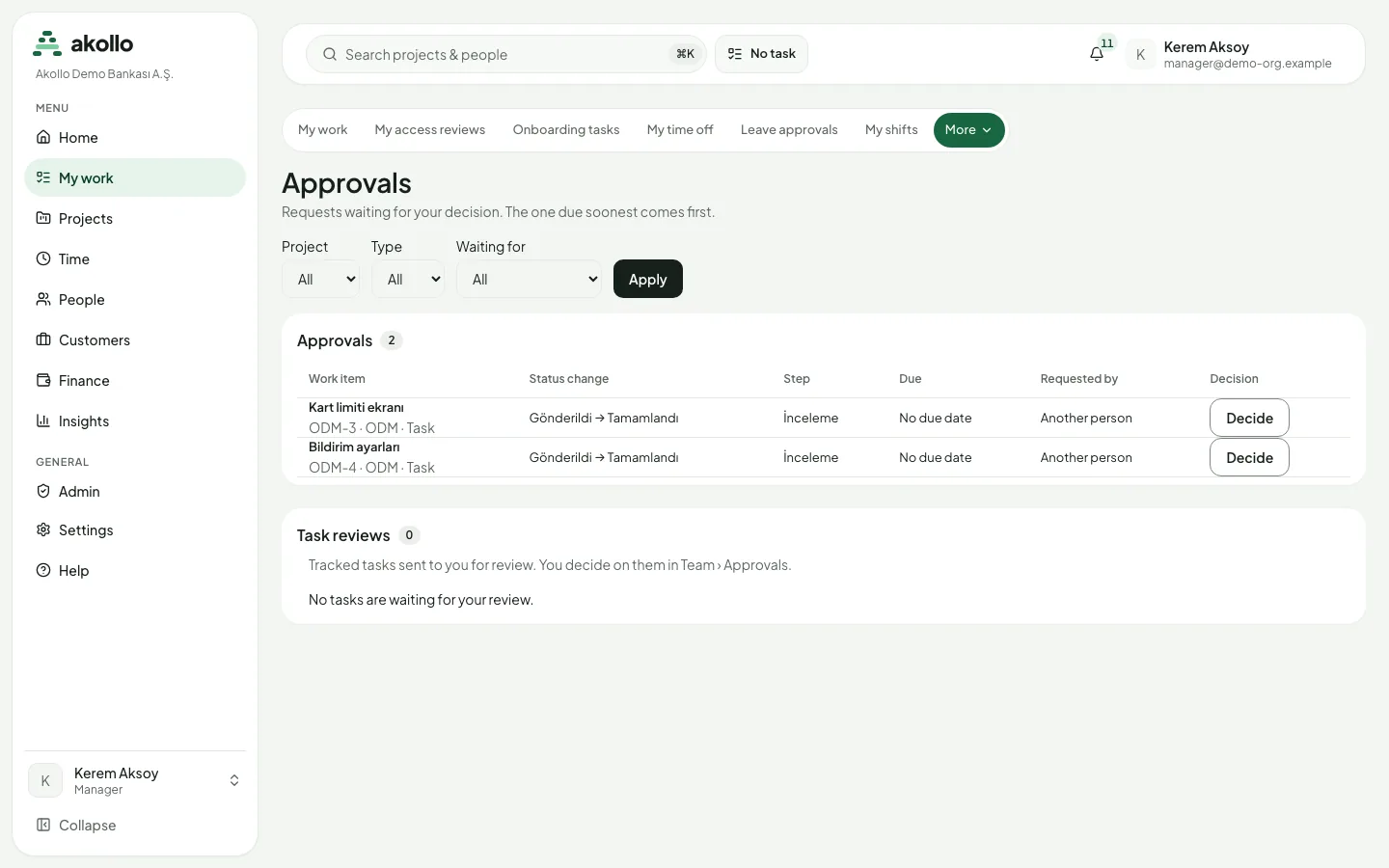
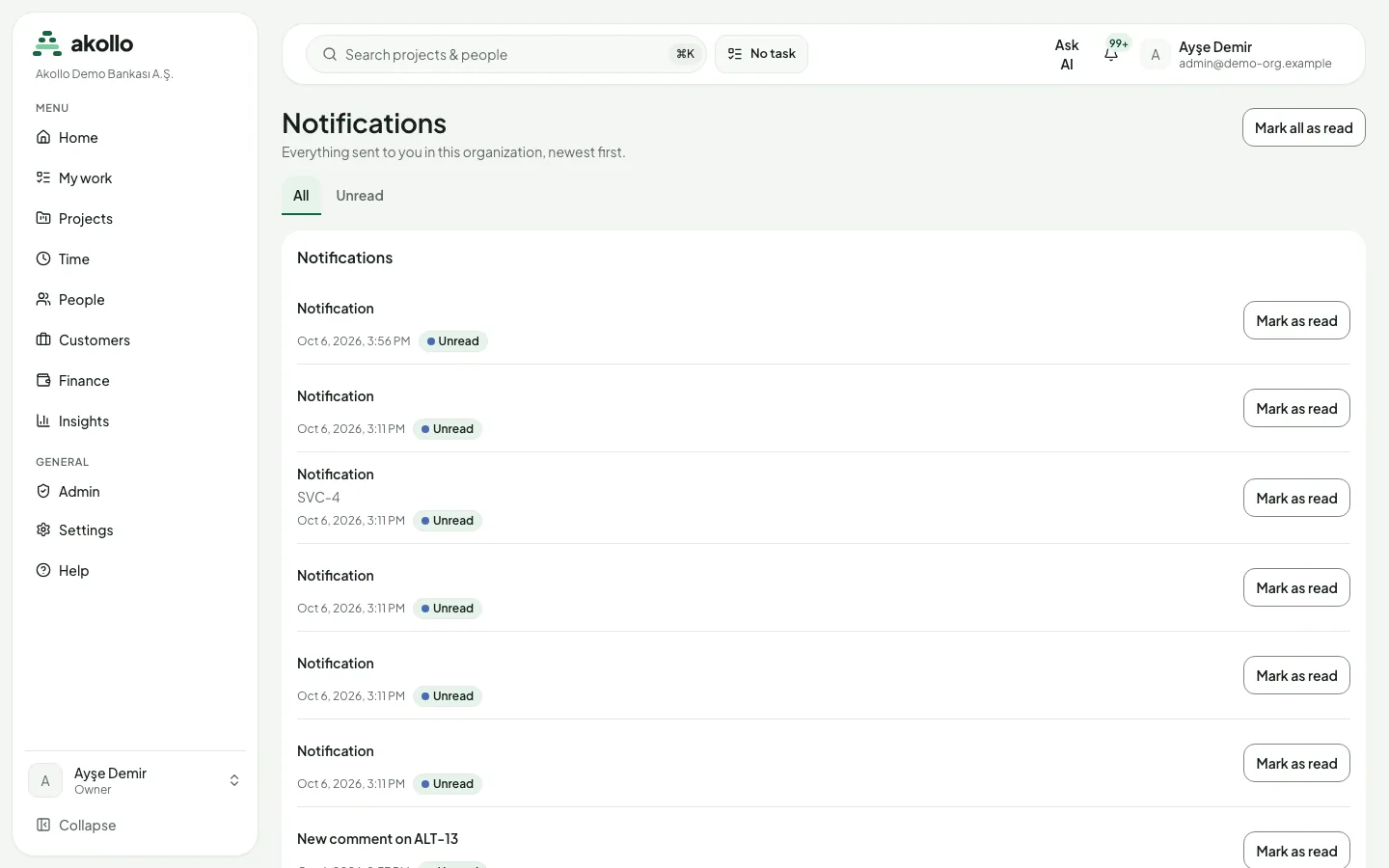
This module covers the rules that make work move the same way every time. Workflows decide which statuses a work item can have, which moves are allowed and what evidence a move needs. Approvals hold a change until the right people agree, and notifications tell people when something needs them. Workflows are under Projects → Workflows, decisions under My work → Approvals, and notifications behind the bell in the top bar.
Planned
Who uses it
| Role | What they do here |
|---|---|
| Employee | Moves work items through the allowed statuses, requests a change that needs approval, reads notifications |
| Approver or manager | Decides on requests under My work → Approvals, approve, reject or send back |
| Workflow owner | Edits statuses, transitions and required evidence in a draft, validates and publishes it |
| Second publisher | Publishes changes to a regulated workflow that someone else drafted |
| Administrator | Keeps an eye on the audit log and the usage meters, including automation runs |
Main screens
| Screen | What it shows |
|---|---|
| Projects → Workflows | Every workflow with its published version, whether a draft is open and whether it is regulated; a Statuses tab with the organisation's statuses |
| Workflow editor | The draft: statuses, transitions, conditions and required evidence, with Validate and Publish |
| Versions | Every published version with its changes, its publisher and, where needed, its second approver |
| Status control on a work item | Only the moves the workflow allows; moves marked Needs approval |
| My work → Approvals | Requests waiting for your decision, the one due soonest first |
| Notifications | Everything sent to you in the organisation, newest first, with All and Unread |
| Settings → Notifications | Your channels and the language of notification e-mails |
A transition can require evidence before the move is allowed: required fields, done checklists, met acceptance criteria, a number of attachments, a comment, no open blockers, done child items, a linked item in a given category, or a minimum of tracked time. For the full list, see Workflows.
Key tasks
Change a workflow
Open the draft
Choose Projects → Workflows and open the workflow. Editing needs a larger screen.
Make your changes
Add or remove statuses, set the initial status, add transitions with an optional condition, and attach required evidence. Save the draft. If someone else saved it in the meantime, you are asked to reload.
Validate and publish
Select Validate, then Publish and confirm the summary of the changes. On a regulated workflow, a second person publishes; the person who drafted the change cannot.
Undo a published change
Open Versions
Open the workflow and go to Versions.
Restore the earlier version
Choose Restore as new draft on the version you want back. It is published at once, or on a regulated workflow it becomes a draft for a second person to publish.
Request a change that needs approval
Pick the status
On the item page, open the status control and choose the status marked Needs approval.
Wait for the decision
The item shows "Waiting for approval". Other status changes are disabled meanwhile.
Resubmit if it comes back
If the item shows "Returned for correction", fix what is needed and select Resubmit. The approval starts again from the first step.
Decide on a request
Open Approvals
Choose My work → Approvals. Filter by project, type or waiting time if the list is long. An "Overdue" label marks requests past their due date.
Decide
Select Decide on the row, then choose Approve, Reject or Send back. Rejecting and sending back need a comment. If someone else acted first, you are asked to refresh.
Choose how notifications reach you
Open the notification settings
Go to Settings → Notifications. The settings apply to the active organisation and only to you.
Turn channels on or off
Use In-app notifications and Email notifications. Both are on until you turn them off.
Pick the e-mail language
Choose Turkish or English under Notification language. Until you pick one, the organisation's default language is used.
Akollo sends reminders on its own, for example a reminder to owners and contributors the day before an item is due and when it becomes overdue, access review reminders 7, 3 and 1 days before the due date, a reminder to a project lead when a project has had no status update for 14 days, and a notice to owners and admins at 80 % and 100 % of a usage budget.
Permissions
- Anyone who can work on an item sees only the moves its workflow allows. Required evidence is checked for everyone.
- Editing and publishing workflows is for the people who manage them. On a regulated workflow, the person who drafted a change can never publish it.
- Approvers decide on the requests assigned to them. Nobody can decide on their own request when the policy separates duties.
- Notification settings are personal: each person chooses their own channels.
- A support session can read what it is allowed to see and cannot change, approve or publish anything.
- Every status change is kept on the item's History tab, and each item's transition history is checked daily for tampering. Findings go to the audit log for administrators.
What the AI can do here
- Writing help in comment and reply boxes can shorten, expand or change the tone of your text. See AI assistant.
- On the planned automations page you will be able to describe a flow in your own words. You see a suggestion and what it would change; saving keeps a draft, and nothing starts until you publish it yourself. See Models that stay in the institution.
- In planned automation flows, agents that draft tasks or notifications stay inside an allowlist, a step that changes something important waits for a person who sees a preview, and a manager approves an assignment before it is carried out.
AI never approves a request or publishes a workflow for you.
FAQ
Not yet. Visual flows with triggers, conditions and actions are planned. Today, workflows, approvals and notifications cover rules for how work moves and who must agree.
Either the workflow has no transition from the current status to that one, or the transition requires evidence that is missing, such as a comment, a done checklist or no open blockers. A status marked Needs approval sends a request instead of changing at once.
No. On a regulated workflow a second person must publish; the person who drafted the change cannot.
The approval starts again from the first step.
Yes. In Settings → Notifications, turn off In-app notifications and keep Email notifications on. The choice covers all notification types together.
A status that is still in use cannot be archived. Once it is no longer in use you can archive it, and restore it later if needed.
Related
Integrations
Connect Akollo to the systems your organisation already uses, give other programs API access, and send or receive events and reporting data.
AI
Start here for AI in Akollo: the assistant, plain-language search, planning help, skill signals, writing help, connections, local models and privacy.