

Tracking and activity
Tracking covers everything the desktop app collects on an employee’s computer and the screens built on it: the recording policy, screenshots and their analyses, time reports and exports, retention and deletion, device health and team activity. Two rules hold everywhere: recorded evidence is never edited (corrections, feedback and exports sit on top of it), and no screen judges a person. Administrators set tracking up under Admin → Tracking settings; employees see what is collected about them on My data. Other screens appear only when your role allows them, so you may see fewer than described here.
Who uses it
| Role | What they do here |
|---|---|
| Employee | Acknowledges the recording notice, sees on My data what is collected, who opened their evidence and how long it is kept, and reports on their own time. |
| Manager | Opens the days of employees in scope, reads analyses if the role allows, reports on the team, exports, and reads Team activity. |
| Owner or administrator | Publishes the recording policy, screenshot settings and retention rules, demands erasure, and requests or retries analyses. |
| Operator of the recording service | Watches Device health, revokes devices and redrives failed background jobs, each with a reason. |
| Privacy or compliance officer | Checks that retention matches the recording notice and that every access to evidence was recorded. |
Main screens
| Screen | What it shows |
|---|---|
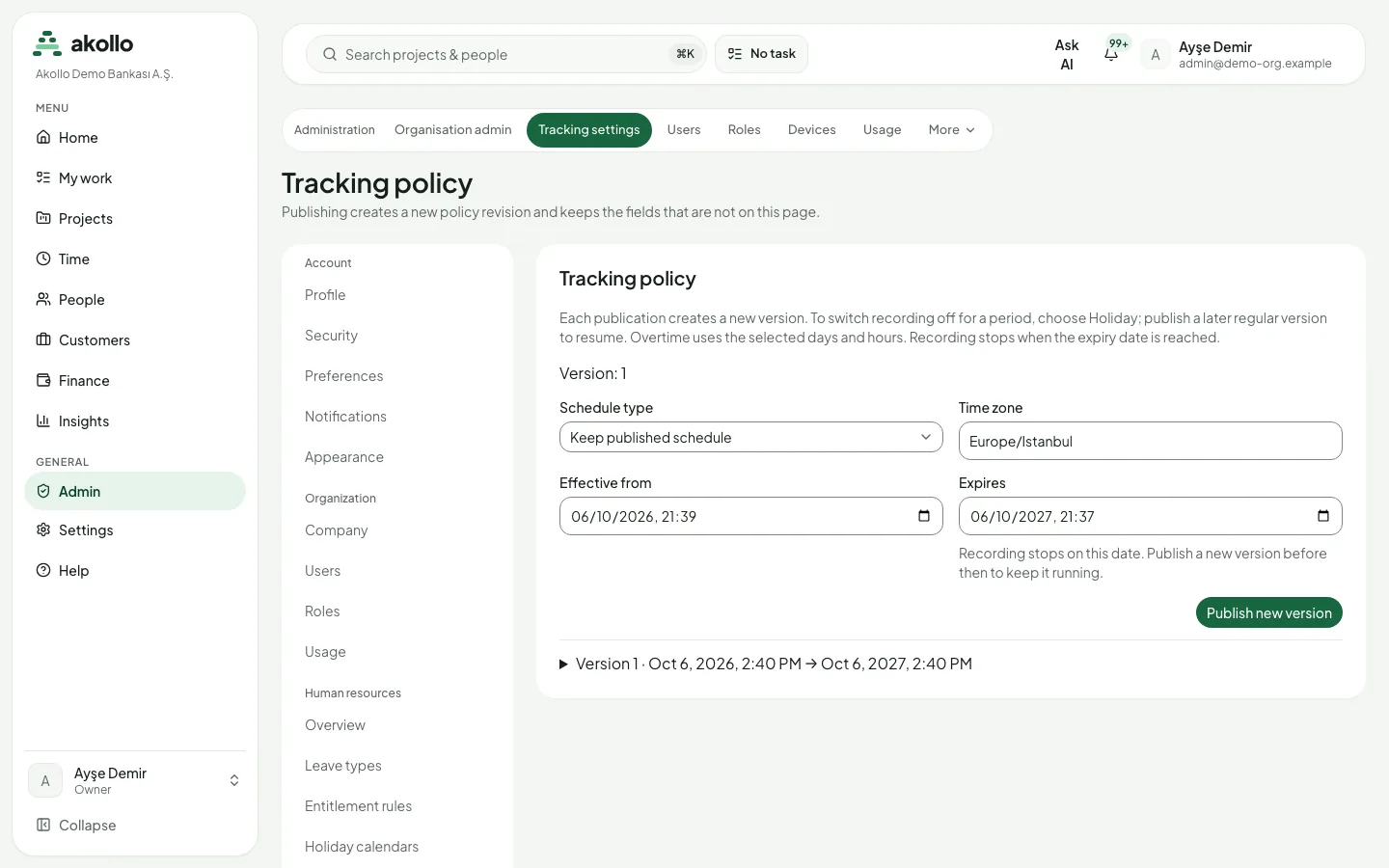
| Tracking policy | The schedule type, time zone, start and expiry of the recording policy, with its revision history. |
| Idle, categories and screenshots | The idle threshold and pause rule, the rules that classify applications and sites, and the screenshot interval and monitors. |
| Retention and deletion | How long each kind of data is kept, what has been forgotten, and demanded erasure. |
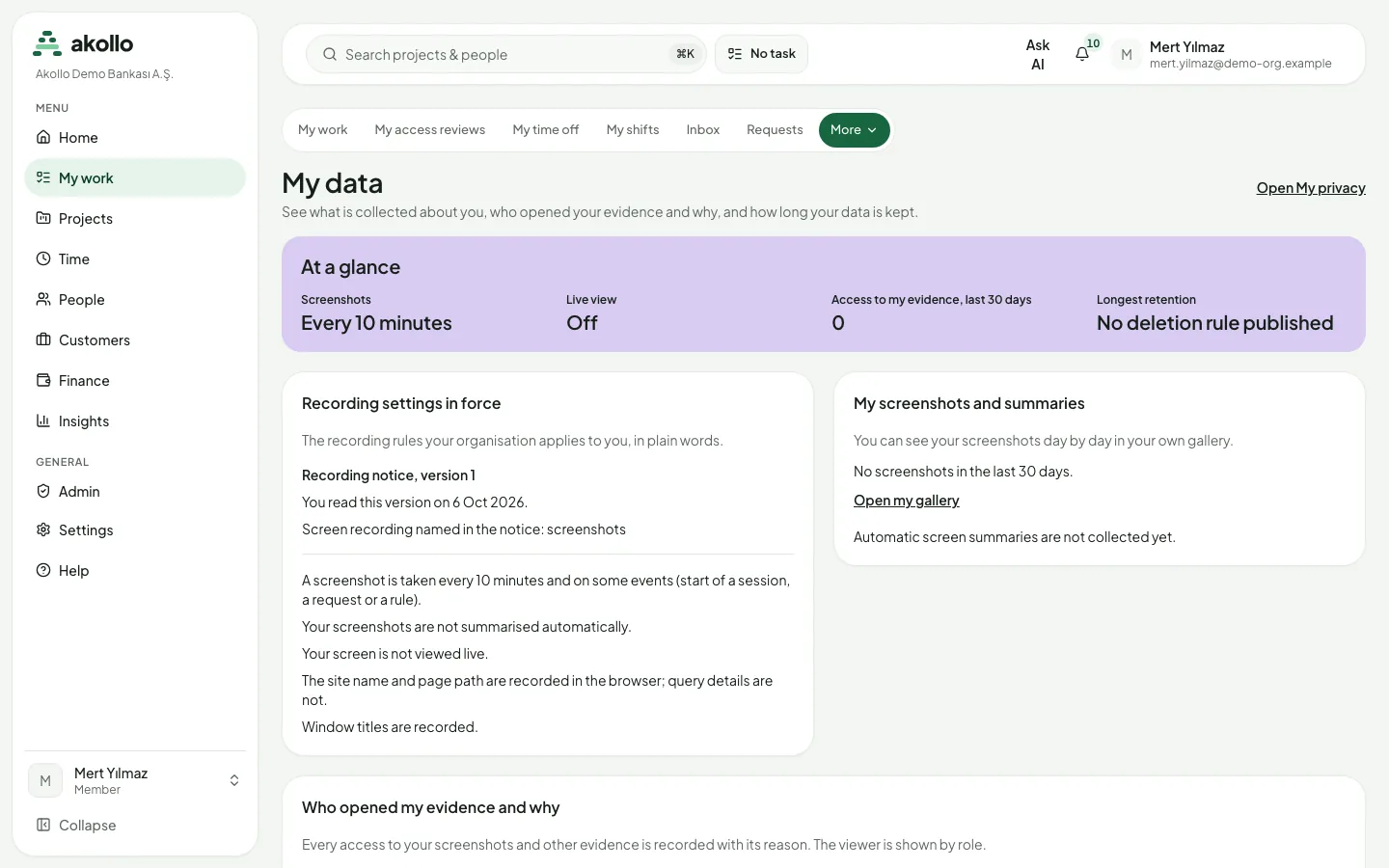
| My data | For every employee: the recording settings in force, their own screenshots, who opened their evidence and why, and how long data is kept. |
| Day detail and Team days | One day by state, category and task, with its intervals and captures. |
| Vision analyses | A model’s observation of each capture, with its uncertainty and the feedback on it. |
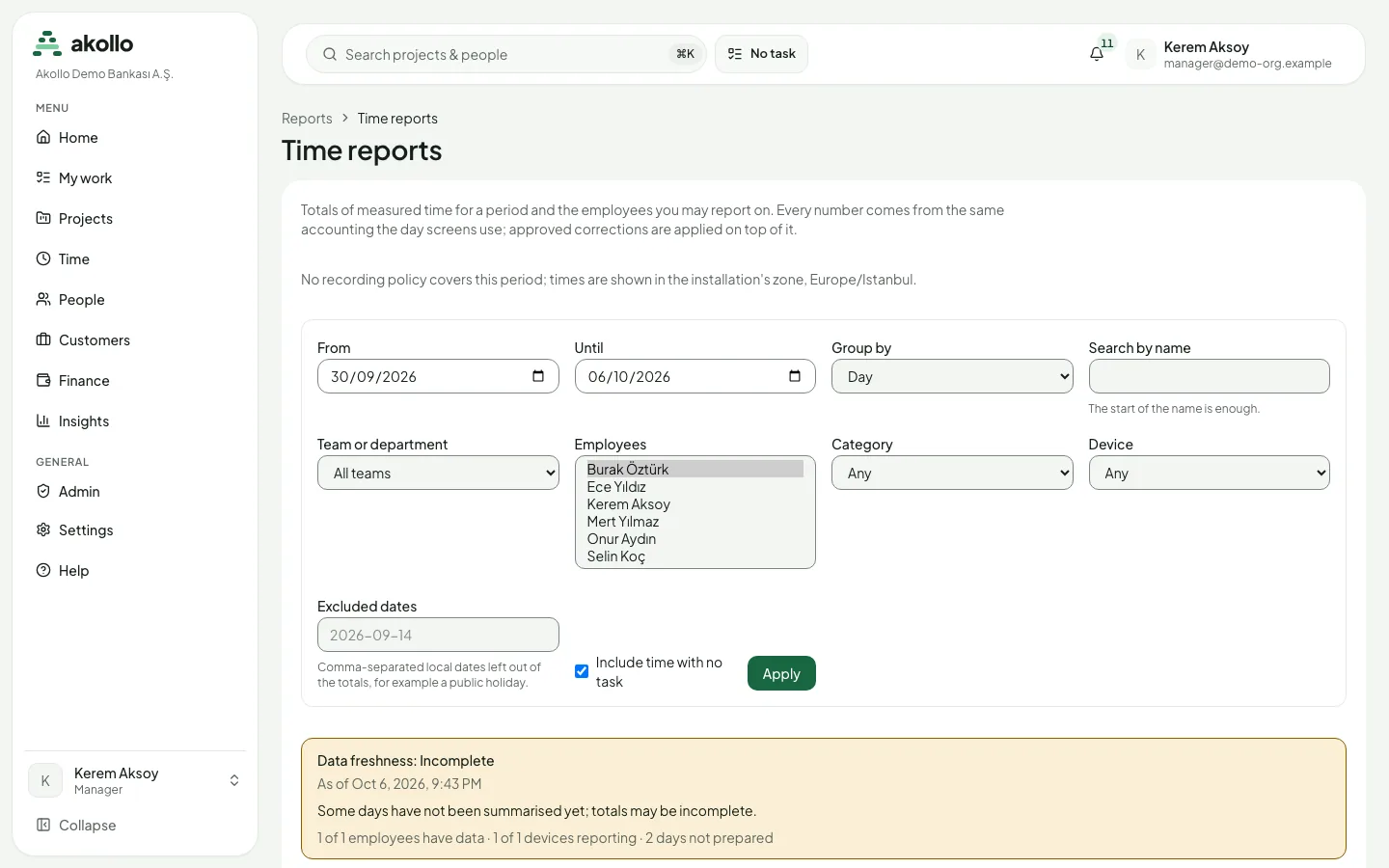
| Time reports and Exports | Totals for a period, and CSV or Excel files of them. |
| Device health | Whether agents, sync, queues and images are working, device by device. |
| Team activity | Team-level workload, focus, collaboration, context switching and after-hours work. |
What the desktop app records
The desktop app is a tray program on the work computer, installed by your administrator. It is always visible in the tray. You sign in from it through the system browser; the computer is then enrolled and appears under Devices and on My day.
| Recorded, during the hours the policy allows | Never collected |
|---|---|
| Which application is in front, and the site when the work is in a browser | Keystrokes, clipboard or form contents |
| Active, idle, locked and asleep states, from which time is credited | Microphone or camera |
| The task selected for the device | Message text or the contents of a web page |
| Screenshots, only when the policy turns them on, at its interval and on its monitors | Where you are: there is no location report |
Recording runs only when all of these are true:
- The app keeps an encrypted queue on the computer and sends it when the server can be reached: events first, then the description of a capture, then the images. A network gap does not throw the queue away. The queue belongs to that person on that device; it is not a folder you open by hand.
- If the policy allows pause, you pause from the tray, up to the daily allowance. A blank allowance means no cap. Pause is not a second timesheet.
- Revoking a device stops that computer the next time it contacts the server.
The recording policy
Administrators publish the policy in Admin → Tracking settings. Each publication creates a new version with Effective from and Expires; fields not on the page stay as they are.
- Schedule: the time zone, working days and hours. To switch recording off for a period, choose a holiday schedule and publish a later regular version to resume. Overtime uses the selected days and hours. Recording stops on the expiry date, so publish a new version before then.
- Idle: after how many seconds without input time counts as idle, whether the employee may pause, and for how long at most.
- Categories: rules that mark an application or site as productive, neutral, unproductive or unclassified, and whether a task must be selected. Rules can apply to the organisation, a department or a team. A category label describes an application, not a person.
- Screenshots: the capture interval (5 to 30 minutes) and whether all monitors are captured. See Screen evidence and privacy.
Before anything is collected, an administrator publishes a recording notice in Turkish and English. Every employee reads the current version and acknowledges it, on the website and in the desktop app; collection stays blocked until they do. A policy cannot be published until a notice exists, and a new notice version must be acknowledged again. The words of the notice are the organisation’s own.
Key tasks
Publish a new policy version
Open the policy
Choose Admin → Tracking settings. The page shows the version in force.
Set the schedule and period
Pick the Schedule type, check the Time zone, and enter Effective from and Expires.
Publish
Select Publish new version. The previous versions stay in the history below.
Review a Vision analysis
Choose the day
Open Vision analyses, choose an Employee, a Day and optionally a State (Pending, Running, Observed, Failed, Skipped or Expired), then Show. Work marked Overdue or Stalled usually means the analysis worker is stopped.
Read it
Each analysis shows its Source (the capture, its monitors and whether the images are still stored; Image removed by retention means they are gone), the Observation, the Uncertainty, and the Model and configuration and Execution.
Give feedback
Under Feedback on the observation, mark it Correct, Incorrect or Uncertain, add a note if you like and choose Record feedback. Feedback is about the model’s description, not the person, and can only be recorded while the images are still stored.
Analyze again asks for a new analysis (the organisation has hourly and backlog limits, and a refusal says which one was hit); Retry appears on a failed analysis that can be retried. If your scope covers only part of a day (for example the day of a team transfer), the list shows only the analyses of captures from that part and says so.
Report on time and export it
Set up the report
Open Time reports. Choose From and Until, the Employees and Group by: Day, Task, Application, Site, Category or Employee.
Narrow it
Set Category and Device (both Any by default), clear Include time with no task to leave that time out, and list Excluded dates such as public holidays. Select Apply.
Read the totals
Credited counts every instant of one employee once; Worked is the active part; Overlap is time two devices recorded at once, shown but never counted twice; No task is time without a selected task. Approved corrections are applied on top.
Export
With the export permission, pick CSV or Excel (XLSX) and choose Create export. The file is built in the background and appears under Exports.
Times are shown in the recording policy’s time zone. If any employee in the request is outside your scope, the whole report is refused; very long periods may have to be split. If your scope covers only part of the period for an employee (for example the day of a team transfer), the report is marked Partial period and covers only that part; a day your scope covers in two separate pieces is refused. Build daily summaries queues the daily summaries to be rebuilt; the totals on screen are current either way.
Exports lists only your own exports, in the states Waiting, Building, Ready, Failed, Expired and Cancelled. Download works when an export is ready, and every download checks again that the employees in it are still yours to see. Cancel stops a waiting or building export or withdraws a ready file. A file expires 24 hours after it was requested and is then removed. An export fails if it would be too large, if the employees are no longer yours to see, or if the measured time was deleted under retention.
Set retention and demand erasure
Open retention
In Admin → Tracking settings, open Retention and deletion. Each store has its own rule: Screenshots (originals), Screenshot previews, Detailed activity, Vision analyses, Daily summaries, Exported reports and Data still on the agent.
Publish a rule
Enter the Days, Effective from (UTC) and a Reason, then Publish. The preview counts the records past the cutoff; showing it deletes nothing. A rule may be shorter than the recording notice states, never longer.
Demand erasure if required
Under Demanded erasure, choose the Store, the Employee (or Whole organization) and Everything before (UTC), enter a Reason, type erase under Type erase to confirm and choose Demanded erasure.
A store without a rule is kept. Publishing deletes nothing by itself: data is removed by the nightly retention sweep and by a demanded erasure. Erasure cannot be undone, is recorded with your name and reason, and needs its own permission. If it cannot remove everything at once, what it covers is already unreadable and an hourly sweep removes the rest. What has been closed lists what was forgotten; from then on the system refuses to store that time again, whatever arrives late. Data still on the agent is published to the desktop apps, but the current app does not apply it yet, and erasure does not reach data still waiting on a computer.
Check device health
Open Device health
You see your own devices, those of employees in your scope, or the whole organisation as an owner or administrator.
Read the states
The top shows Application, Vision, Media volume, Captures awaiting a decision and Worker queues. Devices are Healthy, Needs attention, Silent, Long silent, Revoked or Nothing measured. A device that needs attention names why: Stale policy, Missing events, Upload backlog, Monitor missing, Extension missing or Clock offset.
Open a device
Device facts show the last heartbeat, app version, policy revisions, work session, missing events, upload lag, clock offset, browser extension and the monitors of its last capture. Each fact says whether it was measured, is Not measured yet, or is Not reported. Thresholds lists the numbers behind each state.
Act if needed
With the extra permission, Revoke device ends every session of the device for good (it must enroll again as a new device), and Redrive puts a queue’s failed jobs back so the worker runs them again (owners and administrators only). Both ask for a Reason that is kept in the audit log.
Note
Silence, a gap or a missing signal describes a device or a connection. None of it says that an employee was idle, absent or unproductive. Vision runs separately: an outage there does not stop recording or time accounting.
Team activity
Time → Team activity shows a team’s workload balance, focus time, collaboration time, context switching and after-hours work for a period, and can compare it with the previous period or another team. Figures are team-level only, as a median and the middle half of the team: there are no per-person values and no rankings. Groups below a minimum size show no figures, so nobody can be singled out, and a period with too little recorded time says Insufficient data. Higher is not necessarily better. Teams come from the organisation chart, and you must be able to see all of a team’s members.
Permissions
- Employees see their own day, their own screenshots on My data, and every access to their evidence. They see their own analyses only if their role allows, and cannot request, retry or give feedback.
- Managers see employees in a granted scope, for reports, days, analyses and devices. A report that includes anyone outside scope is refused.
- Owners and administrators see the whole organisation, publish the policy, screenshots and retention, and use Analyze again, Retry and feedback. Retention and deletion is for owners and administrators only; a custom role does not get it even with the retention permission. Demanded erasure needs its own permission.
- Exports need the export permission; device controls need an extra permission.
- An analysis or record you may not open looks the same as one that does not exist.
- A support session does not inherit any of this: it cannot open an employee’s day or change tasks.
What the AI can do here
- Vision analyses: if image analysis is enabled, a model describes each capture: a summary, the applications seen, what changed and how it relates to the task, with its uncertainty. It can be wrong, it never changes measured time and it says nothing about the person. People give feedback on it.
- Summaries state only counted figures, who they cover, the dates and the source. They never rank people or recommend a change, and say the data is insufficient rather than invent text.
- The assistant reads tracking data only with your own permissions and never scores people. See AI and you and AI privacy.
FAQ
No. Keystrokes, the clipboard, form contents, the microphone, the camera, message text and the contents of web pages are never collected. There is no location report.
No. It records only inside the published weekly schedule, while a policy is in force and after you acknowledged the current notice. A holiday version records nothing.
It waits in the encrypted queue on your computer and is sent when the server can be reached again. Nothing is thrown away because of a gap.
No. A category describes an application or site, not a person. No summary is allowed to rank people.
Yes. Every access is recorded with its reason, and My data lists who opened your evidence, shown by role.
No. Publishing deletes nothing. The nightly sweep removes what the rule covers; for immediate deletion an administrator uses demanded erasure.
Until it expires, 24 hours after you requested it. After that the file is removed.