

Integrations
The Integrations module connects Akollo to the outside systems your organisation already uses, such as Jira, Microsoft Teams, Slack, mail and calendar, directories, CRM tools and BI tools. It is also where administrators manage API keys, webhooks and data exports. Integrations is its own area: open Integrations in the sidebar. The link is shown to people who may read connections.
Older bookmarks to the integrations settings still work: they open the Integrations area, and a bookmark to the CRM section opens the Catalogue with the CRM category selected.
Who uses it
| Role | What they do here |
|---|---|
| Administrator | Allows connectors, sets up connections, manages API keys, webhooks and data exports. |
| Connection owner and backup owner | Answer for one connection: its credentials, its syncs and its issues. A connection always has both, and they are different people. |
| Integration operator | A custom role that can read and test connections, run syncs and resolve their issues, without managing them. |
| Reporting administrator | Sets up BI access to reporting datasets. |
| Developer of another system | Calls the public API with a key and reads the Developer reference. |
| Support session | Can look at every page but cannot change a connection, key, policy or a connector's allowlist. |
Main screens
| Tab | What it shows |
|---|---|
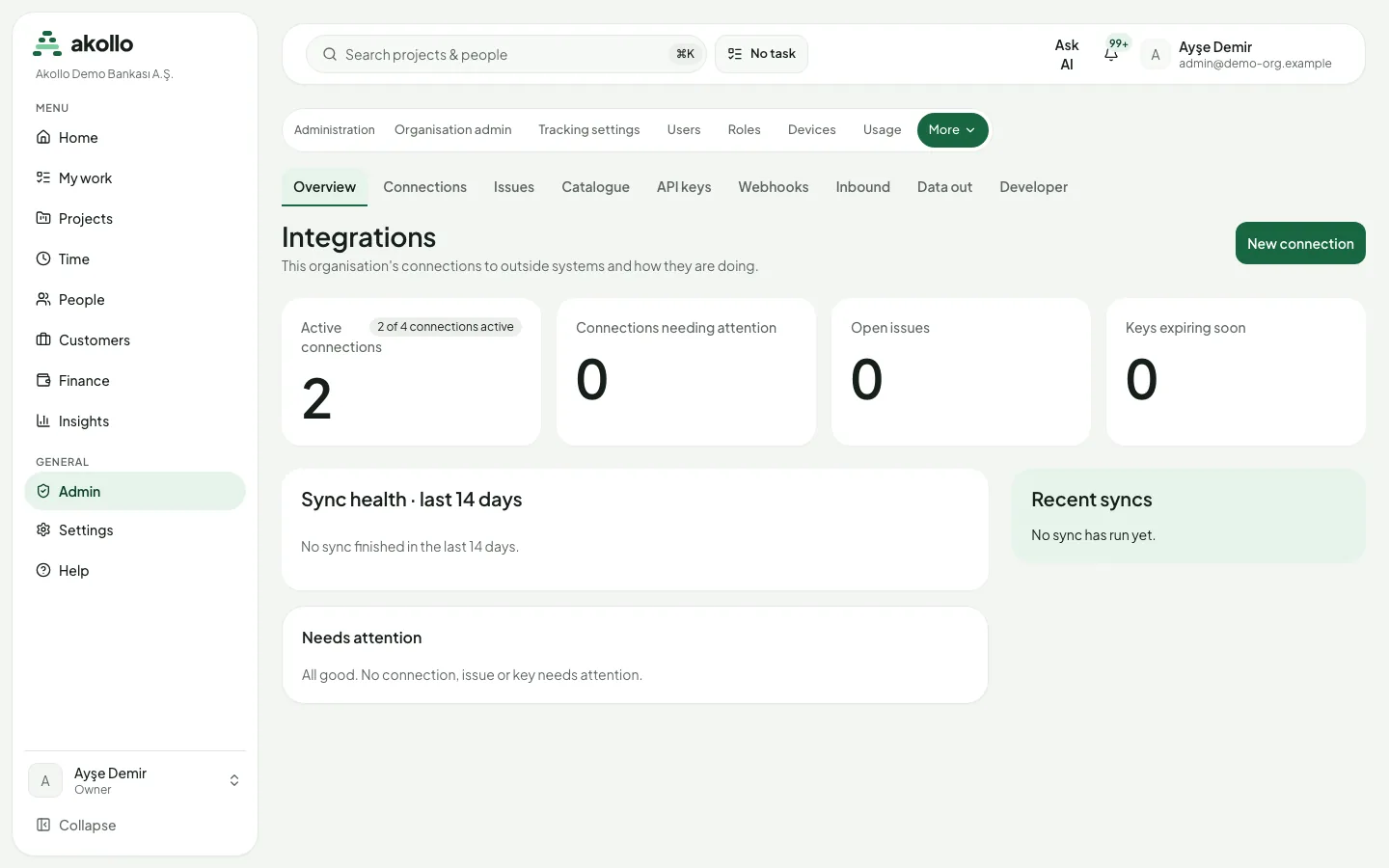
| Overview | Connections counted by status, open issues, keys expiring soon, sync health over the last 14 days and the most recent syncs. |
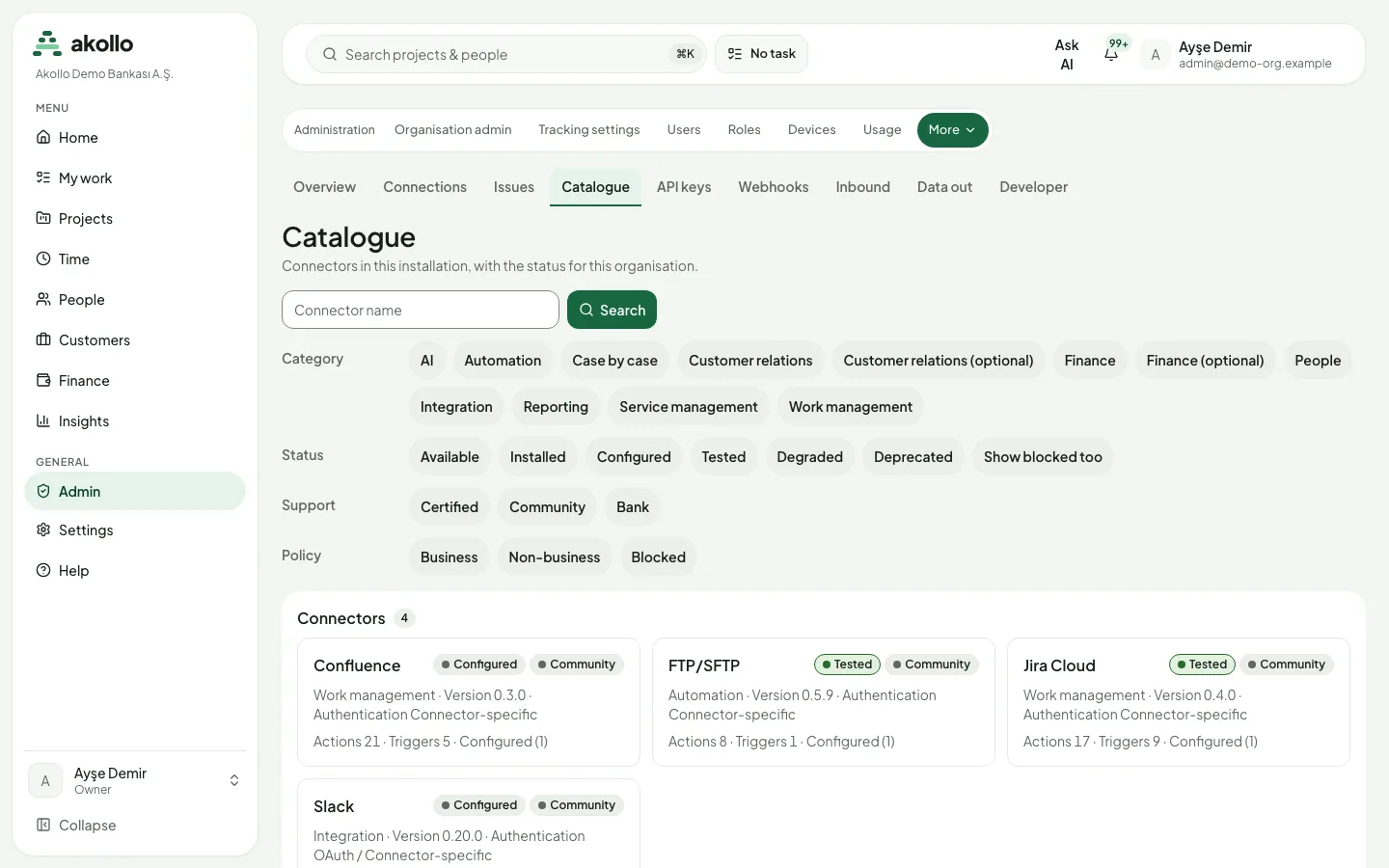
| Catalogue | Every connector, filterable by category, status, support and policy. A connector page shows its versions with their test record, the allowlist, the hosts it may reach and its licence. |
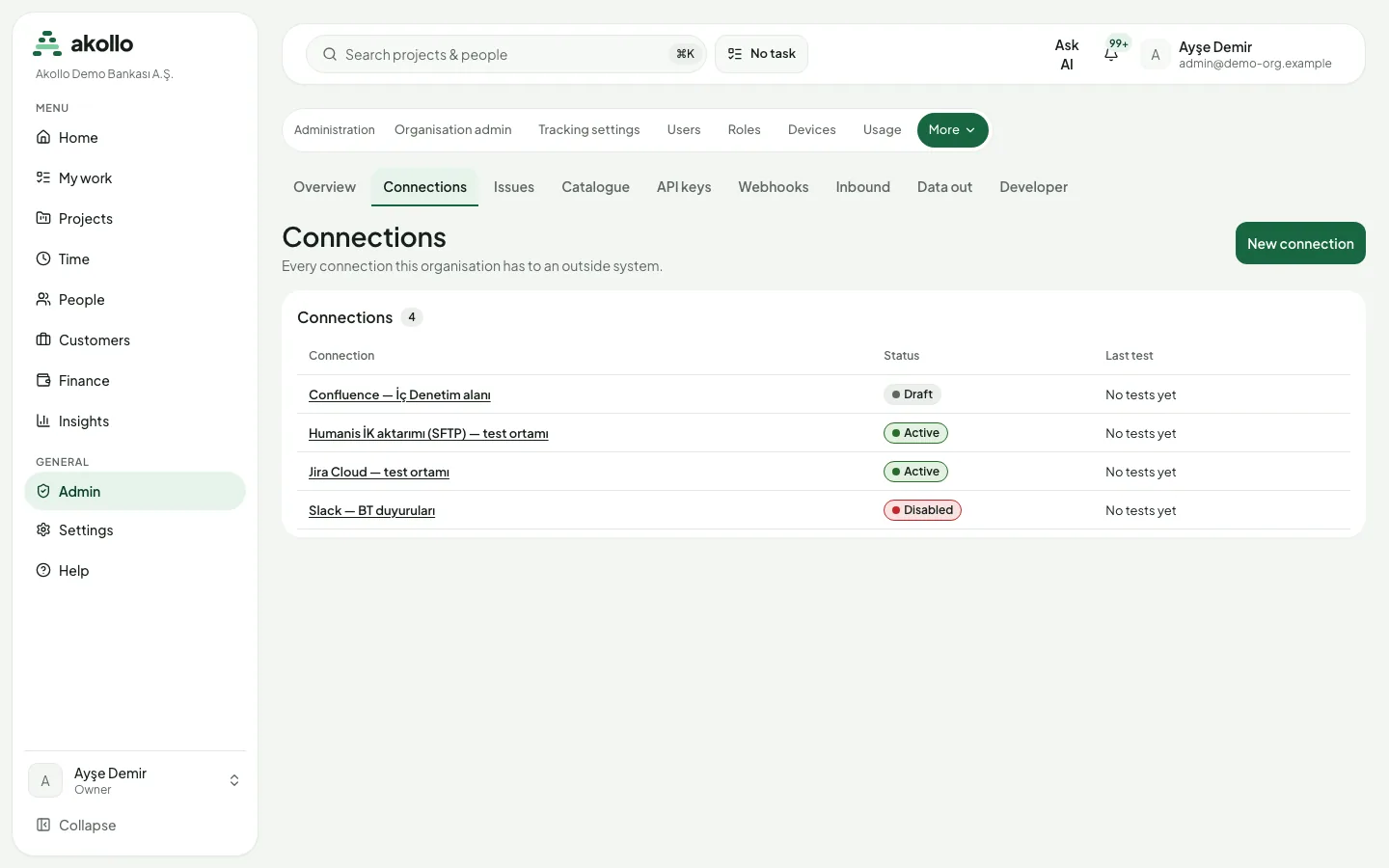
| Connections | This organisation's connections with status and last test. A connection page has Overview, Tests and Syncs tabs. |
| Issues | Records a sync could not process, grouped by cause, with retry, skip and conflict resolution. |
| API keys | Keys for other programs, with scopes, expiry, last use and state. |
| Developer | The public API reference: every route for the selected version, its scope and an example request. |
| Inbound | Endpoints where another system can send webhooks to Akollo. |
| Webhooks | Endpoints where Akollo sends this organisation's events. |
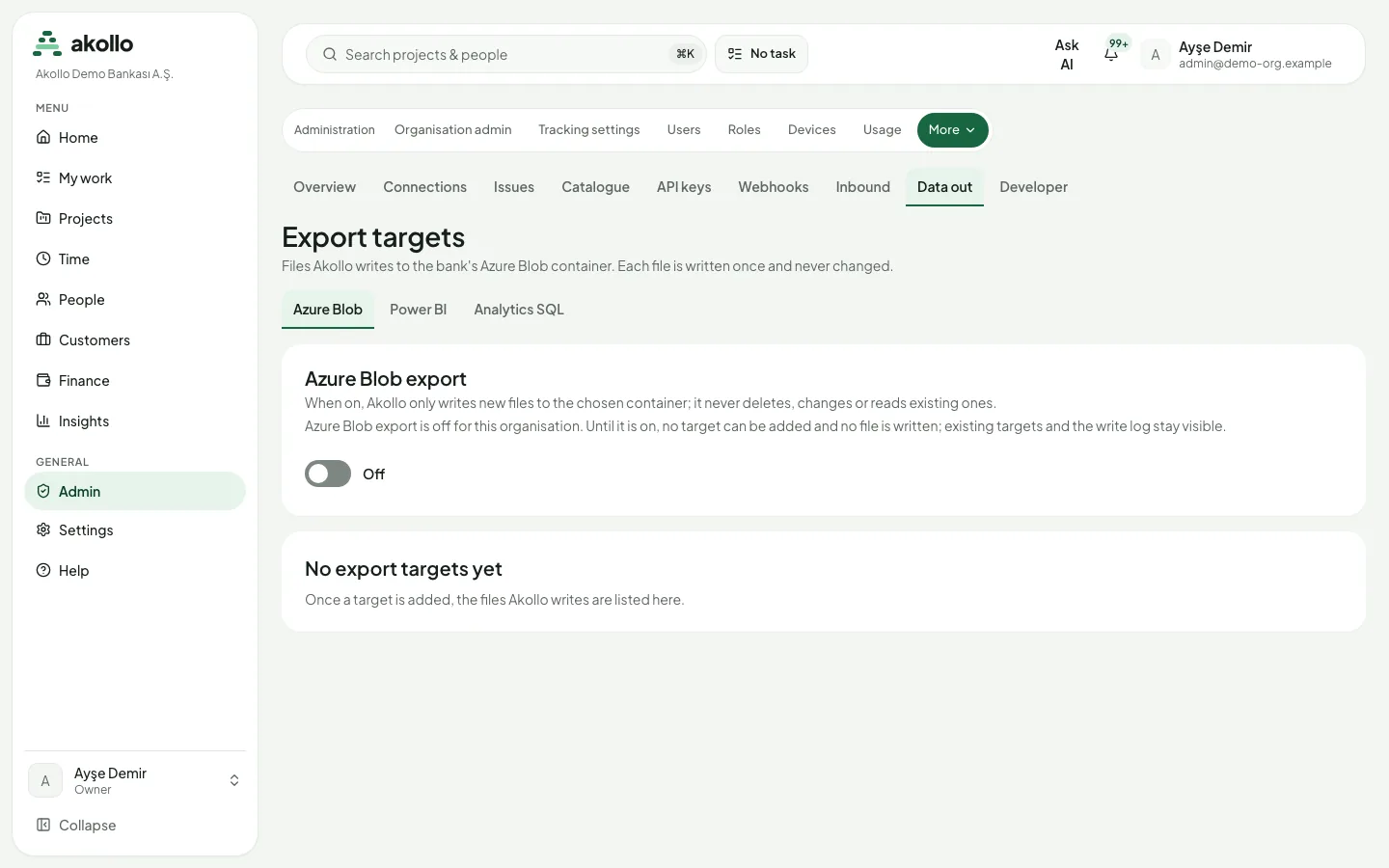
| Data out | Export targets such as Azure Blob, Power BI and Analytics SQL. |
| Analytics SQL access | One card per approved SQL access for BI tools. |
Ways data moves
Key tasks
Set up a connection
Pick the connector
On Connections, choose New connection and pick a connector. Only connectors installed and allowed for your organisation are offered.
Enter credentials and owners
Name the connection, choose an owner and a different backup owner, and enter the credentials the connector asks for. They are stored encrypted and never shown again.
Choose the direction
Choose Read, Write or Read and write. The data classes and hosts the connector policy allows are shown for reference.
Test, then activate
Run Test, then Activate. The connection stays a draft until a test passes.
Note
In this release connector execution is turned off, so the test step is not offered and new connections stay drafts. See Connected systems.
Give another program API access
Create the key
On API keys, create a key, name it after the system that uses it and pick the Service account it acts as.
Limit it
Set only the scopes it needs, an expiry date (within a year) and, if you can, Allowed IP ranges.
Store it
Choose Create key and copy the key. It is shown once. A key that can change records waits until a different administrator approves it.
Handle records a sync set aside
Open Issues
Open Issues. Records are grouped by cause, with counts and when the problem was first and last seen.
Fix the cause
For example, correct the field mapping of the sync stream.
Retry, skip or resolve
Retry the records (a retry reads them again from the source), skip them with a reason, or resolve a conflict by choosing the Akollo value, the external value or a new value.
Send events to another system
Create the endpoint
On Webhooks, enter an https address, the event types and whether to send the full record or only a reference.
Store the signing secret
The secret is shown once, right after creation.
Watch deliveries
The list shows each endpoint's state and delivery success over the last 24 hours. An endpoint's page shows its message log and every delivery attempt.
Note
In this release outbound delivery is not switched on yet, so the page does not offer creating an endpoint. See Webhooks.
Feed a BI tool
Choose the route
Read reporting datasets over the API with a read-only key, or set up SQL access for live queries.
Follow the guide
See BI datasets for Power BI, Tableau and Looker Studio, or Connecting a BI tool over SQL.
Specific systems
| System | What it does | Page |
|---|---|---|
| Jira Cloud and Jira Data Center | Work alongside Jira, or move selected work from Jira to Akollo with a reviewed transfer. | Jira coexistence and transition |
| Zoom | Reads ended meetings: start, end, duration, participant count and host. Never changes meetings or reads names. | Zoom meetings |
| LDAP, Entra ID, Outlook mail | Directory and mail connections with Provider settings on the connection's Overview tab. Directory connectors only read and list. | Connected systems |
| Power BI, Tableau, Looker Studio | Read reporting datasets over the API. | BI datasets |
| Power BI, Tableau, Excel over SQL | Read approved datasets live with a read-only login. | Connecting a BI tool over SQL |
Moving data from another system is planned per system: agree the purpose, the records to share, the direction of updates and the responsible owner for each connection. A connection does not automatically bring every feature or historical record of the other product. Before accepting a transfer, review coverage of the agreed records and resolve open exceptions.
Permissions
- Owners and administrators can read and change everything in this area by default. A custom integration operator role can read and test connections, run syncs and resolve issues.
- Credentials are never shown again after saving, to anyone. Rotating credentials is its own permission; the previous credentials keep working for 24 hours.
- Two people are needed for sensitive changes: an API key that can write needs approval by someone other than its creator, and a field mapping that opens a protected field to the external system needs a second administrator.
- API keys can never do more than the role of the service account they act as.
- Owners: a connection's owner cannot also be its backup owner.
- Support sessions are read-only on every page; they cannot change a connector's allowlist.
What the AI can do here
Integrations has no AI features of its own. Connecting your own AI provider or model server is a separate setting; see AI connections. The AI assistant never changes connections, keys or webhooks.
FAQ
It is not installed in this installation. A connector is installed with a release. Blocked connectors are marked with the reason.
A connection stays a draft until a test passes. In this release connector execution is turned off, so the test step is not offered.
No. API keys, signing secrets and credentials are shown once. If one is lost, roll the key or rotate the secret or credentials.
Integrations is now its own area in the sidebar. Old settings links open it, and a CRM bookmark opens the catalogue with the CRM category selected.
No. Issues shows only field names, types and, for unprotected fields, lengths. Saved copies of failed records are encrypted and deleted after 30 days.
Support sessions are read-only everywhere in Integrations. They can look, but cannot change a connection, a key, a policy or a connector's allowlist.
Related
Insights and reports
Insights shows how the team delivers and where the time goes, with focused reports, time reports, summaries and exports that all respect your scope.
Automations and workflows
Workflows set the rules for how work moves, approvals hold a change until the right people agree, and notifications tell everyone what needs them.