

Customers
The Customers section of the sidebar holds Accounts, Contacts, Pipeline, Forecast, Contracts and Activities. You see a link only when you have the permission the page needs. Permissions from your roles and from permission sets assigned to you count together.
Accounts
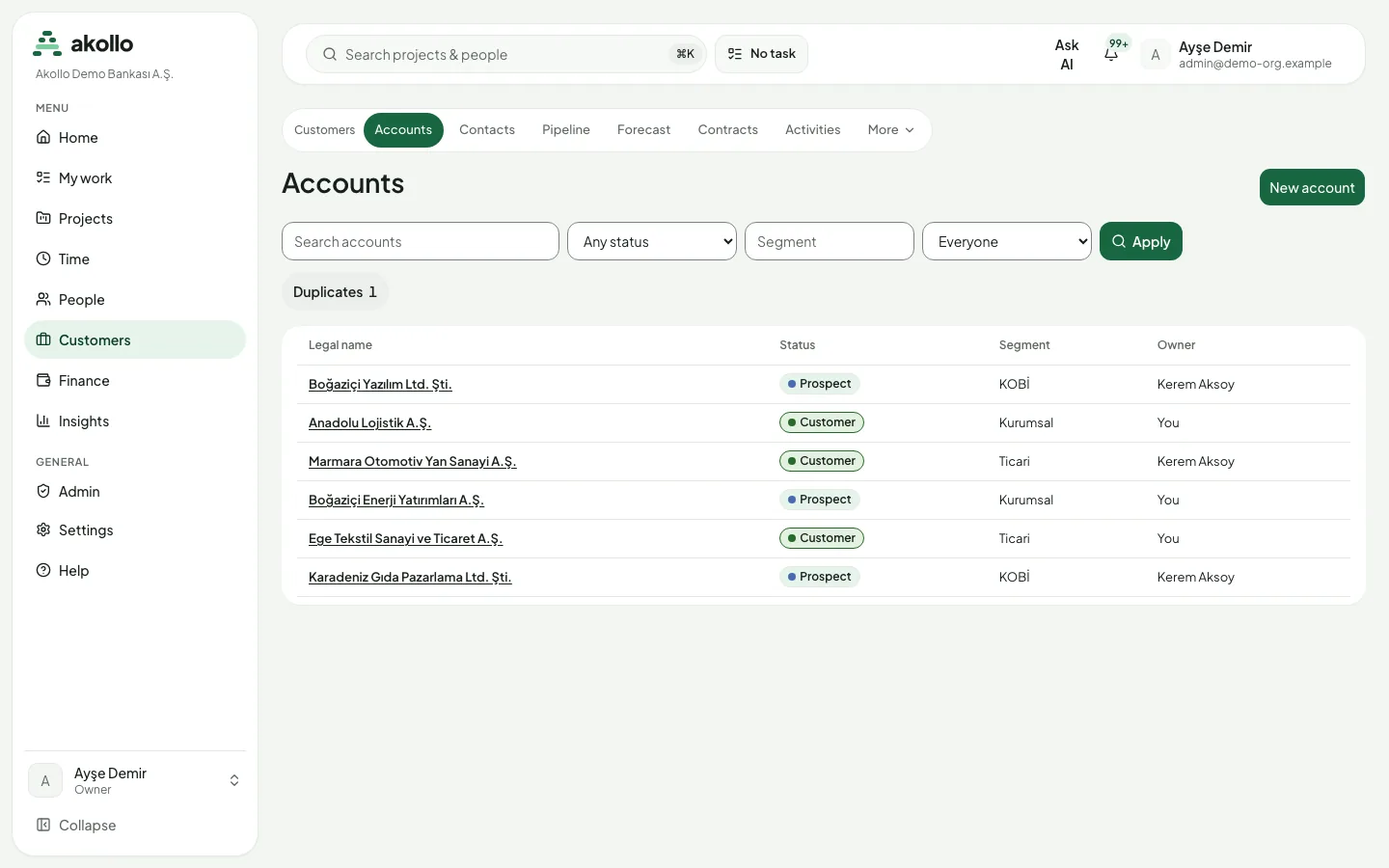
The account list can be searched by name and filtered by status (Prospect, Customer or Former), segment and owner. It shows legal name, status, segment and owner, one page at a time. A restricted account you cannot read does not appear in the list. People with the create permission add accounts with New account.
An account page has these tabs:
| Tab | What it shows |
|---|---|
| Overview | Trade name, segment, whether the account is restricted, and the tax number. The tax number is masked unless you may see it. With the update permission you can change the legal name, trade name, status, segment and restriction. |
| Contacts | The contacts linked to the account, with their role. A contact can be linked with a role and marked as primary. |
| Projects | The projects linked to the account. |
| Activities | The account's activities, with New activity to add one. |
| Access | Shown only to people who may review the account's access list. It lists who has access to the account; granting access needs the same permission and a reason. |
The side panel shows status, revision, domains and addresses.
Contacts
The contact list can be filtered by name and title. A contact page lets you edit the given name, family name, title, email and phone, and shows the contact's activities. If a new contact's email or phone matches another contact you can read, the contact is still saved and the match is queued for review.
Pipeline
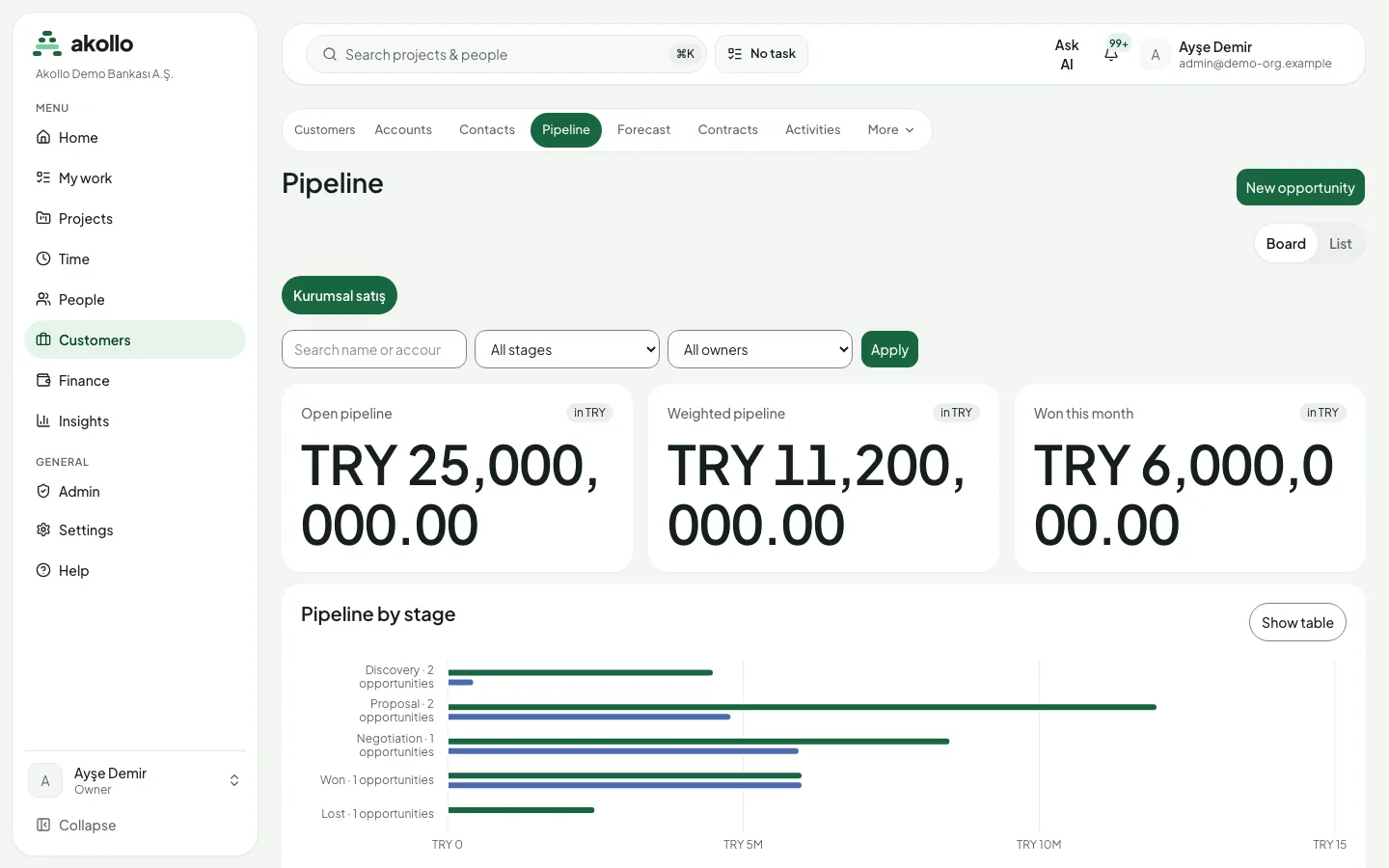
The Pipeline page shows the opportunities of a sales pipeline. Pick the pipeline at the top, then filter by name or account, stage and owner and select Apply. Switch between Board and List.
Three cards sum up the pipeline in its currency:
- Open pipeline: the total amount of open opportunities.
- Weighted pipeline: the open amount weighted by stage. A won opportunity counts in full and a lost one counts as zero.
- Won this month: the amount won this month.
Pipeline by stage shows each stage's total and weighted amount side by side; Show table shows the same figures as a table. On the board, each stage is a column with the number of opportunities, the total and the weighted amount. Each opportunity card shows the account, amount, owner and close date.
The stages belong to the pipeline. In the pipeline shown above they run like this:
An opportunity is not bound to this order: Move to stage offers every other stage.
Create an opportunity
Open the form
Choose New opportunity on the Pipeline page.
Describe the opportunity
Enter the Opportunity name and choose the Account, the Pipeline and the Initial stage.
Add amount, date and owner
Enter the Amount and choose the Currency. Use a dot or a comma as the decimal separator and do not type thousands separators. Set the Close date and the Owner.
Create it
Choose Create opportunity. The opportunity appears in its stage on the board.
Move an opportunity to another stage
Find the card
Open the Board view and find the opportunity in its stage column.
Choose the new stage
In Move to stage… on the card, pick the stage, for example Won or Lost.
Move it
Choose Move. The stage totals and the summary cards follow the change.
Activities
An activity is a call, meeting, email, note or task linked to at least one account, contact or opportunity. It has a subject, an optional description, a due date and an optional reminder time. You are the owner by default; people with the manage permission can assign it to another active member who can see the linked records.
The Activities page shows your activities in four tabs: Open (the default), Overdue, Completed and All. They are ordered by due date, with undated ones last. Each row shows the subject, kind, related record, due date (with an Overdue tag), reminder and owner. A record you cannot see appears as "A record you cannot see".
Open an activity to see its details, edit it or mark it complete. A completed activity can no longer be edited, and completing it twice changes nothing.
When the reminder time comes, the owner gets a notification, unless the activity is already complete. Changing the reminder time sends a new reminder. If a reminder cannot be delivered after repeated attempts, the activity shows Reminder could not be sent; choose a new reminder time to try again.
Matching records
When a second delivery customer is linked to a project, or a contact is saved with another contact's email or phone, the new record waits and the match goes to the account owner. A waiting delivery link does not count as the project's customer until someone decides.
Duplicates in the account list header opens the matches you can decide, with a count. You decide a match when you can see both records and own one of them.
| Match | Action | Result |
|---|---|---|
| Project with two customers | Choose customer | That link becomes the project's only customer. |
| Email or phone | Publish | Activates the waiting record when no other contact still uses the value. |
| Any | Dismiss | Leaves the waiting record as it is. The same match does not come back unless the records change. |
If someone else has already decided, you see that another decision was made.
Access through the API
Customer and service desk records are also available through the Akollo API (/api/v1/crm, /api/v1/service). The API applies the same permissions as the screens. A support session can only read. A contractor's access ends when their access period ends. See API.
A support session can open these pages; the forms stay closed.
FAQ
The account is restricted and you may not read it. Restricted accounts you cannot read do not appear in the list.
You do not have the permission to see it. People with that permission see the full number.
Each open amount is weighted by its stage. A won opportunity counts in full and a lost one counts as zero. Pipeline by stage shows the total and weighted amount of every stage side by side.
Its email or phone matches another contact. The contact is saved, and the match goes to the account owner, who can publish or dismiss it.
The activity shows Reminder could not be sent. Choose a new reminder time to try again.