

Finance
Finance connects the work your teams do with what it costs and earns. Employees record expenses; managers and finance approve them; finance keeps budgets, billing and cost rates, compares budget with actual and closes monthly periods. Akollo is not your general ledger: your accounting system stays the book of record.
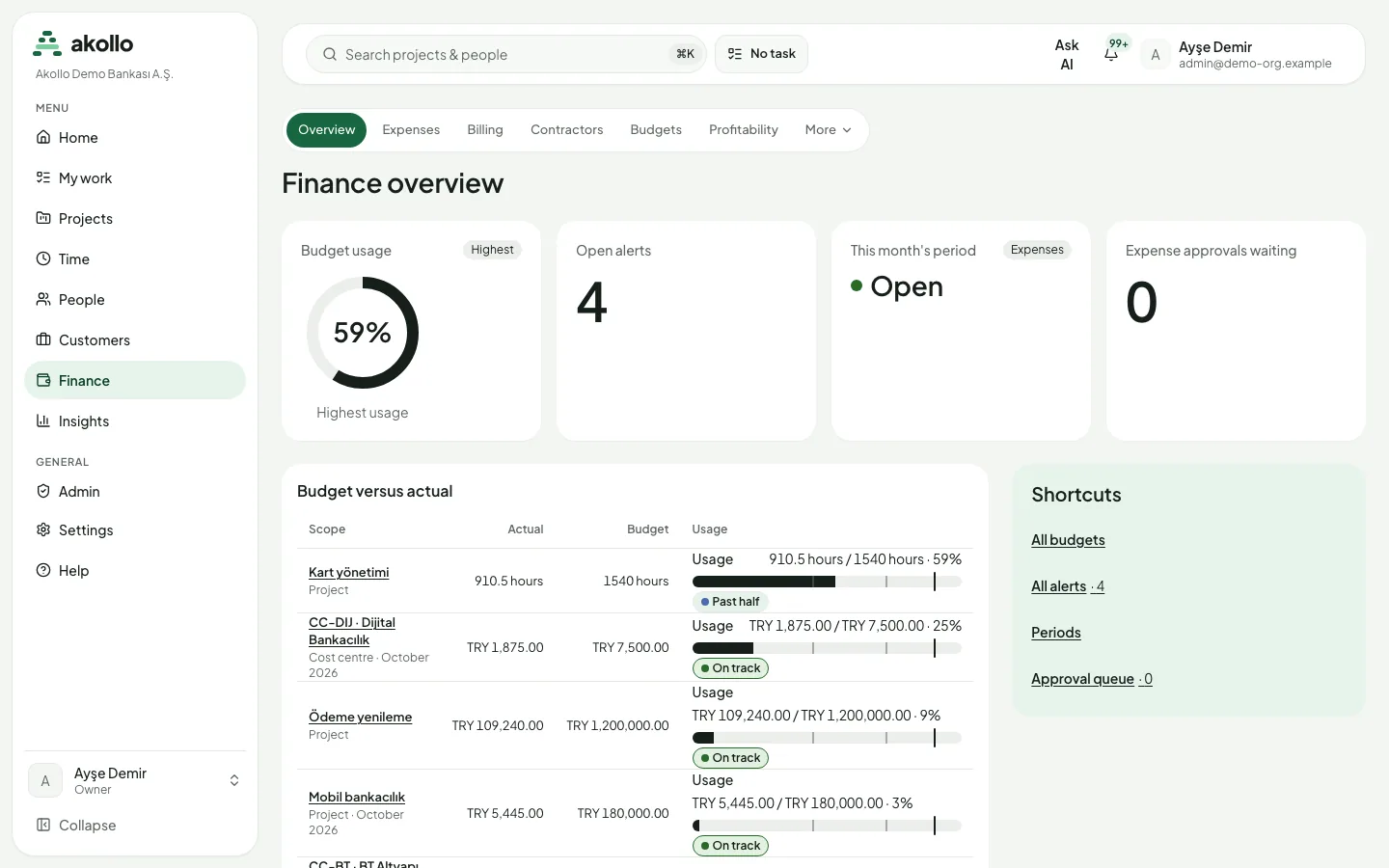
Finance has its own section in the sidebar. Finance overview opens first; the tabs lead to Expenses, Billing, Contractors, Budgets and Profitability, and More holds Rate cards, Accounting exports, Periods and Settings. For every field and status in detail, see Finance.
Who uses it
| Role | What they do here |
|---|---|
| Employee | Records expenses with receipts and follows them to reimbursement under My expenses and Reimbursements. |
| Manager | Approves the expenses of their team as the first step of the approval chain. |
| Cost centre owner | Approves expenses above the organisation's limit or in a currency other than Turkish lira. |
| Finance team | Gives the final expense approval, schedules and confirms reimbursements, keeps budgets, billing, contractors and rate cards, and locks and closes periods. |
| Project or department lead | Reviews budget versus actual and profitability for their scope. |
| People with the cost-rate permission | Propose and approve hourly employee cost rates. This is salary information; owners and administrators do not get it automatically. |
| Administrator | Keeps cost centres, number series, expense categories and tax codes under Settings. |
Main screens
| Screen | What it shows |
|---|---|
| Finance overview | Budget usage, Open alerts, This month's period, Expense approvals waiting and a Budget versus actual table, with shortcuts. |
| Expenses | Three views: My expenses, Expense approvals and Reimbursements. |
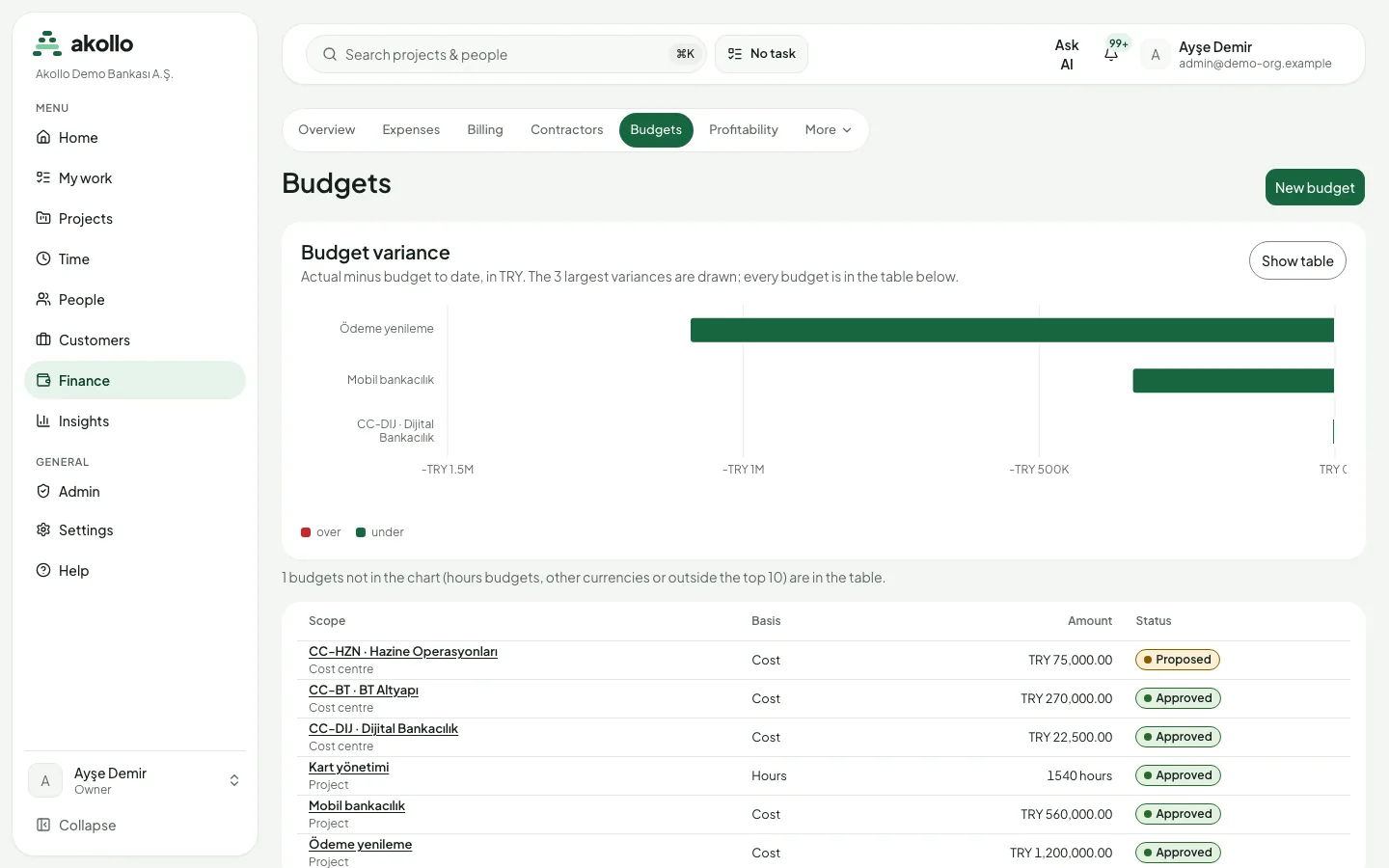
| Budgets | Every budget with scope, basis, amount and status, and a Budget variance chart of the largest variances. |
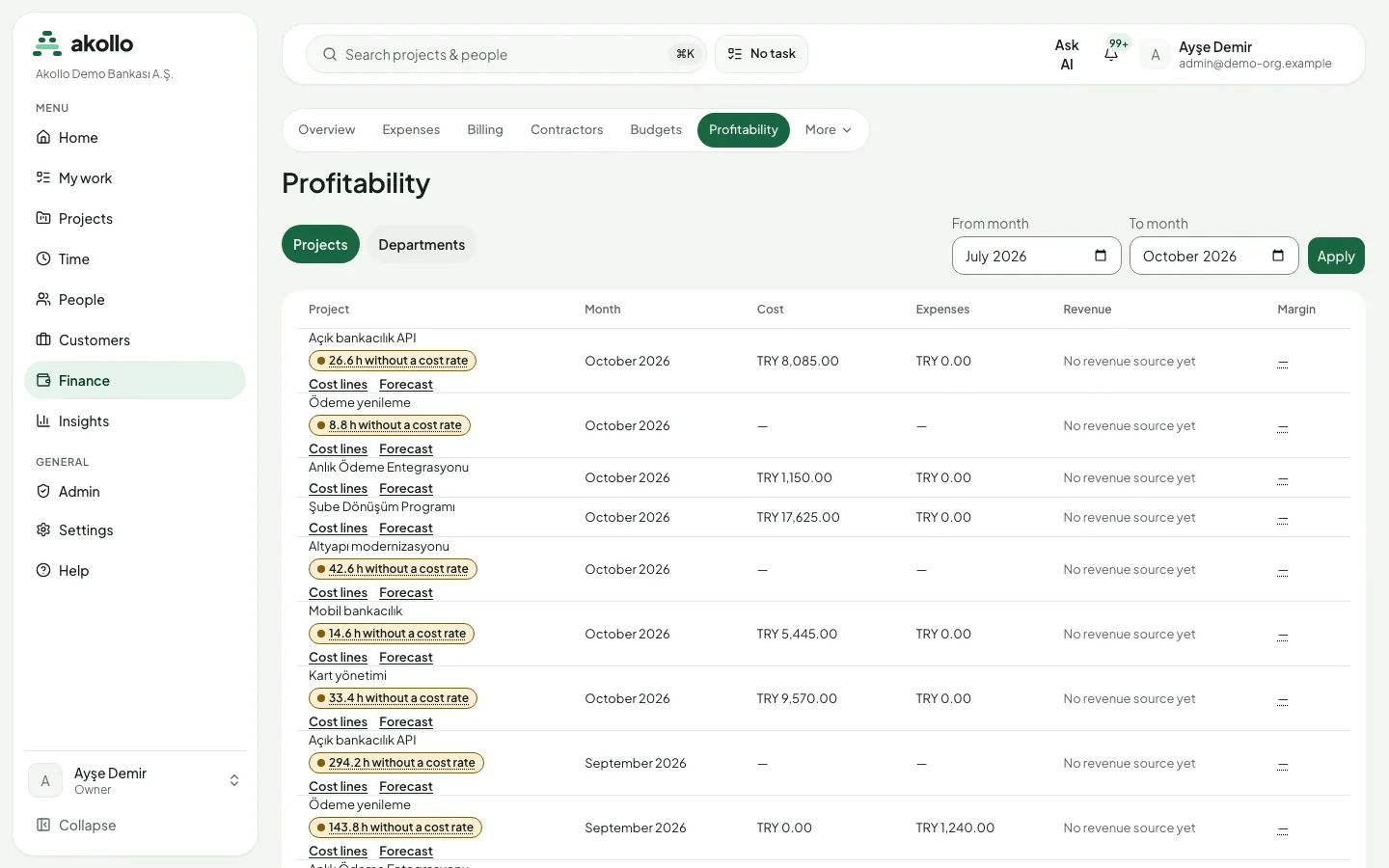
| Profitability | Cost, expenses, revenue and margin per month, for Projects or Departments, with Cost lines and a Forecast per row. |
| Billing | Invoices, credit notes and billing plans. New invoice draft starts an invoice. |
| Contractors | Engagements with hour and amount caps and hourly cost, supplier invoices and matching. |
| Rate cards and Cost rates | Billing rates per organisation, customer, project, role, task type or employee, and hourly employee costs. |
| Periods | Monthly periods per ledger (expenses, sales, purchases, tax, cost) with their status and Manage. |
| Settings | Cost centres, Number series, Expense categories and Tax codes (VAT). |
Key tasks
Record an expense
Start the expense
Choose New expense on the Expenses tab.
Fill in the details
Enter date, merchant, category, amount, VAT amount and currency (your base currency by default), the merchant's tax number, how you paid and whether it is billable. Save; the expense is a draft you can still edit or delete.
Attach the receipt
Attach a JPEG, PNG, HEIC or PDF file up to 10 MB. If the same receipt was already used, you are warned and asked why when you send it.
Send it for approval
Send the expense. From then on it is read-only and follows the approval chain.
Approve an expense
Open the queue
Open Expenses → Expense approvals.
Check and decide
Check the amount, category and receipt, then approve or reject it. Your manager approves first, then the cost centre owner when needed, then finance.
Create a budget
Start the budget
Choose New budget on the Budgets tab.
Choose scope and basis
Pick a project, department or cost centre, and a basis: hours, cost or revenue. Choose the currency.
Set the amount and overrun rule
Enter a single total or monthly lines, choose whether an overrun only warns or blocks new commitments, and save with a reason. A change of more than ten percent against the last approved total needs another person's approval.
Review profitability
Pick the view
Open Profitability and choose Projects or Departments.
Set the months
Choose a From month and a To month and select Apply.
Read the rows
Each row shows cost, expenses, revenue and margin. A tag marks hours without a cost rate; they are left out of the cost rather than counted as zero. Open Cost lines or Forecast for more detail.
Set an employee cost rate
Propose the rate
Open Rates → Cost rates and propose an hourly cost for a person and a date range.
Get it approved
Another person with the cost-rate permission approves it. You cannot approve your own proposal.
Change it later with a new range
An approved rate is never edited. Propose a new date range; when it is approved, the previous rate ends on that date.
Close a month
Open Periods
Open More → Periods and find the month of the ledger you want to close.
Lock, then close
Choose Manage. Lock the month temporarily while you check it, and close it once the month has ended. By default a cost or sales period can only close after the matching time period is locked.
Reopen only with a second person
A closed month is reopened only when one person asks and another approves. A reopen request lapses after 30 days.
Permissions
- You only see the finance pages you are allowed to open; the sidebar link and the page check the same permission.
- By default organisation owners and administrators can read finance data, except employee cost rates.
- Adding or changing records needs the matching permission, and every save asks for a reason.
- Employee cost rates count as salary information and need a separate permission.
- Contractor accounts only get permissions that are open to external users.
- Nobody approves their own expense, the same person cannot approve two steps in a row, and nobody who approved an expense can schedule or confirm its payment.
- A support session can look at the pages but cannot change anything.
What the AI can do here
- No AI in money. Amounts, rates, taxes, budgets, approvals and periods are handled by fixed rules and by people. The AI never sets an amount or approves anything.
- Your permissions still apply. When you use the assistant, it reads only what you could open yourself; it never widens access. See Skills and assistance and What assistance can see.
- Staffing with cost in view. When the assistant suggests people for a task, the factors it shows can include cost; a manager still confirms the choice. See AI assistant.
FAQ
After you send an expense for approval it is read-only. Only drafts can be edited or deleted.
When the amount is above the limit your organisation sets (10,000 TRY by default) or the expense is in a currency other than Turkish lira.
Hours without a cost rate are left out of the cost instead of counting as zero. The profitability row shows how many hours have no cost rate.
Only people with the separate cost-rate permission. Owners and administrators do not get it automatically.
The most specific rate card line: employee, then task type, role, project, customer and organisation. If two lines tie, no rate is chosen.
No. A record dated in a closed month, or before the hard-lock date, is not saved. A temporarily locked month accepts records only from people allowed to override the lock.
No. Cost rates are for project cost and profitability. Akollo prepares approved time and leave for payroll; see Payroll.
Related
- Finance: every page, status and rule in detail
- Payroll: what Akollo hands over to payroll
- Time and tasks: where approved time comes from
- Reports and exports: time reports and exports
- BI datasets: read agreed figures into a BI tool