

AI
AI in Akollo helps people find, read and prepare work: it answers questions about your own records, turns a question into search filters, suggests who could take a task, drafts plans and text, and keeps skill sheets up to date. It works only with what you are already allowed to see, and it never changes anything on its own: a person confirms every change. You open it with Ask AI in the top bar or ⌘J / Ctrl+J; administrators control it under Settings › AI.
This page is the starting point. Each feature has its own detailed page, linked below.
Who uses it
| Role | What they do here |
|---|---|
| Employee | Asks the assistant about their own day and tasks, searches in plain language, uses writing help, reviews or objects to skill suggestions |
| Manager | Asks about team capacity, gets staffing suggestions, drafts project plans and breakdowns, accepts skill suggestions, approves weekly summaries |
| Administrator or owner | Chooses who can use AI, gives seats, sets limits, follows token use, connects the organisation's own AI provider, uses the emergency stop |
| Institution IT | Runs models on machines the institution controls, so data does not leave |
Main screens
| Screen | What it shows |
|---|---|
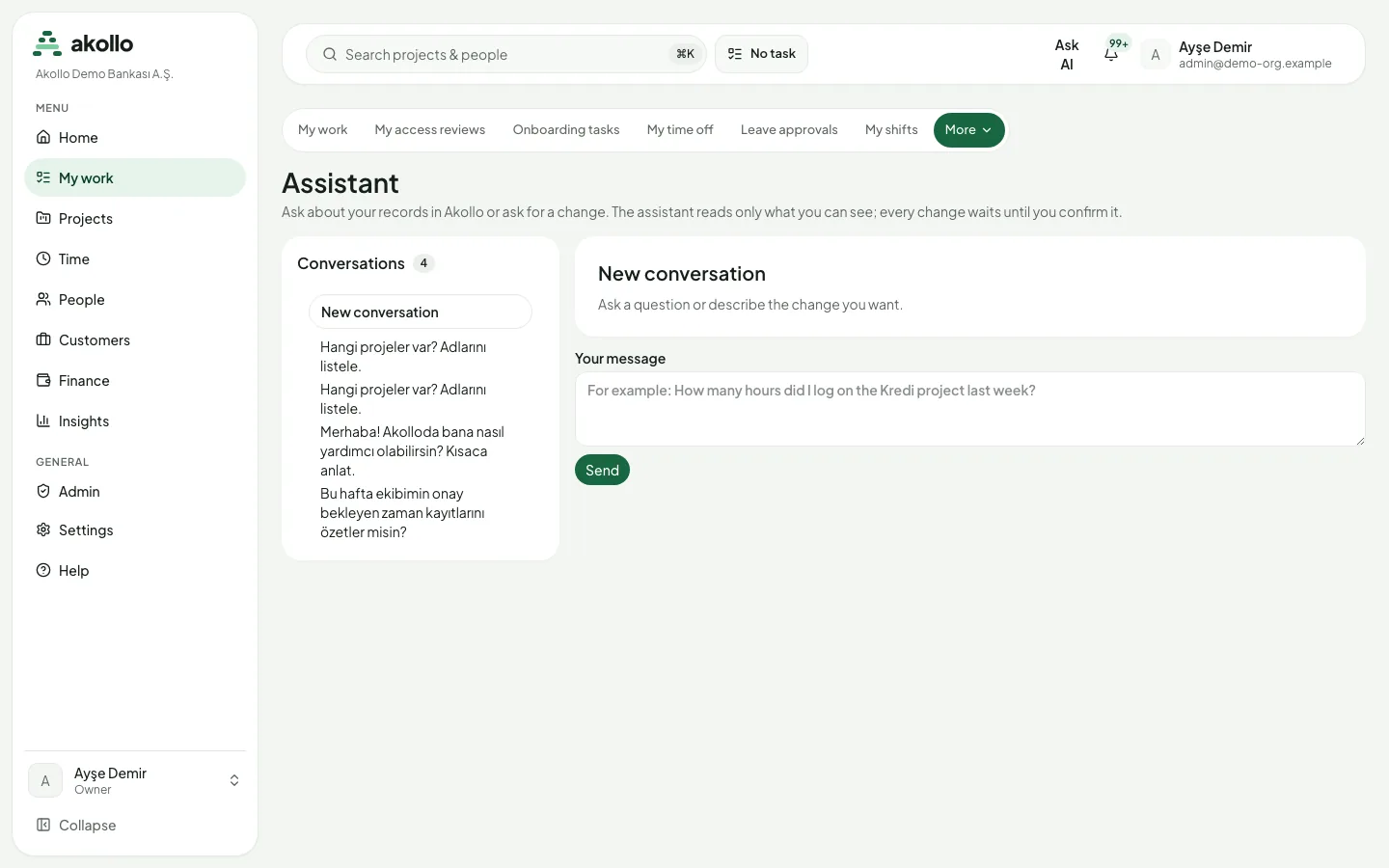
| Ask AI panel and Assistant page | Your conversations with the assistant, answers with their sources, and confirmation cards for changes |
| Search under My work, or ⌘K / Ctrl K | Ask in plain language: your question becomes ordinary search filters shown as chips |
| Your skills page | Your skills, what Akollo measured from finished work, and suggestions you can object to |
| Settings › AI › Access & usage | Who can use AI, seats, a monthly limit per person, this month's AI tokens, token packs and the Emergency stop |
| Settings › AI › Connections | Your own AI provider or model server, its data level and which model does which job |
| Settings › AI › Skills | Skill signals on or off, and which tool categories count toward each skill |
| Admin → Usage | AI input and output tokens and AI calls per day, next to the other meters |
| My data | What is collected about you, who opened your evidence and why, and how long it is kept |
Key tasks
Ask the assistant
Open it
Press ⌘J (Mac) or Ctrl+J (Windows), or select Ask AI in the top bar. Open the full page moves the conversation to the Assistant page.
Ask
Type your question, for example "What should I do today?", and press Enter. Use Shift+Enter for a new line.
Check the sources
Open Sources under the answer to see which records each figure came from.
Confirm or reject a change
If you asked for a change, the assistant shows a confirmation card with the before and after. Nothing happens until you confirm it. One answer prepares at most one change.
Search in plain language
Open Search
Open Search under My work, or press ⌘K / Ctrl K, type your question and choose Ask.
Ask and refine
Write the question in Ask in plain language and choose Find. Remove any chip to widen the search, or choose Clear to start again.
Get staffing suggestions
Ask who should take the work
On one or more work items, ask "who should take this?" or use /staff.
Compare and assign
The card shows up to three best-fitting people and one growth pick, with their fit on skill, availability, familiarity and workload. Select Assign. Choosing anyone other than the first person asks for a reason.
Choose who can use AI
Open the settings
Go to Settings › AI › Access & usage.
Pick one option
Select Off, Admins only (the default), Admins and managers, Everyone or People with a seat. With People with a seat, give a seat to each person who should use AI.
Set a monthly limit
Optionally set the most AI tokens one person may use in a month. When someone reaches it, their AI features pause until the next month.
Connect your own AI provider
Add the connection
Open Settings › AI › Connections. Under Add a connection, pick the Provider, give it a Name and paste the API key.
Choose the data level
Under Data allowed, pick Public data only, Up to internal data or Up to confidential data. Restricted data never goes to an outside provider.
Test and choose models
Test the connection, have it approved, and choose which model does which job. See AI connections.
Where requests go
- On your own machines. An administrator can run the small assistant models on a machine the institution controls; Akollo sends requests only to the address the administrator configured. A full on-premises installation, where every model runs inside the institution, is planned.
- In Akollo's cloud. Quick checks run on small hosted models; longer work such as a project plan may use a larger model from a cloud provider that keeps no copy of your data and does not train on it.
- Your own provider. With a connection, requests for the jobs you assign go to your provider, within the data level you chose.
Permissions
- Who may use AI at all is the administrator's choice on Settings › AI › Access & usage. Someone outside the chosen group sees a short message and can ask an admin.
- AI never widens access. The assistant, search and planning help read only records you can open yourself. Managers see the people in their own teams; everyone else sees only themselves.
- Connections, access settings and skill settings are managed by organisation owners and admins. Every change is recorded with who made it and when.
- The Emergency stop stops every AI request in the organisation at once. Screenshot analysis in activity tracking has its own switch.
- In a support session, AI answers can be read, but nothing can be sent or changed.
What the AI can do here
| It can | It never |
|---|---|
| Answer questions about your records, with sources | Changes a record without your confirmation |
| Turn a question into search filters | Opens a record you cannot open yourself |
| Suggest people for work, ranked by Akollo's own calculation | Assigns work without a manager pressing Assign |
| Draft plans, breakdowns, status updates and text | Sends a weekly summary before a manager approves it |
| Suggest a skill one level up from finished work | Changes a skill sheet without a manager accepting it |
| Summarise a ticket thread | Judges, scores or ranks people, or guesses health, personality or intent |
Personal data such as e-mail addresses, phone numbers, IBANs and national ID numbers is masked before a model sees it. Each AI request is recorded with who asked, which feature, when and the outcome, never with the question or the answer. Assistant conversations are deleted 90 days after the last message, or as soon as you delete them.
FAQ
Your organisation has not given you access to the assistant. Ask your administrator; access is set on Settings › AI › Access & usage.
No. Every change from the assistant waits on a confirmation card, assignments need a manager to press Assign, skill suggestions need a manager to accept them, and weekly summaries are sent only after a manager approves them.
No. Restricted data is answered only by a model inside the installation. If there is none, the request is refused.
The AI request log holds who asked, which feature, when and the outcome, not the question or the answer. Your conversation itself is kept until 90 days after the last message, or until you delete it.
Yes. An admin adds a connection on Settings › AI › Connections with your organisation's own key, or connects your own model server. Requests through your own connection do not count against Akollo AI tokens.
People who reach their own monthly limit are paused until the next month. For the organisation, an admin can request a token pack on Settings › AI › Access & usage.
Yes. Object on your skills page and add a note. A suggestion you objected to cannot be accepted, and it is not suggested again until you withdraw your objection or your manager lifts it.
Related
- Skills and assistance
- AI assistant
- Searching work in plain language
- Planning and staffing with AI
- Skill signals
- AI access and tokens
- AI connections
- Models that stay in the institution
- Setting up a local model
- Running the model in the institution
- What assistance can see
- AI and you
- Insights and reports
Automations and workflows
Workflows set the rules for how work moves, approvals hold a change until the right people agree, and notifications tell everyone what needs them.
Governance and privacy
How Akollo tells people what is recorded, keeps an audit trail, reviews access, limits how long data is kept and controls what leaves the organisation.