

Getting started
Begin with your invitation and check that you are working in the intended organisation. Then follow the guide for your role.
Before you begin
You need the invitation your organisation sent you. Sign in the way your organisation provides. Complete two-step verification when the app asks for it.
The name of your organisation is shown at the top of the sidebar, under the Akollo logo. Check it before you start. If your role or department looks wrong, contact your administrator.
First day as an employee
Accept your invitation and sign in
Open the invitation and sign in. Complete two-step verification when asked.
Check your organisation
Make sure the organisation at the top of the sidebar is the one you work for.
Install the desktop app if your organisation records time
If your organisation records working time, install the Akollo desktop app and approve its sign-in in the browser. See Desktop app and devices.
Choose your current task
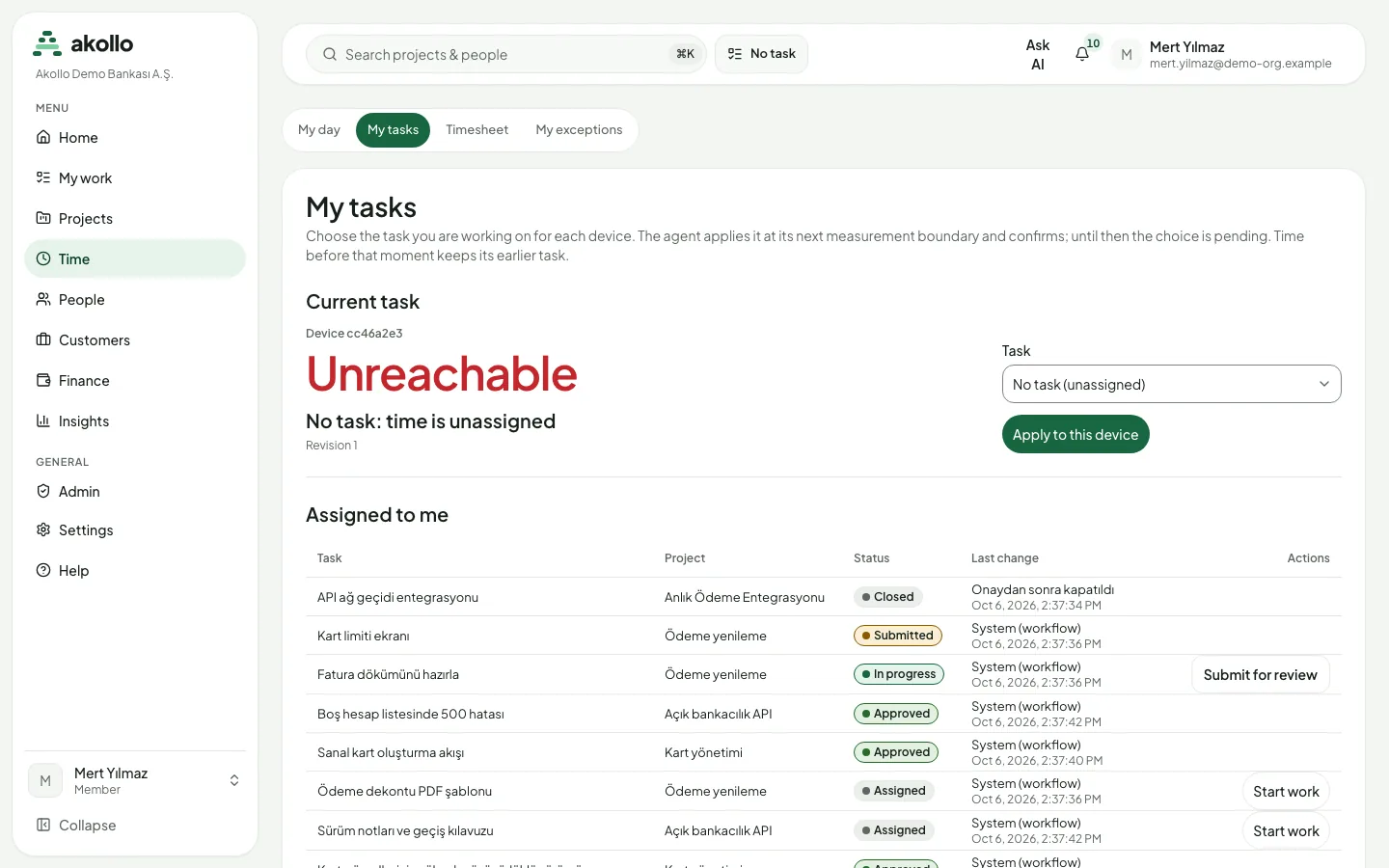
Open Time → My tasks. Under Current task, pick the task you are working on and select Apply to this device. The desktop app applies your choice at its next measurement boundary and confirms it. Until then the choice is shown as pending, and time before that moment stays with the earlier task.
Follow your day on the dashboard
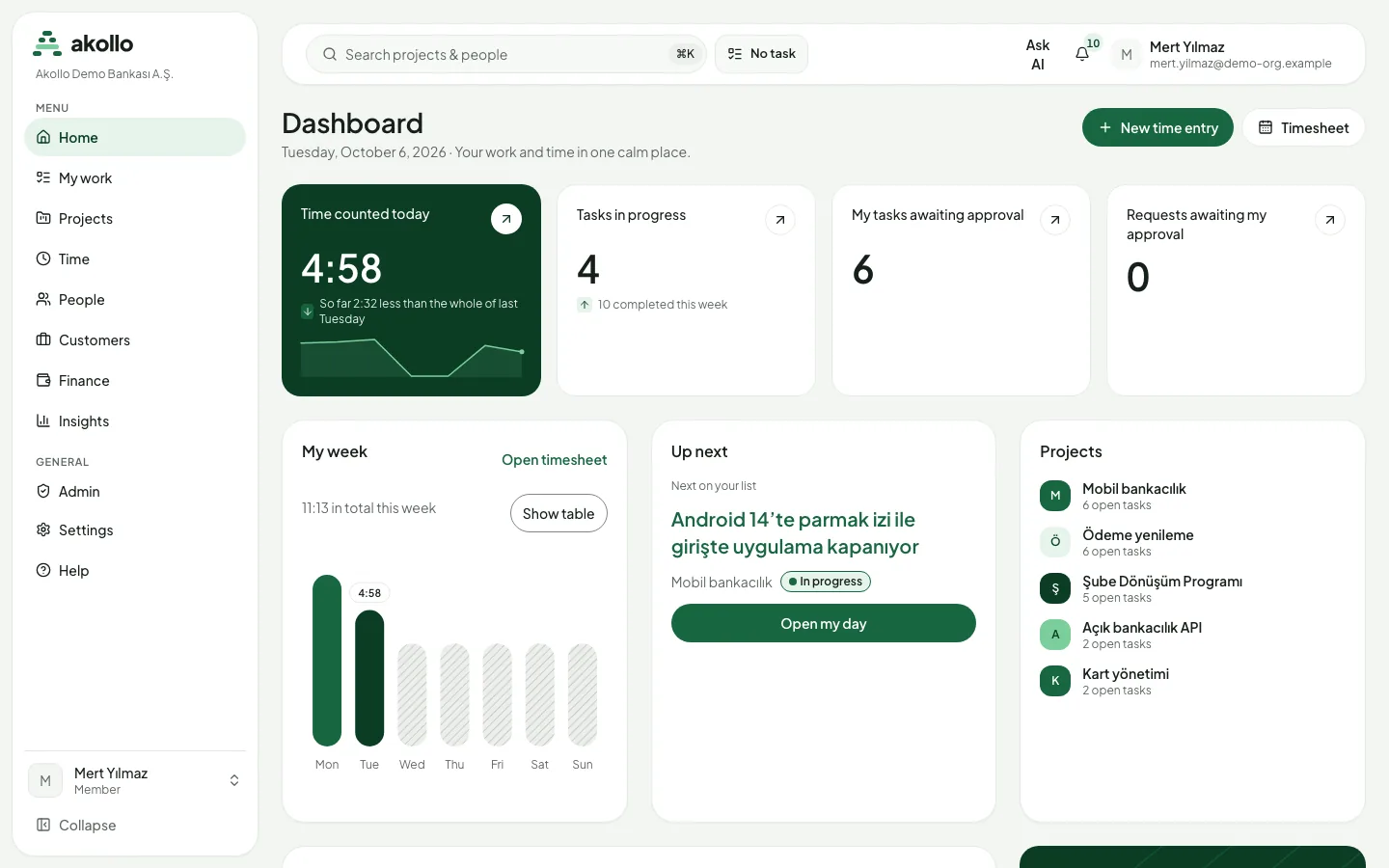
Open Home. The dashboard shows the time counted today, your tasks in progress, your tasks awaiting approval and requests awaiting your approval. Up next shows the next task on your list; Open my day takes you to your day view.
Tip
First day as a manager
Sign in and check your organisation
Accept your invitation, sign in and check the organisation at the top of the sidebar.
See what is waiting for you
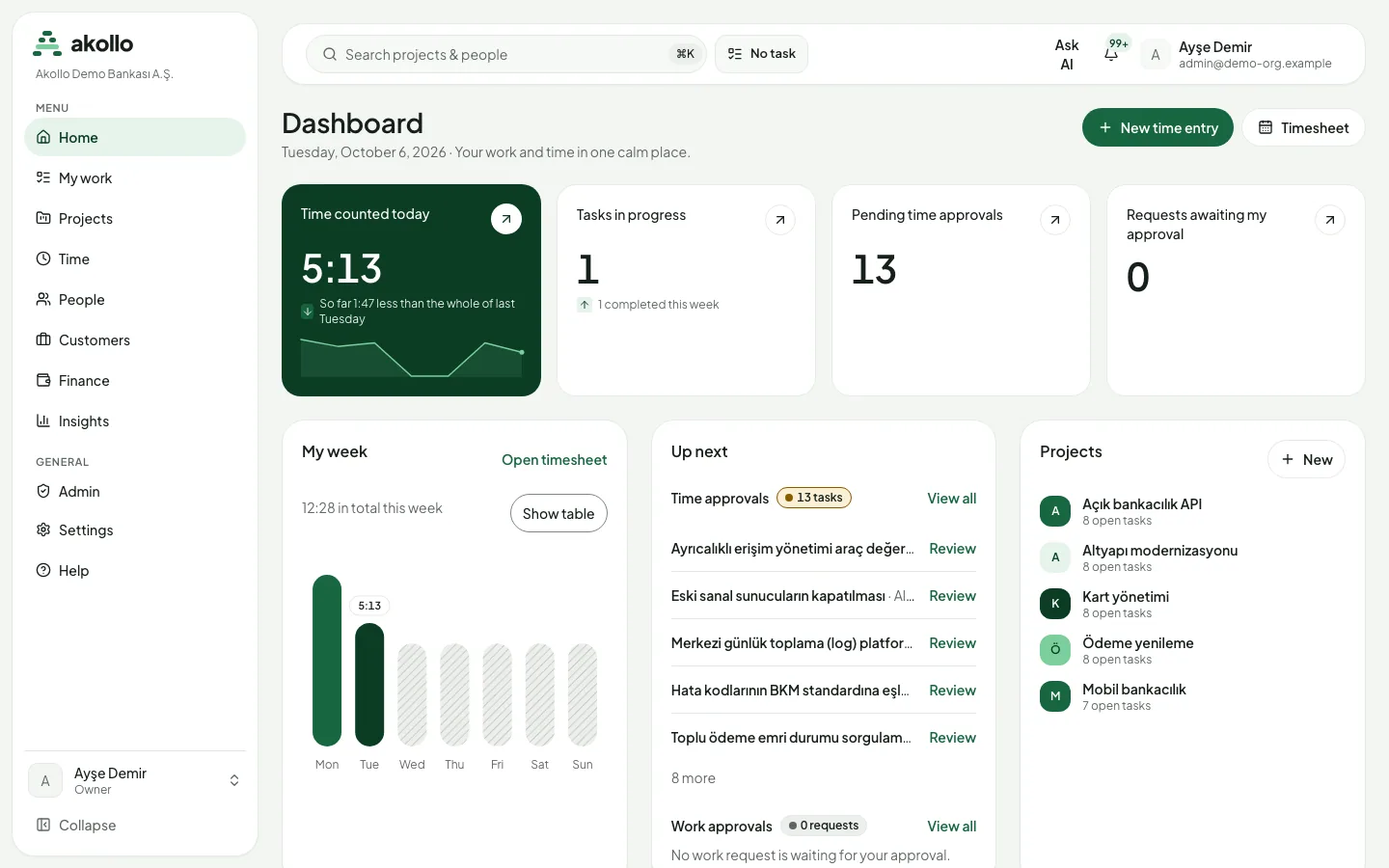
Open Home. The Pending time approvals card counts the time waiting for your decision. Under Up next, the Time approvals list shows each item with a Review link, and Work approvals shows work requests waiting for you.
Review time and corrections
Approve or reject submitted time and proposed corrections. See Time and tasks.
Follow reports and plans
Use Reports and exports and Planning and delivery to follow your team’s work.
First day as an administrator
Check your organisation and your role
Sign in and check the organisation at the top of the sidebar. Your role is shown under your name at the bottom of the sidebar.
Invite members
Open Admin → Users and select Invite Members. Pending invitations are listed with the members. See Security and administration.
Check roles and permissions
Open Admin → Roles. Permission sets, scopes and field policies are described in Organisation and access.
Set up time recording
If your organisation records working time, set the recording policy and devices. See Desktop app and devices and Screen evidence and privacy.
Connect other systems
Prepare the connections your organisation needs. See Connected systems.
Personal settings
Your account menu holds your personal settings:
| Setting | What you can do |
|---|---|
| Security | Set up two-step verification and passkeys |
| Theme | Choose a light or dark theme |
| Background | Pick a background for the app |
| Language | Use the app in Turkish or English |
Warning
Notifications
The bell in the top bar shows how many notifications you have not read yet and opens your notifications page. It collects every kind of notice in one place: work item updates, due date reminders and organisation reminders, such as external access that is ending or an access review.
On the notifications page you can:
- switch between All and Unread;
- open a notification to go to the related page (it is then marked as read);
- mark everything as read at once with Mark all as read.
To choose how notices reach you:
Open the notification settings
Go to Settings → Notifications. The settings apply to the active organisation and only to you.
Turn channels on or off
Use In-app notifications and Email notifications. Both are on until you turn them off.
Pick the e-mail language
Choose Turkish or English under Notification language. Until you pick one, the organisation’s default language is used.
Next: the module pages
Once you are set up, go to Modules. Each area you use, such as My work, Time or Admin, has a start page with its screens, key tasks and common questions.
FAQ
Check the organisation name at the top of the sidebar. If it is not the one you expected, or your role or department looks wrong, contact your administrator.
Only if your organisation records working time. In that case, install it and approve its sign-in in the browser.
The desktop app applies a new task at its next measurement boundary and then confirms it. Until then the choice is pending, and time before that moment stays with the earlier task.
Yes. Turn off In-app notifications and keep Email notifications on under Settings → Notifications. The choice applies to all kinds of notifications together.
No. There is no open sign-up: an administrator invites your email address, and you accept the invitation with that same address. If you forgot your password, use the reset link on the sign-in page.
No. The website works in a phone browser. The desktop app is a tray program for the work computer only.
Welcome to Akollo
Akollo brings work, time, people and connected systems into one workspace. Find where to start as an employee, manager or administrator.
Modules
One page per Akollo module: what it is for, who uses it, the main screens, key tasks, permissions, what the AI can do there and common questions.