

Time and tasks
The Akollo desktop app measures working time on a person's computer (see Desktop app and devices). Time is credited to the task selected for that device. People choose their task, review their day and ask for corrections. Managers review submitted tasks and corrections.
The Time section of the sidebar holds My day, My tasks, Timesheet and My exceptions. People who manage projects or review tasks also see Team and Approvals. Some pages below have no sidebar entry yet; you open them by their address.
Kinds of time
Akollo shows several figures for the same day. They answer different questions:
| Figure | On screen | What it means |
|---|---|---|
| Credited | Counted time | Measured time credited to the selected task. Every instant of one employee is counted once, so time that two devices record at the same moment is not counted twice. |
| Worked | Worked | The part of the credited time spent in an active state. |
| Payable | Payable time | Credited time plus approved time entries and paid breaks. Entries still waiting for approval are not included. |
| Recorded | Recorded in sessions | Time from the start of a session to its end or its last evidence. Recorded time that was not credited is shown separately, with a note that explains why. |
My tasks
My tasks lists the tasks assigned to you and the credited time of the last 24 hours.
- Choose the current task for a device with Apply to this device. The desktop app picks up the change at its next measurement. Until then the choice is pending, and time before that moment keeps its earlier task. The page shows whether the change is pending, applied, in conflict or rejected by the device.
- Start work on a task, and Submit for review when it is done, with a delivery note or link.
- The page also lists the applications and sites that require a task to be selected.
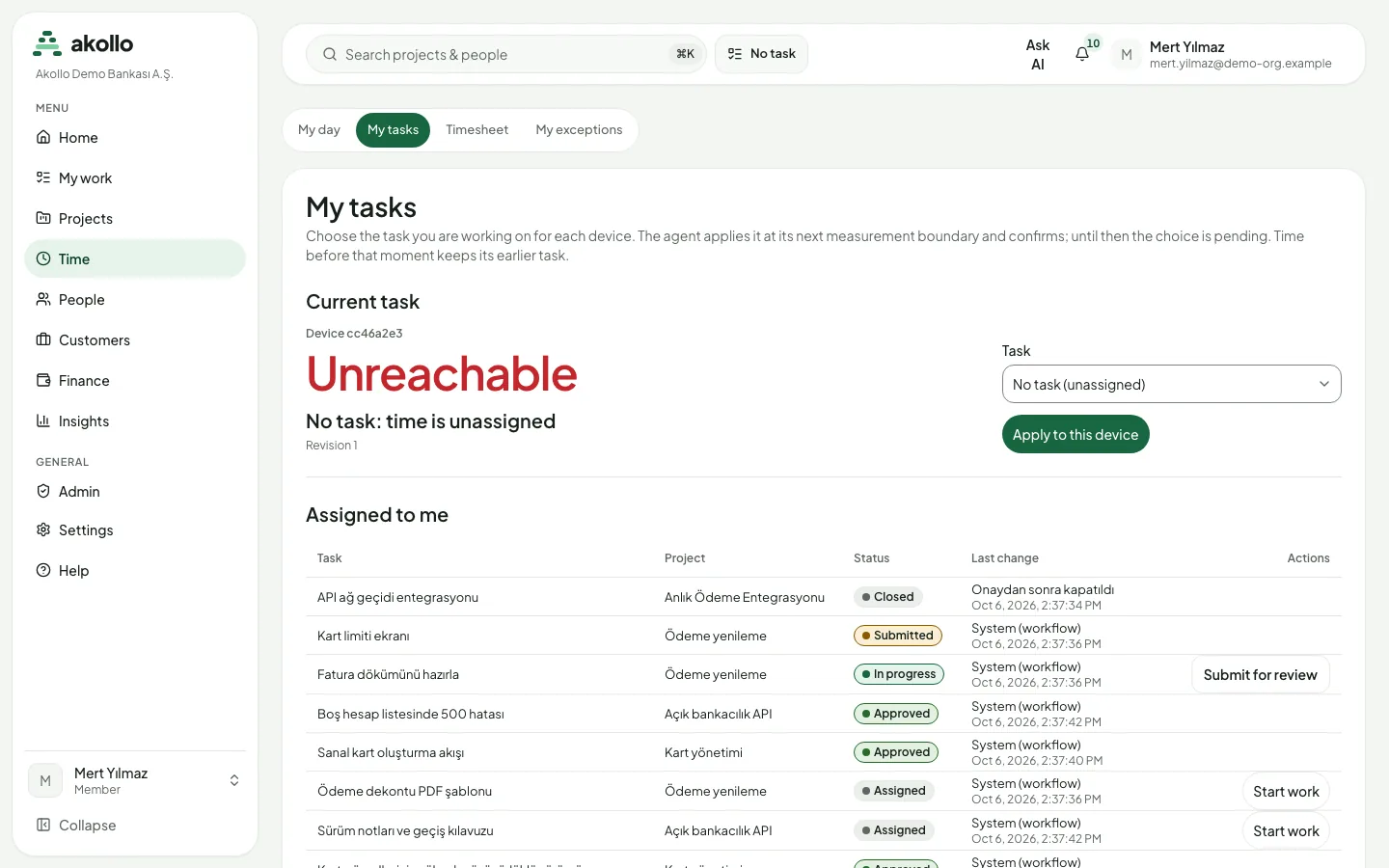
Choose a task for your device
Open Time → My tasks. Under Current task, pick the task in the Task list and select Apply to this device.
Wait for the device to confirm
The choice stays pending until the desktop app applies it at its next measurement. From then on, time is credited to the new task.
Submit the task when it is done
In Assigned to me, select Submit for review next to the task and add a delivery note or link. The task goes to the review queue of your manager.
My day
My day lists your enrolled devices with the app version, when each was last seen and the task it is running, with a link to change the task. Its summary also shows the day's totals: counted, worked and payable time, and time entries still waiting for approval. If only part of the day falls within your scope, for example on the day you moved to another team, the totals cover that part only and the page says so.
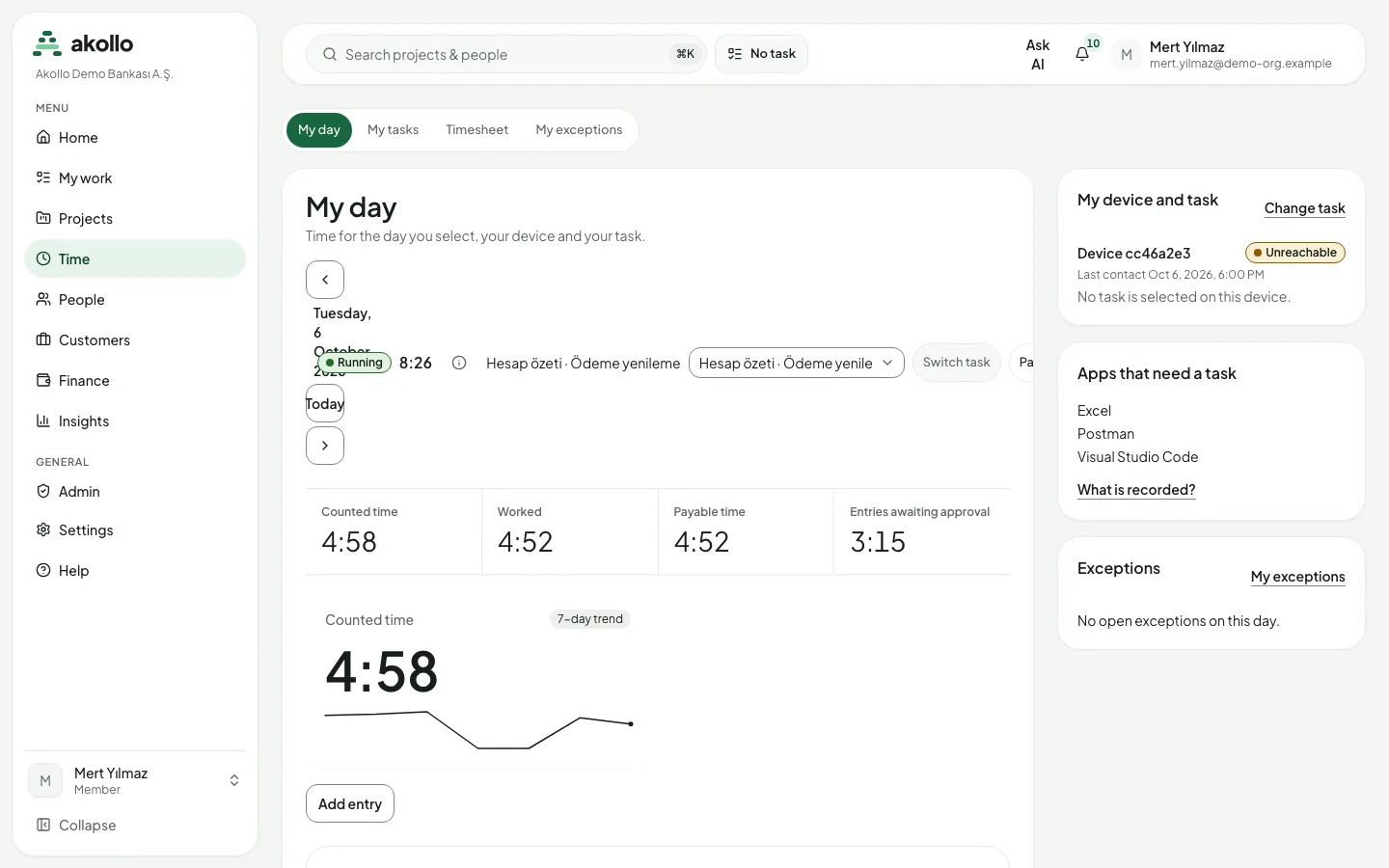
The full day view (/tracking/day) shows, for one day:
- totals for worked, credited, recorded and not credited time;
- a breakdown by state (active, idle, locked, asleep), by category and by task;
- a Day at a glance strip and a filterable list of intervals;
- the captures of the day, if screenshots are enabled (see Screen evidence and privacy);
- notes that explain time that was not credited, the history of task changes, and the devices and sessions involved.
Managers with review permission can open the day of an employee in their scope from Team days (/tracking/team).
Open My day
Choose Time → My day in the sidebar. Use the arrows or Today to move between days.
Check the totals
Compare Counted time, Worked and Payable time. Entries awaiting approval shows time that is not yet payable.
Look into gaps
Open the full day view to see why time was not credited, and which task each interval went to. If something is wrong, propose a correction (see below).
Timesheet
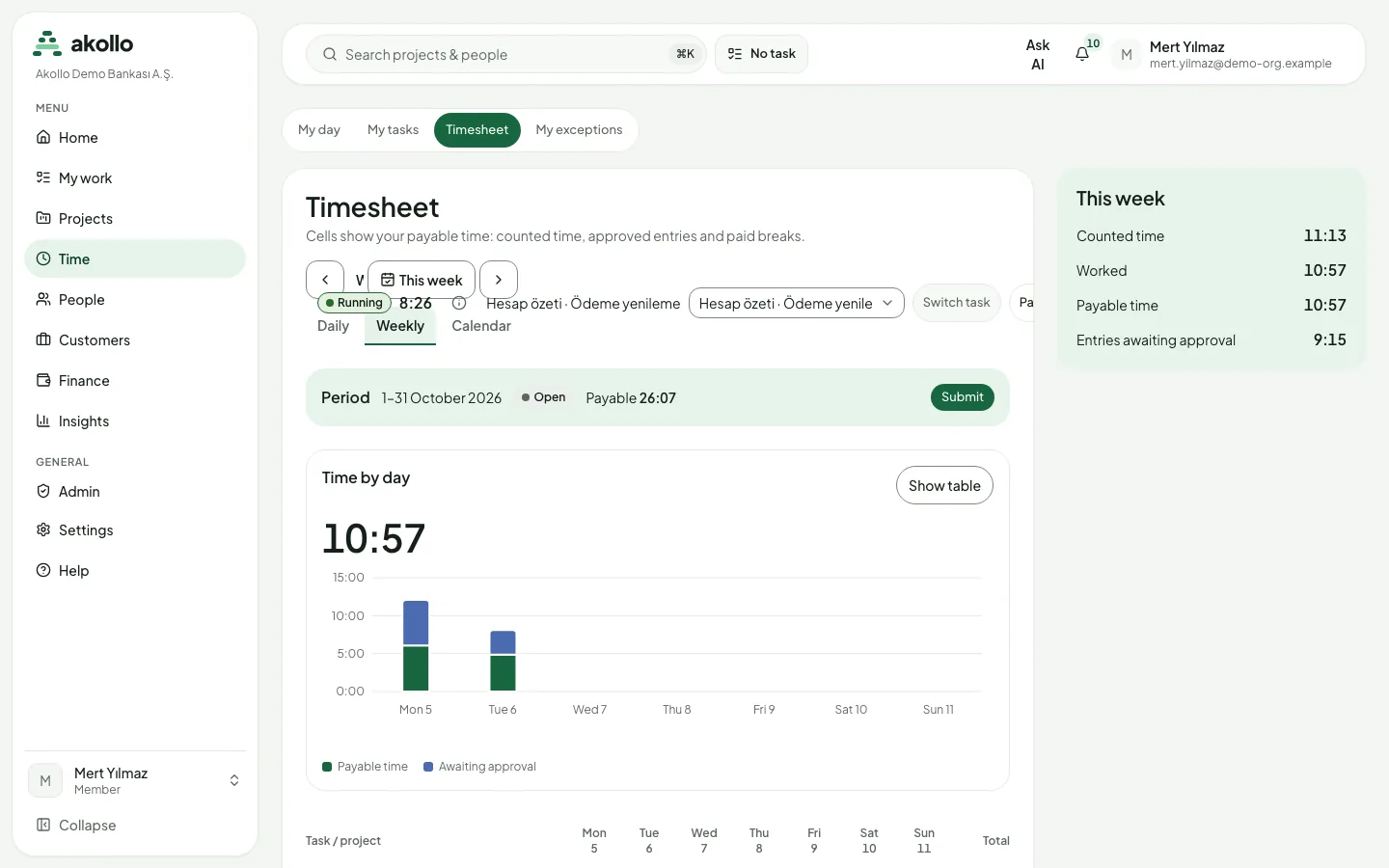
The Timesheet page shows an ISO week in a daily, weekly or calendar view, with the tasks assigned to you. A side panel sums up the week: counted time, worked, payable time and entries awaiting approval.
- The Day total row shows your payable time for each day: credited time plus your approved time entries. Entries still waiting for approval are not counted.
- The week total adds up the days on screen, and in the calendar view each day shows its own total.
- A day with no time shows a dash. Time is not split by task yet, so the task cells stay dashes.
- A day marked with * falls only partly within your scope; its total covers that part only.
If the totals cannot be read, the cells show dashes.
A Period bar above the chart shows the current period, its state and its payable total, with a Submit button. A submitted timesheet appears under Approvals → Timesheets for a manager. If it is rejected, you see the manager's note, fix the period and submit it again.
My exceptions
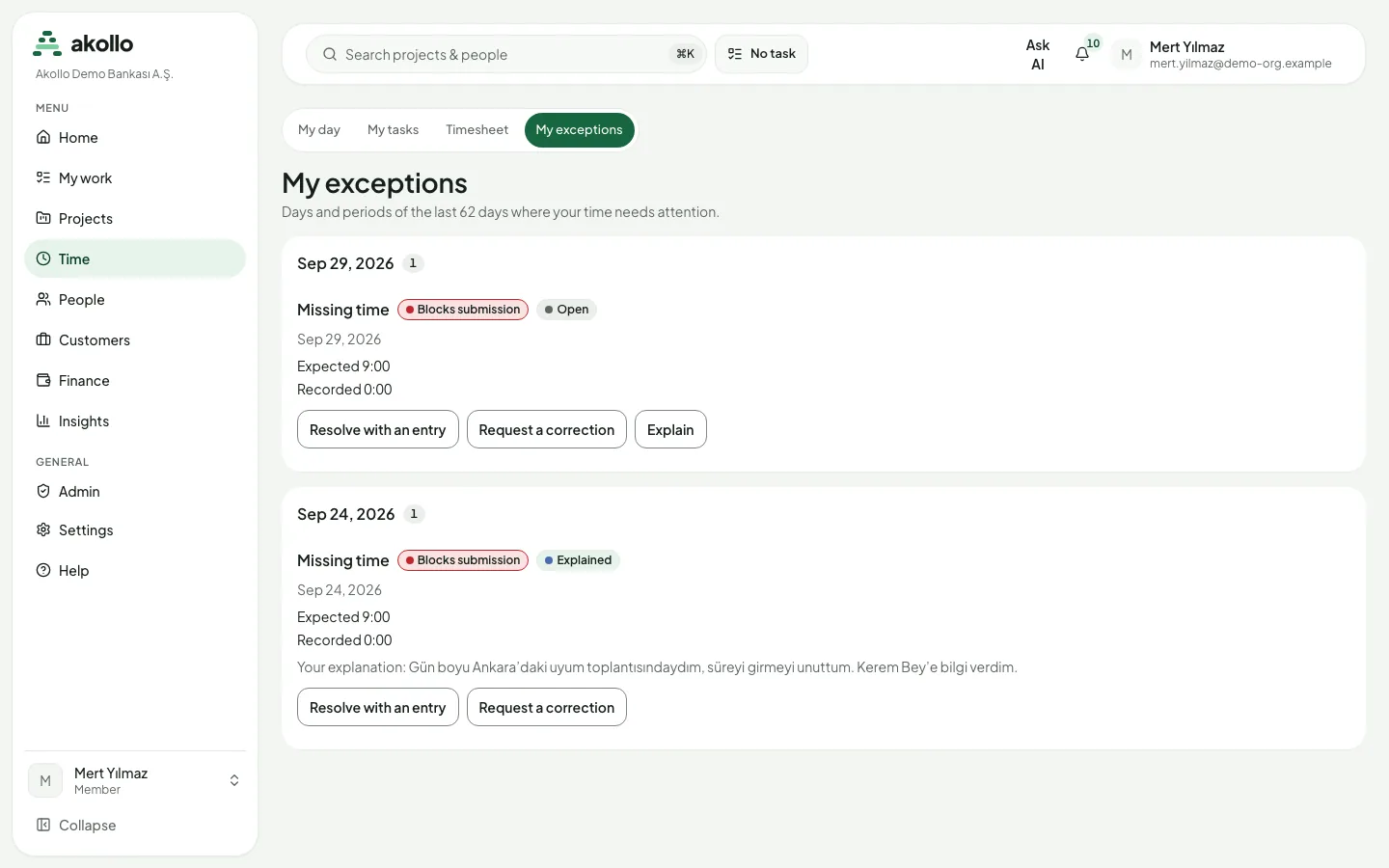
My exceptions lists the days and periods of the last 62 days where your time needs attention, for example missing time, uncredited time, a device clock that is off, overlapping entries or a period that was not submitted. Each exception shows its state (open, explained or resolved) and the evidence, such as expected and recorded time.
- An exception marked Blocks submission must be dealt with before the period can be submitted.
- Resolve with an entry adds a time entry for the missing time.
- Request a correction starts a time correction.
- Explain sends a short explanation to your manager, and the exception is marked explained.
Someone other than the employee must dismiss a blocking exception.
Time corrections
Time corrections (/tracking/corrections) start from an employee and a day and show the measured intervals.
- Propose: change an interval's task or category, or mark it as worked or not worked, with a reason.
- Decide: approve, reject or withdraw a proposal, with a reason. A correction must be approved by a second person.
A correction never changes the measured record itself. Reports show the corrected and the original figures side by side. A proposal names the intervals you are looking at: if they change before it is approved, the proposal is refused instead of being applied to other time.
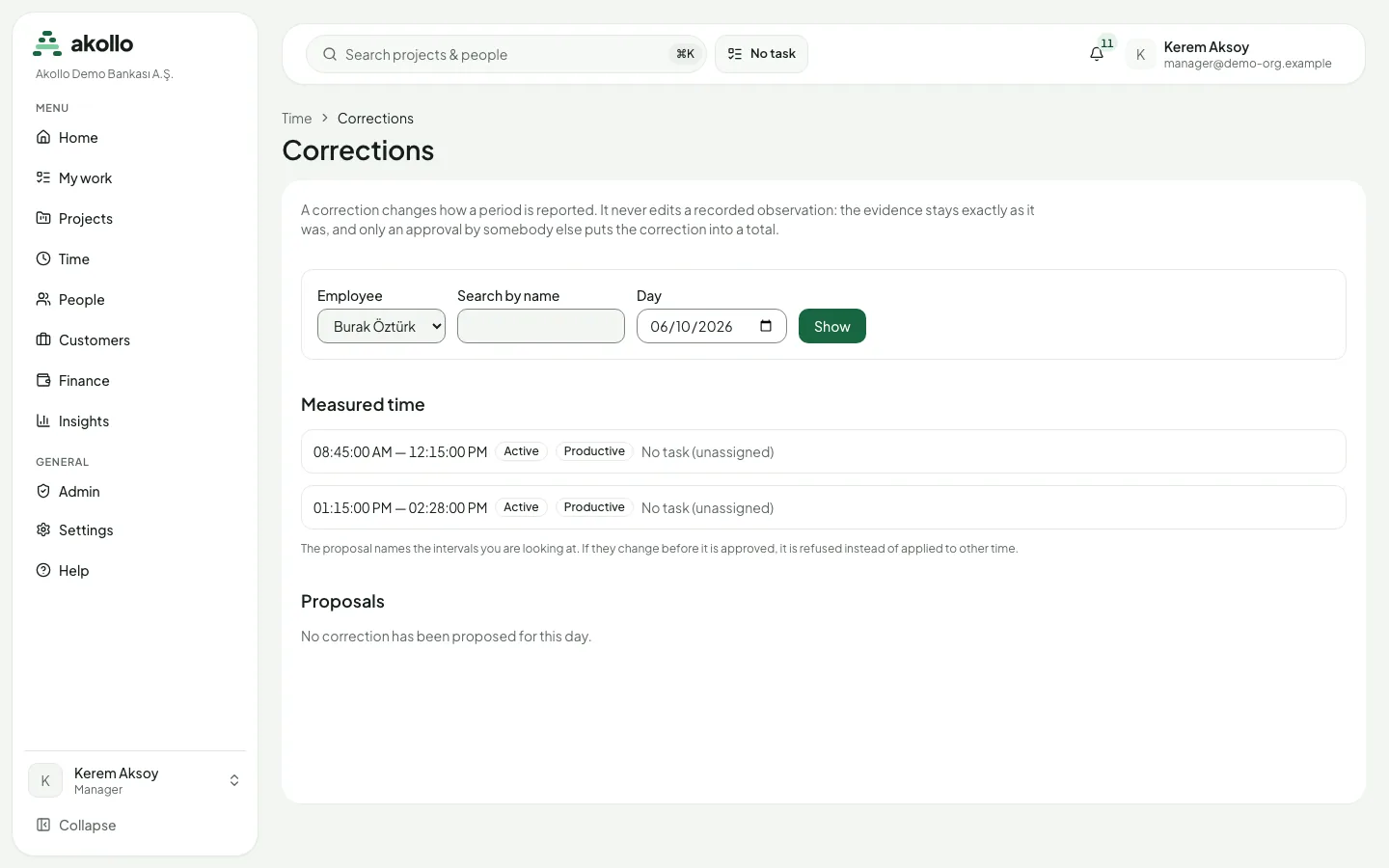
Choose the employee and the day
Open /tracking/corrections, pick the Employee and the Day, and select Show.
Propose the change
Under Measured time, choose the interval. In Propose a correction, pick what to change (task, category, or worked or not), set the new value, enter a reason and select Propose.
Wait for a second person
The proposal appears under Proposals as waiting for a second person. You can withdraw it with a reason while it waits.
Approve or reject
A second person with the right permission opens the same day and chooses Approve or Reject, with a reason. Only an approved correction changes the totals.
Note
The measured record is never edited. The evidence stays exactly as it was, and only an approval by somebody else puts a correction into a total.
Team and approvals
- Team shows the members in your scope, the tasks assigned to each, and counts of tasks in progress, tasks awaiting review and projects.
- Approvals is the queue of items submitted for review in your scope. Its tabs cover tasks, timesheets, time entries, reopen requests and overtime. Approve or reject each one with a reason; a rejected task goes back to its assignee. Past decisions are listed too.
- Projects (in the Projects section, for people who manage projects or review tasks) is where projects and their tasks are created and edited, employees in scope are assigned, tasks are closed, and decisions on submitted tasks are recorded. Every change keeps a reason.
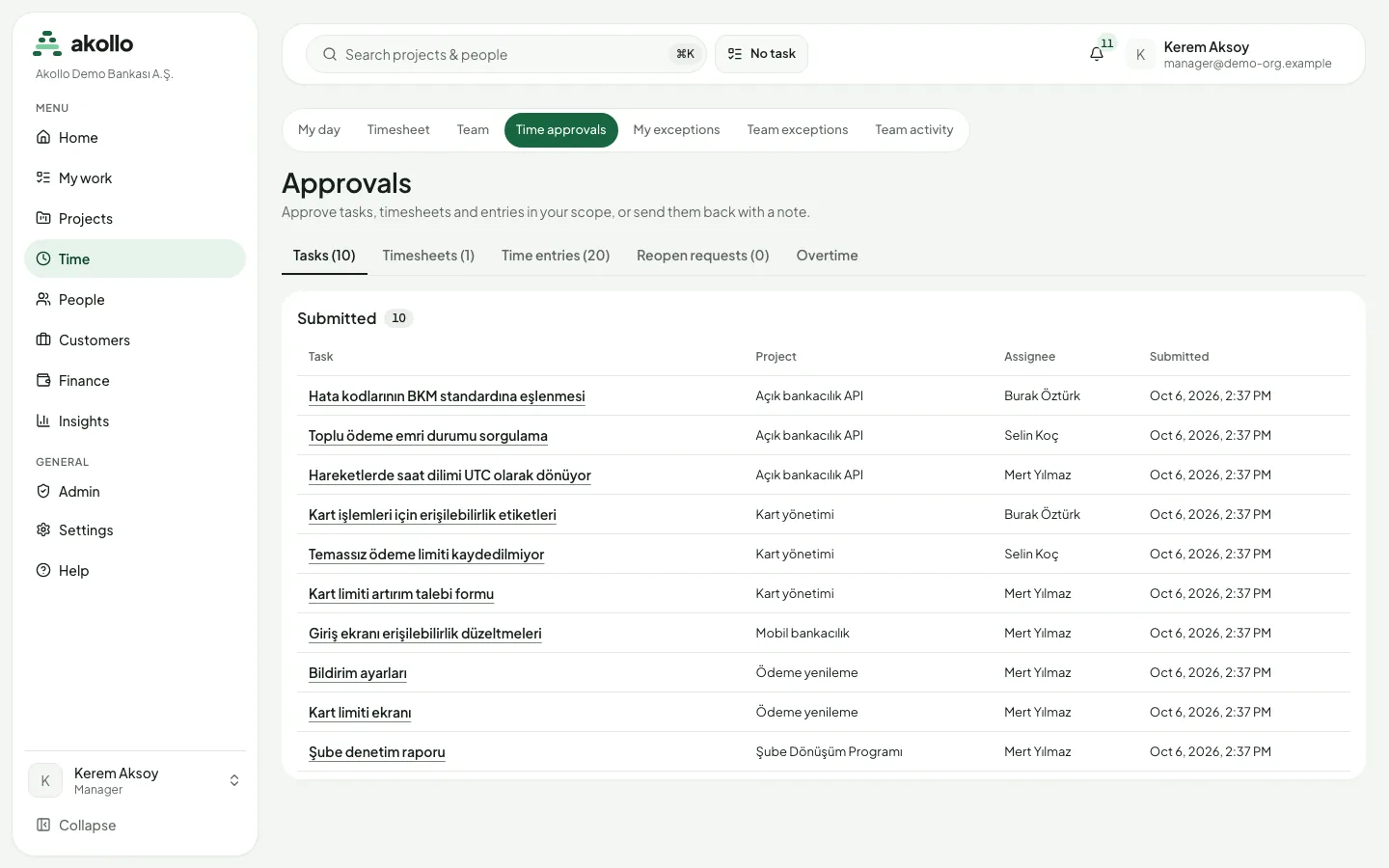
Open the approval queue
Choose Time → Approvals. The Tasks tab lists the tasks submitted in your scope, with project, assignee and submission time.
Review the task
Open a task to read the delivery note or link.
Decide
Choose Approve, or Reject with a reason. A rejected task goes back to its assignee, who sees your note.
Home dashboard
The dashboard shows cards for tasks in progress, credited time, tasks awaiting review, the review queue and devices online, plus your tasks. Which cards appear depends on your permissions.
FAQ
Recorded time runs from the start of a session to its end or its last evidence. Only part of it may be credited, for example when two devices record the same moment. The full day view lists the time that was not credited and explains why.
At the desktop app's next measurement. Until then the choice is pending, and the time before it keeps the earlier task.
No. A correction must be approved by a second person. The same applies to dismissing a blocking exception.
No. The measured record stays as it was. Reports show the corrected figure next to the original one.
A dash means there is no time for that day, or the totals could not be read. Time is not split by task yet, so the task cells always show dashes.
Timeline
The timeline shows projects, epics and work items as bars on one time axis, with dependencies, sprints, milestones and the critical path.
Desktop app and devices
The Akollo desktop app measures activity on the employee's computer. Sign in a device, revoke it, check device health and set the recording policy.