

Connected systems
Integrations connects Akollo to the outside systems your organisation already uses. This page covers the catalogue of connectors, how to set up a connection, how to manage it and how its syncs, field mapping and issues work.
Overview and catalogue
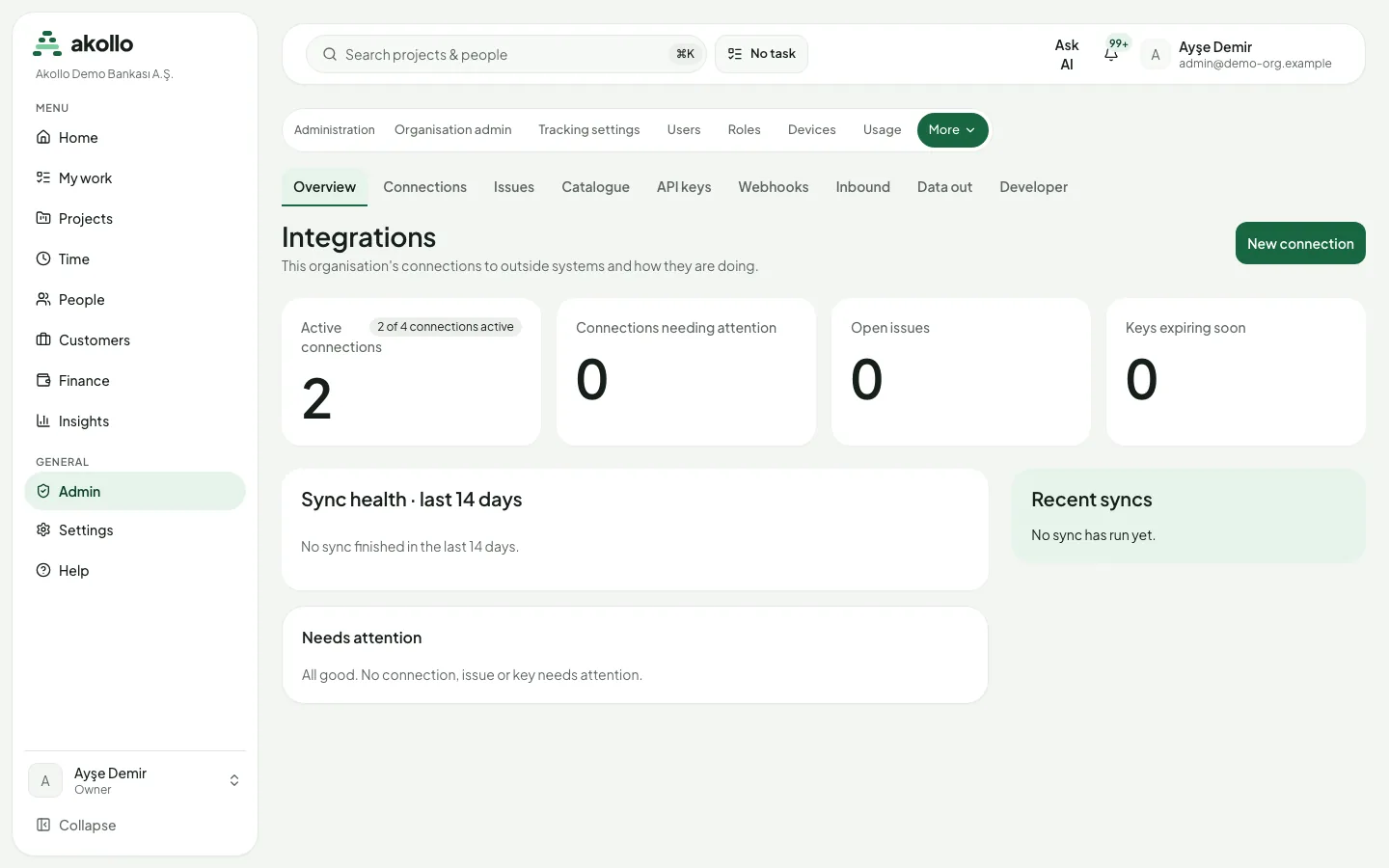
The Overview tab counts this organisation's connections by status. It also shows open issues, keys expiring soon, sync health over the last 14 days and the most recent syncs.
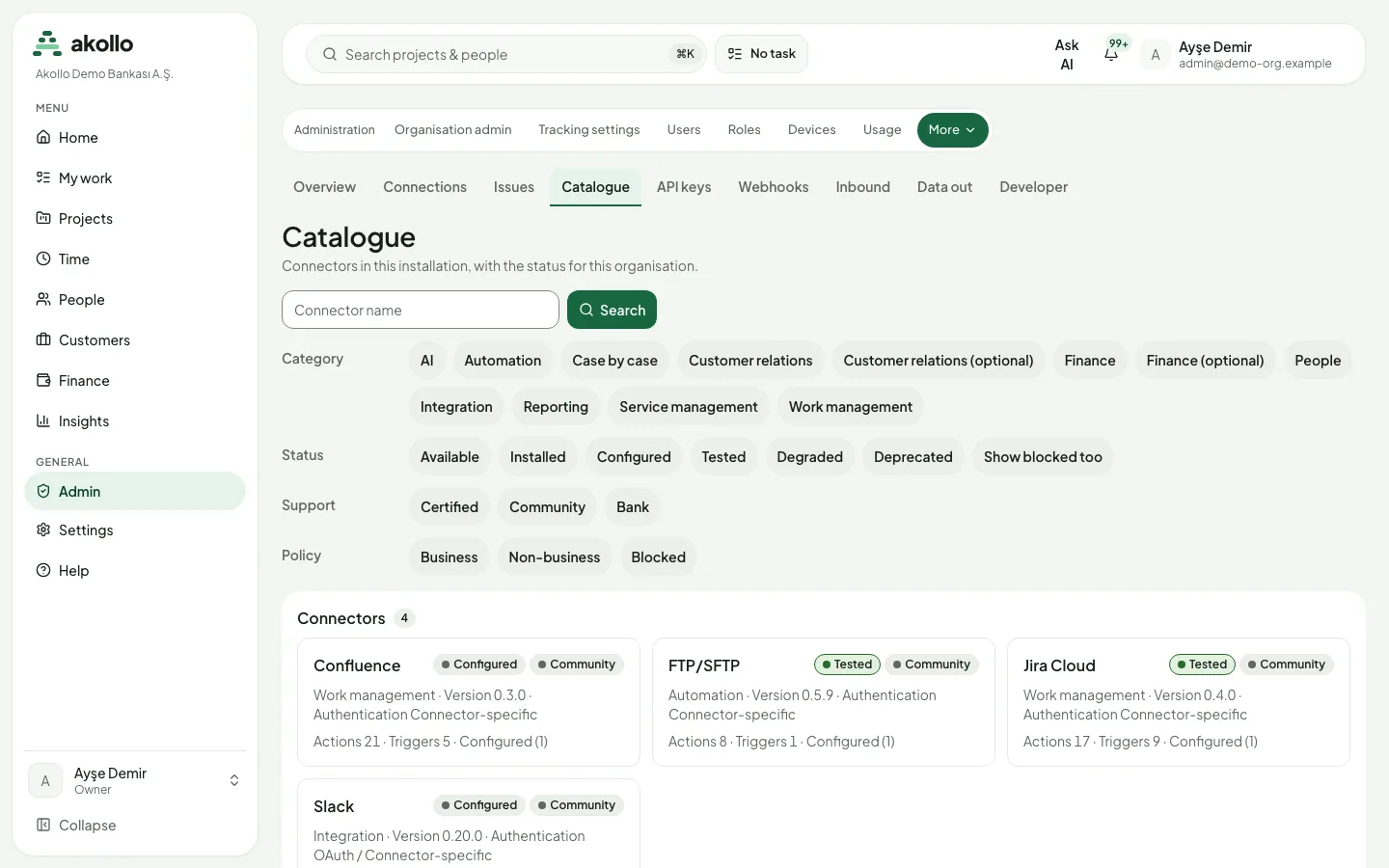
The Catalogue tab lists the available connectors. You can filter it by category, status, support and policy. Connectors include Jira Cloud and Jira Data Center, Slack, Microsoft Teams, Gmail, Outlook, Google Calendar, Salesforce, HubSpot, Pipedrive, Excel, SharePoint, Google Drive, Power BI, Azure AD and Okta. A connector that is not installed in this installation is dimmed; it is installed with a release. Blocked connectors are marked.
A connector's page shows each version with that version's test record ("Not tested at this version" when there is none), the allowlist, the hosts it may reach and its licence. A deprecated connector shows the date it will be retired. Directory connectors allow reading and listing only. The Activepieces platform connector and the PostgreSQL connector are always blocked.
Each connector carries two statuses:
| Status | Values | Meaning |
|---|---|---|
| Status in this installation | Available, Installed, Configured, Tested, Degraded | Where the connector stands in this installation. Blocked and Deprecated replace it. |
| Support | Certified, Community, Bank | Certified when the checks for that exact version have passed; otherwise one of the other two. |
Setting up a connection
Choose New connection on the Connections tab to start a short setup.
Choose the connector
Only connectors that are installed and allowed for this organisation are offered.
Enter credentials and owners
Give the connection a name, an owner and a different backup owner. Then enter the credentials the connector asks for: an API key, a username and password, or OAuth client details. Jira Cloud asks for an email and API token, Jira Data Center for a personal access token.
Credentials are stored encrypted as soon as you save. They are never shown again, not even to you. An OAuth connector sends you to the provider to sign in and brings you back.
Choose data and direction
Choose Read, Write or Read and write. Read brings data into Akollo; write sends data out. The data classes and hosts that the connector policy allows are shown for reference.
Test, then activate
Run Test, then Activate. The connection stays a draft until a test passes. A failed test keeps the draft and shows the provider's short code, never its full reply.
Note
In this release connector execution is turned off. The test step is not offered and the connection stays a draft.
Managing connections
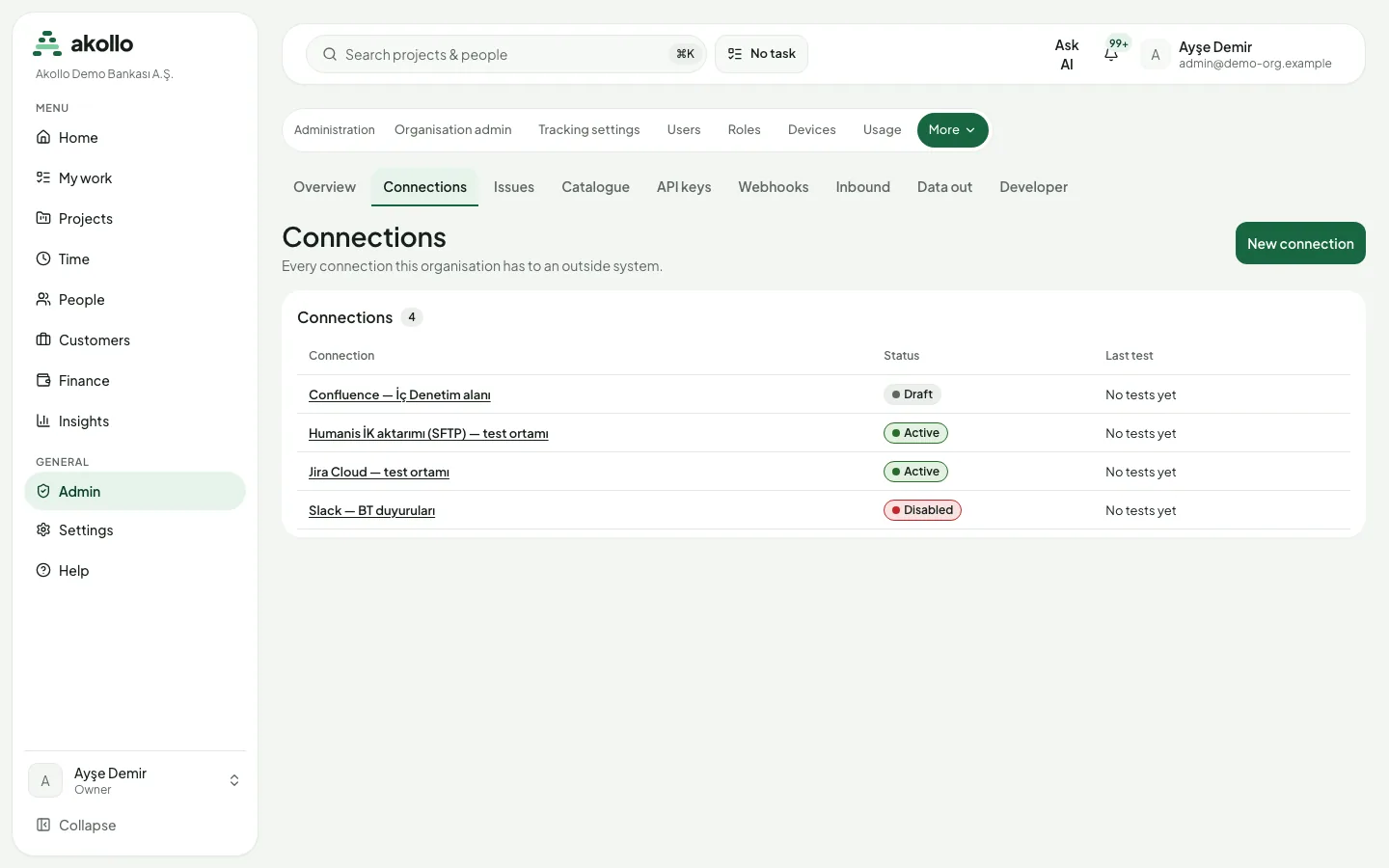
The Connections tab lists each connection's name, status and last test result. On a phone it becomes a list of cards.
A connection's page has Overview, Tests and Syncs tabs. They show the status, reason, connector and version, owner and backup owner, data direction and hosts, and the last 50 tests.
| Action | Who | What to know |
|---|---|---|
| Disable and enable | People who manage the connection | A reason is required. |
| Change owners | People who manage the connection | A reason is required. |
| Rotate credentials | People with the right permissions | The previous credentials keep working for 24 hours. |
| Delete | People with the right permissions | Type the connection's name exactly. A connection still used by a sync cannot be deleted. |
You continue a draft with Continue setup. Test now is not offered while connector execution is off.
Provider settings
Directory and mail connections (LDAP, Entra ID and Outlook mail) have a Provider settings section on the Overview tab. Examples are the server, search bases and attribute mapping of an LDAP directory, the tenant and application of Entra ID, or the mailbox and folder Outlook reads. Until something is saved, it says "Not configured yet".
People who manage the connection can edit the settings, unless the connection is disabled or revoked. Everyone else sees them read-only.
Warning
Passwords are never entered here. An LDAP bind password is changed with the connection's credential form. Entra ID and Outlook take the name of a stored secret, not the secret itself.
If someone else saved the settings in the meantime, the form asks you to reload. Rejected values stay on the screen so you can correct them.
Syncs, mapping and issues
- Sync streams: each stream shows its state, last run, recent runs (records read, written and set aside, duration, result), where it stopped reading, open conflicts and its mapping version. Run now queues a run; a second run is not added while one is waiting. You can pause a stream with a reason and resume it. Queued runs are processed in the background for LDAP and Entra ID directories. A run uses the connection's own service account, so Run now is refused while that account is not set up for integrations. A run reaches only the hosts the installation has published and your connector policy allows. With no published host it fails without contacting anything.
- Field mapping: for each Akollo field, the external field, the source of truth (Akollo, the external system or both), the transform, and what happens on a conflict and on a delete (nothing, archive, detach or ignore). You make changes in a draft. Review changes shows the difference, and publishing publishes exactly that difference. A draft that opens a protected field to the external system needs approval from a second administrator. On a phone the mapping is read-only.
- Issues: records a sync could not process are set aside while the rest continues. They are grouped by cause with counts and first and last seen. Only field names, types and, for unprotected fields, lengths are shown, never values. You can retry records (a retry reads the record again from the source), skip them with a reason, resolve a conflict by choosing the Akollo value, the external value or a new value, and download the list as a CSV file without record content. Saved copies of failed records are encrypted and deleted after 30 days.
For the full rules, see Sync details.
FAQ
Setup offers only connectors that are installed and allowed for this organisation. A connector that is not installed is dimmed in the catalogue and comes with a release. Blocked connectors are never offered.
No. Credentials are stored encrypted as soon as you save and are never shown again, not even to you. To change them, rotate the credentials; the previous ones keep working for 24 hours.
A connection stays a draft until a test passes. In this release connector execution is turned off, so the test step is not offered and the connection stays a draft.
A connection that a sync still uses cannot be deleted. Deleting also needs the right permissions and the connection's name typed exactly.
No. The Issues tab shows only field names, types and, for unprotected fields, lengths. Saved copies of failed records are encrypted and deleted after 30 days.