

Admin
Admin is where owners and administrators set up the organisation: its structure of units and teams, its members, the roles they hold and the permissions that decide which pages and modules each person can use. It also holds devices, usage, access reviews and the audit records. Admin sits in the General group at the bottom of the sidebar, above Settings and Help, and appears only if you may open at least one of its pages.
Who uses it
| Role | What they do in Admin |
|---|---|
| Owner | Everything an administrator does, and manages administrators. |
| Administrator | Creates units and teams, invites members, assigns roles and permission sets, sets manager scopes, runs access reviews, reads audit records. |
| Manager | Usually nothing here. A manager’s reach comes from a role and a scope that an administrator gives them. Some managers review access items assigned to them. |
| HR | Maintains people and units when their role allows it; HR settings are under Settings. |
| Auditor | If your organisation creates such a role, reads audit records and reports without changing anything. |
| Employee | Does not see Admin, except pages a permission explicitly opens for them. |
Main screens
Admin pages are tabs at the top of the page. Pages that do not fit are under More.
| Screen | What it shows |
|---|---|
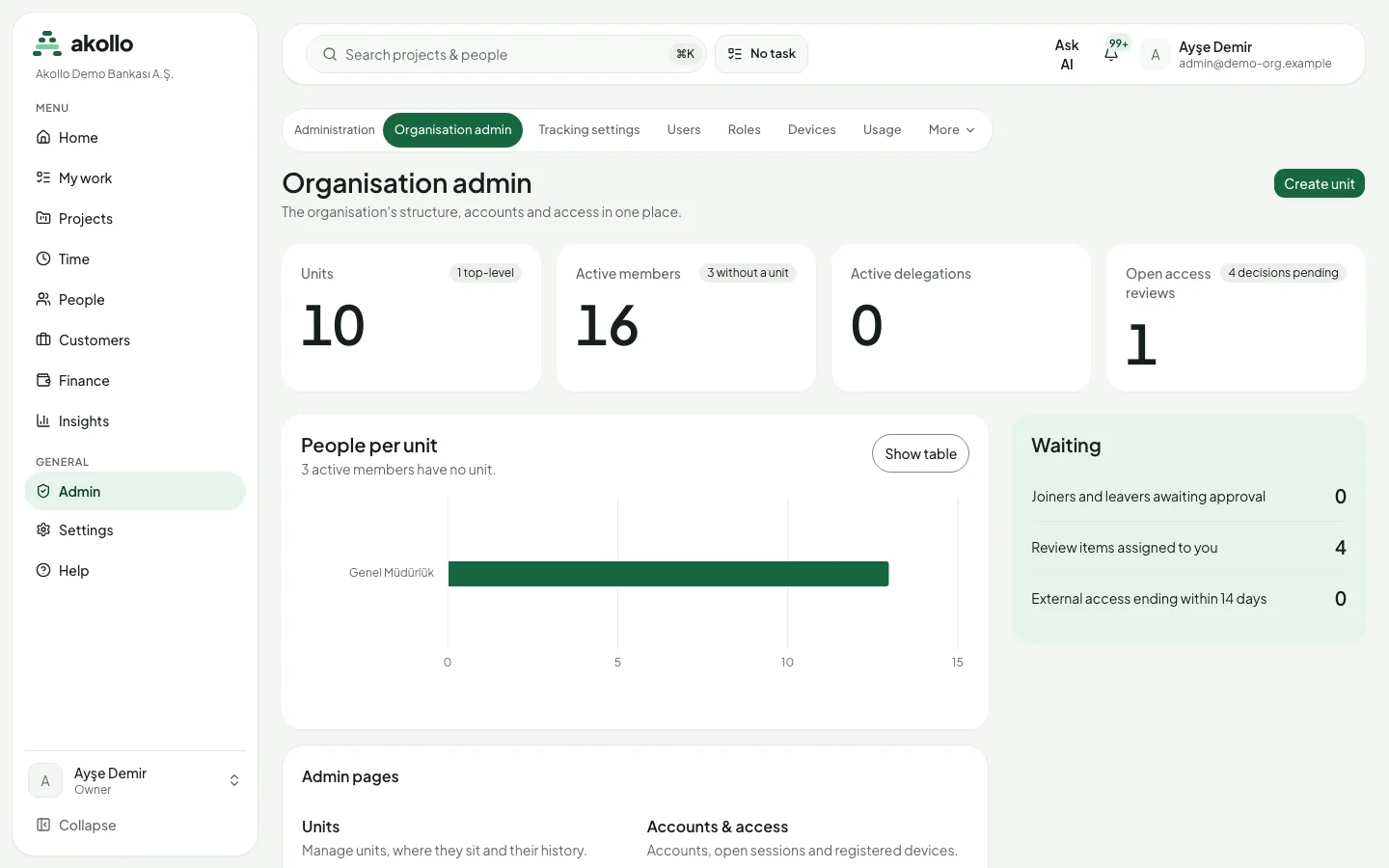
| Organisation admin | Counters for units, active members (and how many have no unit), active delegations and open access reviews; a People per unit chart; a Waiting panel with joiners and leavers awaiting approval, review items assigned to you and external access ending within 14 days; links to every admin page. |
| Tracking settings | The recording policy: schedule, screenshots, idle, retention and category rules. See Settings. |
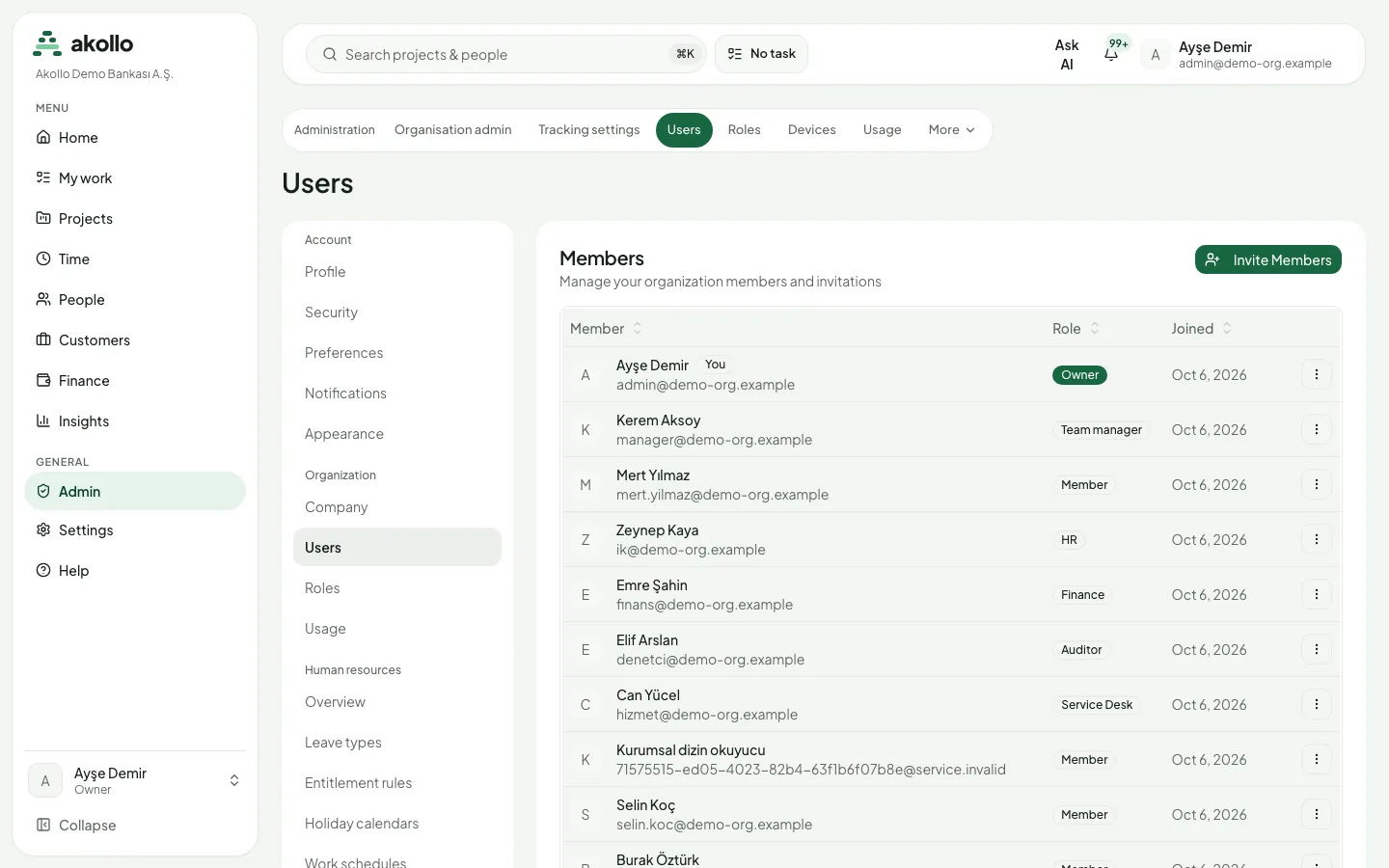
| Users | Members with their role and joining date, pending invitations and Invite Members. |
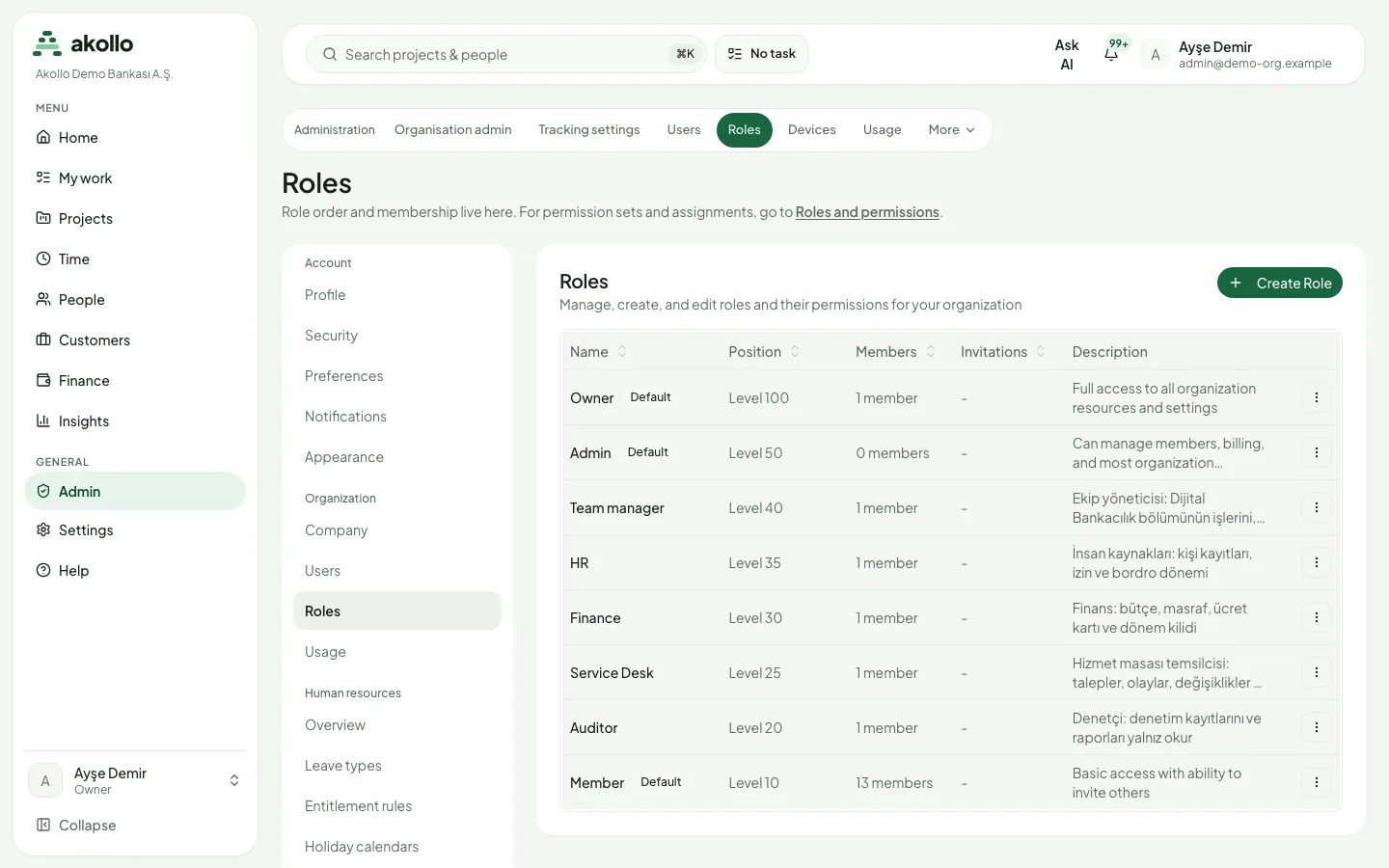
| Roles | The roles in order, with level, members and description, and Create Role. |
| Devices | Enrolled desktop apps with their employee, version, enrolment date, last seen, status and the Revoke action. |
| Usage | Usage per meter, day by day, with monthly budgets and Download CSV. |
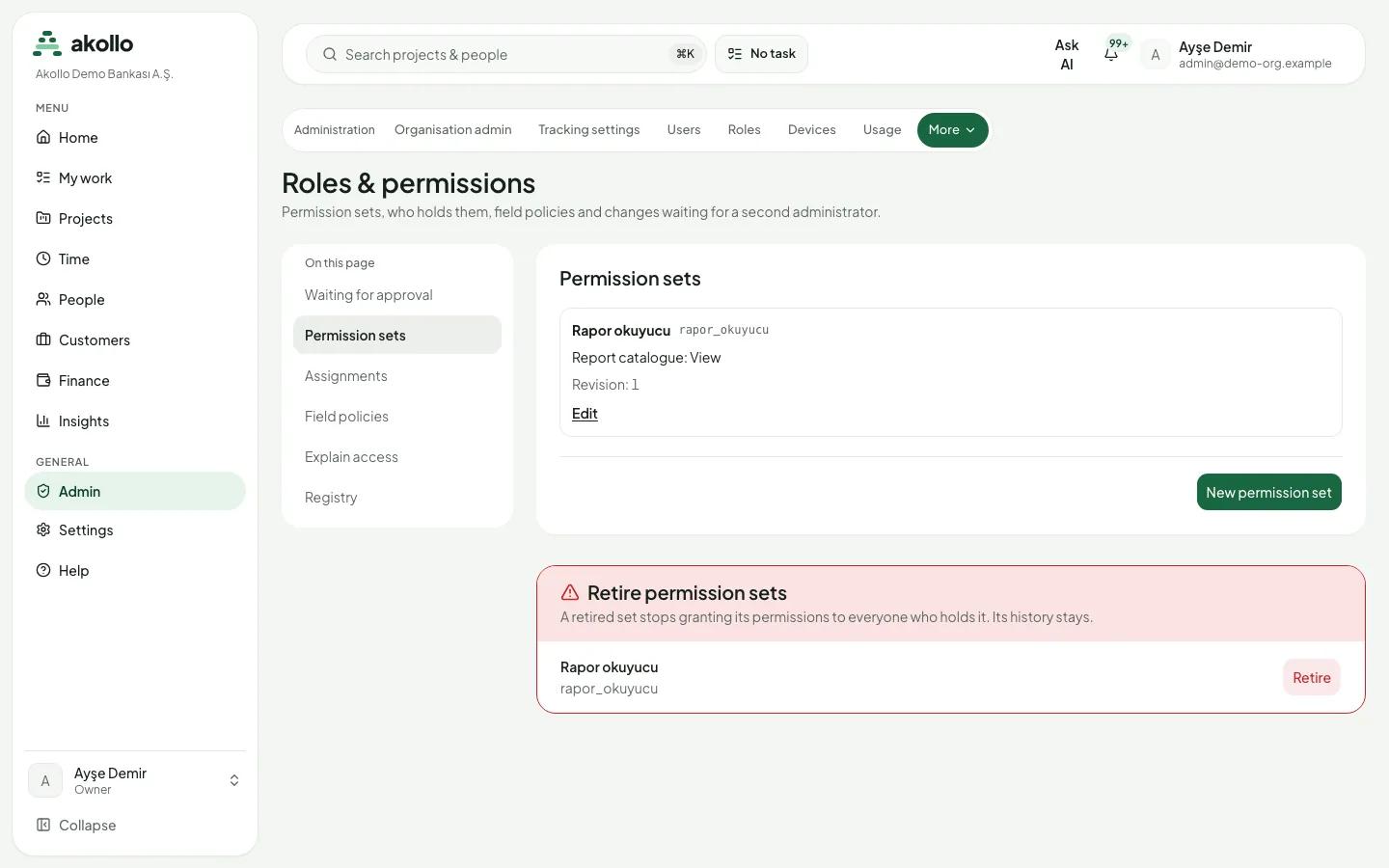
| Roles & permissions (More) | Permission sets, assignments, field policies, Explain access, the registry and changes waiting for a second administrator. |
| Sign-in, Group mappings (More) | Sign-in providers, connected directories and which directory group gives which role or unit. |
| External access, Access reviews, Audit records (More) | Contractors, access review campaigns and the log of privilege and configuration changes. |
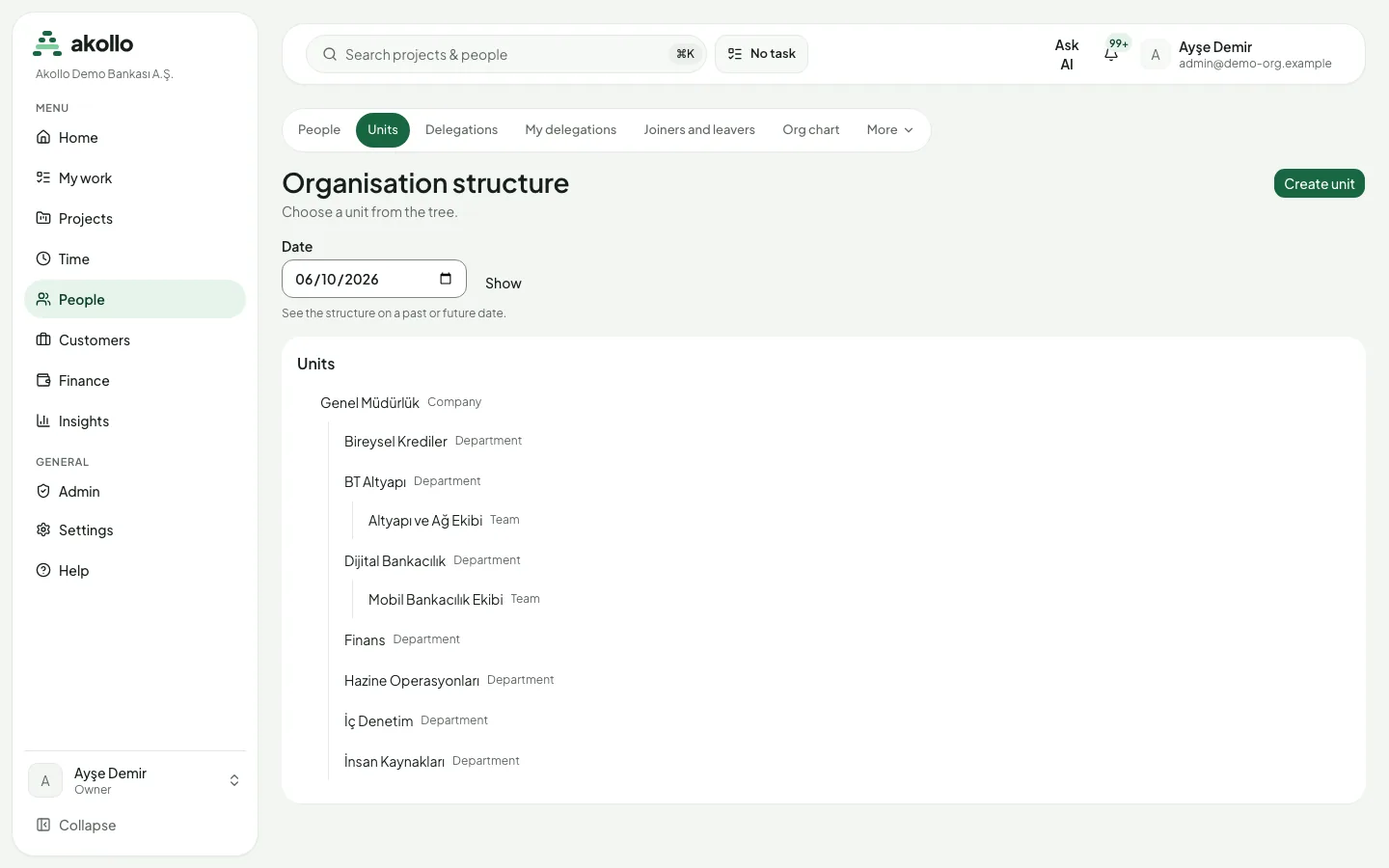
The structure itself is edited in the People section: Units shows the tree of units and Org chart the reporting lines on any date.
Key tasks
Build the organisation structure
A unit has a kind: company, region, branch, division, department or team. Teams are units too, placed under their department.
Open the units
Choose People → Units, or select Create unit on Organisation admin.
Create the unit
Select Create unit. Enter the name, choose the kind and the parent unit.
Set the effective date
Enter the Effective date and a reason, then select Create unit. The unit takes effect from the start of that day in the organisation’s time zone.
Check the result
Pick a date and select Show to see the structure on that day. Moving a person to another unit is recorded as a transfer, so their history stays correct.
Invite members
Open Users
Choose Admin → Users.
Invite
Select Invite Members, enter the email address and choose a role. Member is preselected.
Send the invitation
Select Send Invite. The invitation stays pending until the person accepts it with the same email address. There is no open sign-up.
Create a manager role and give it a scope
Owner, Admin and Member are built in. A manager is not a fourth built-in role: you create it, then limit it to the people it may manage.
Create the role
Choose Admin → Roles and select Create Role. Give it a name and a description. Custom roles take their place in the role order between the built-in ones.
Give it permissions
On Roles & permissions, create or choose a permission set (for example one that approves leave or reviews tasks) and assign it to the role.
Set the scope
On the workforce page (Settings → Workforce & recording), give the manager a scope: which unit or team they may review, and for which dates. Reviewing another person needs both the permission and a valid scope.
Assign the role
On Admin → Users, give the role to the person.
Decide who can use which module
Each module (time, projects, people, customers, finance and so on) publishes the areas and actions it offers. A person can use a module page only when an action of that page is granted to them.
Open Roles & permissions
Choose Admin → More → Roles & permissions. The Registry lists every area and action the modules publish.
Build a permission set
Select New permission set and choose the actions it bundles. Only listed actions can be chosen.
Assign it
Under Assignments, give the set to a person, a role, a directory group or a service account, optionally for a limited period. Sets with administrative rights wait in Waiting for approval for a second administrator.
Check the result
Explain access shows, for one person, every permission they hold and where it comes from.
Run an access review
Create the campaign
On Access reviews, select New campaign, choose what to review (a unit, a role, everyone with administrative rights, contractors or service accounts), set the due date and select Create draft.
Open it
Select Open campaign. The access in scope is recorded and handed to reviewers, who find it under My work → My access reviews.
Download the results
When the campaign closes, download the results as CSV or Excel. See Organisation and access.
Permissions
- Owners and administrators cover the whole organisation. An owner can administer administrators; nobody can use Admin to give themselves a role they do not already hold.
- Changes involving administrative rights, and loosening a field policy, wait for a second administrator. The person who asked cannot approve their own request. Removing a set or retiring one takes effect at once.
- Managers act only within their scope. A role alone does not decide which people a manager sees; the scope does.
- Sidebar: each section and page appears only if you may open it. Hiding is a convenience, not the protection: every page checks your access again and says so if you are refused.
- Support sessions can read Admin pages but cannot create, change, approve or delete anything. A support session does not inherit an administrator’s access.
What the AI can do here
Admin pages have no AI that changes access. You can still ask the assistant (Ask AI) questions about records you are allowed to see, and administrators decide who may use AI at all, with seats, monthly limits per person and an emergency stop, under Settings › AI › Access & usage. AI token use appears on Admin → Usage. See AI access and tokens and What assistance can see.
FAQ
No. Owner, Admin and Member are built in. An administrator creates a manager role under Admin → Roles and gives the person a scope, for example one department.
Seeing or reviewing another person needs both the permission and a scope that covers that person on that date. Extend the manager’s scope if they should see more.
No. You cannot grant yourself a role you do not already hold, and changes involving administrative rights need a second administrator.
Either the module is not enabled for the organisation, or none of its actions is granted to that person. Use Explain access on Roles & permissions to see what they hold and where it comes from.
The move is recorded as a transfer with an effective date. Reports and the org chart show the structure as it was on each date.
Not on its own. Directory changes run as joiner, mover or leaver cases, and a change that would make someone an administrator or owner waits for an approver.
Related
Governance and privacy
How Akollo tells people what is recorded, keeps an audit trail, reviews access, limits how long data is kept and controls what leaves the organisation.
Settings
Every settings page in one place: your account, the organisation, recording, devices, integrations and audit, with who may change what.